


 Keep an item for later with Snooze, or delete its inbox row when you have finished with it. These actions organise your inbox; they do not decide the underlying request.
Mark what you have read
Opening an item marks it read. With sections on, the row stays where it is until you leave Inbox, switch tab or change a filter, then it moves to the Read section at the end of its tab. To change that yourself, right-click the row and choose Mark as read or Mark as unread. On a computer, the selected item’s header also has a read-status button. To mark everything read, open More actions beside the Inbox title and choose Mark all read. This covers both tabs, including items outside your current filters. For several items, hold Cmd on Mac or Ctrl on Windows while clicking rows. Use Shift-click for a range. The header then offers Mark read and Delete for your selection.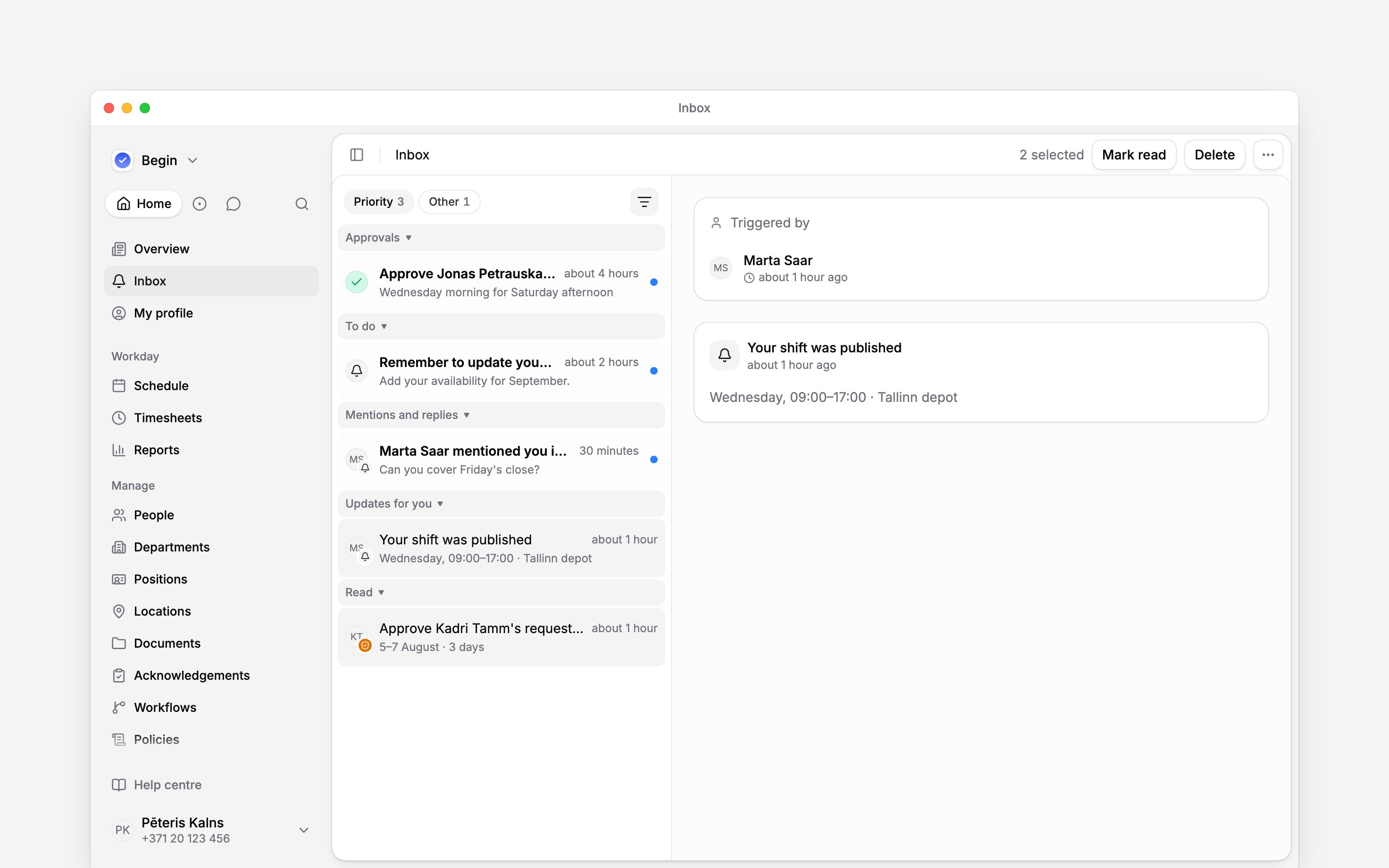
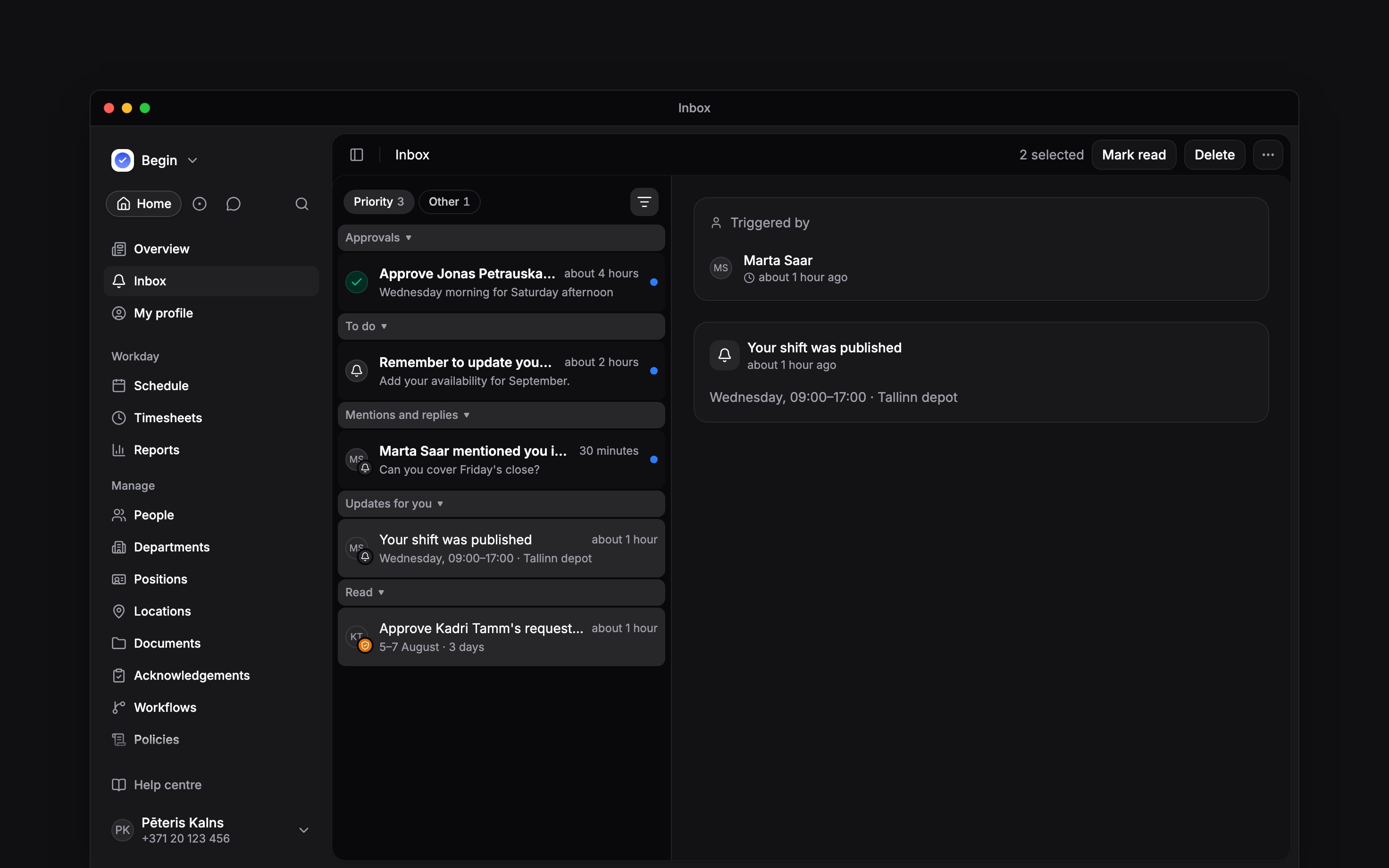
The selection count shows how many rows the header actions affect.
Set an item aside
Right-click its row, open Snooze and choose 1 hour, 3 hours, Tomorrow 9am or Next week. Next week means next Monday at 09:00; the calendar choices use your browser’s timezone. The item disappears until that time, then returns as unread. Use Undo in the confirmation message if you want it back immediately.Clear finished items
Delete one item from its row menu or, on a computer, its detail header. Under More actions, choose:- Delete all read to clear read items from both tabs and keep unread ones.
- Delete all to clear both tabs, including snoozed and filtered-out items.
Choose how the list is arranged
Select a section’s header to collapse the section, and again to open it. Begin remembers which sections you collapsed on that device only. To see each tab as one list, newest first, open More actions and turn off Group by type. It is on by default and saved to your account, so the choice follows you to your other devices and to the phone app. While Inbox is open, the command palette (Cmd / Ctrl + K) offers Show inbox as one list while the sections are on and Group inbox by type while they are off. You can also ask Begin AI to turn it on or off.Next
Filtering your inbox
Find a smaller set before selecting individual items.
Notifications
Choose what arrives and when old read items are cleared.
Still need help?
Contact support
Email the Begin team and we’ll get back to you.
Ask Begin AI
Open the AI assistant and get instant answers based on these docs.