


 Use Deactivate to stop someone’s access while keeping their records. Use Delete person when you intend to remove the person and start the deletion countdown.
Stop access and keep history
You need Deactivate & reactivate to deactivate someone. Deleting or restoring them needs permission to delete people, and the person must be within the scope your role can manage. Right-click the person in People, or open … on their profile, and choose Deactivate. Read the confirmation and confirm. Their status changes to Suspended; their records remain. While a person is suspended, marked Left or deleted, Begin sends them no notifications, reminders or emails from this workspace. Their calendar subscription link stops working and their Google Calendar sync stops. Use Activate on a suspended person to restore access. A person with Left status can also be activated. You can select several rows and use the corresponding bulk action.The workspace owner cannot be deactivated or deleted. The owner must transfer
ownership before leaving.
Delete a person
Choose Delete person from their menu. The confirmation asks you to type the person’s full name before the button enables; check the consequences it lists. For a bulk deletion, check the selected count too. Access ends and the person leaves the normal list. The record moves to Recently deleted, with a 90-day window before permanent erasure. Ending their job is a separate change to their employment record.Restore or permanently remove them
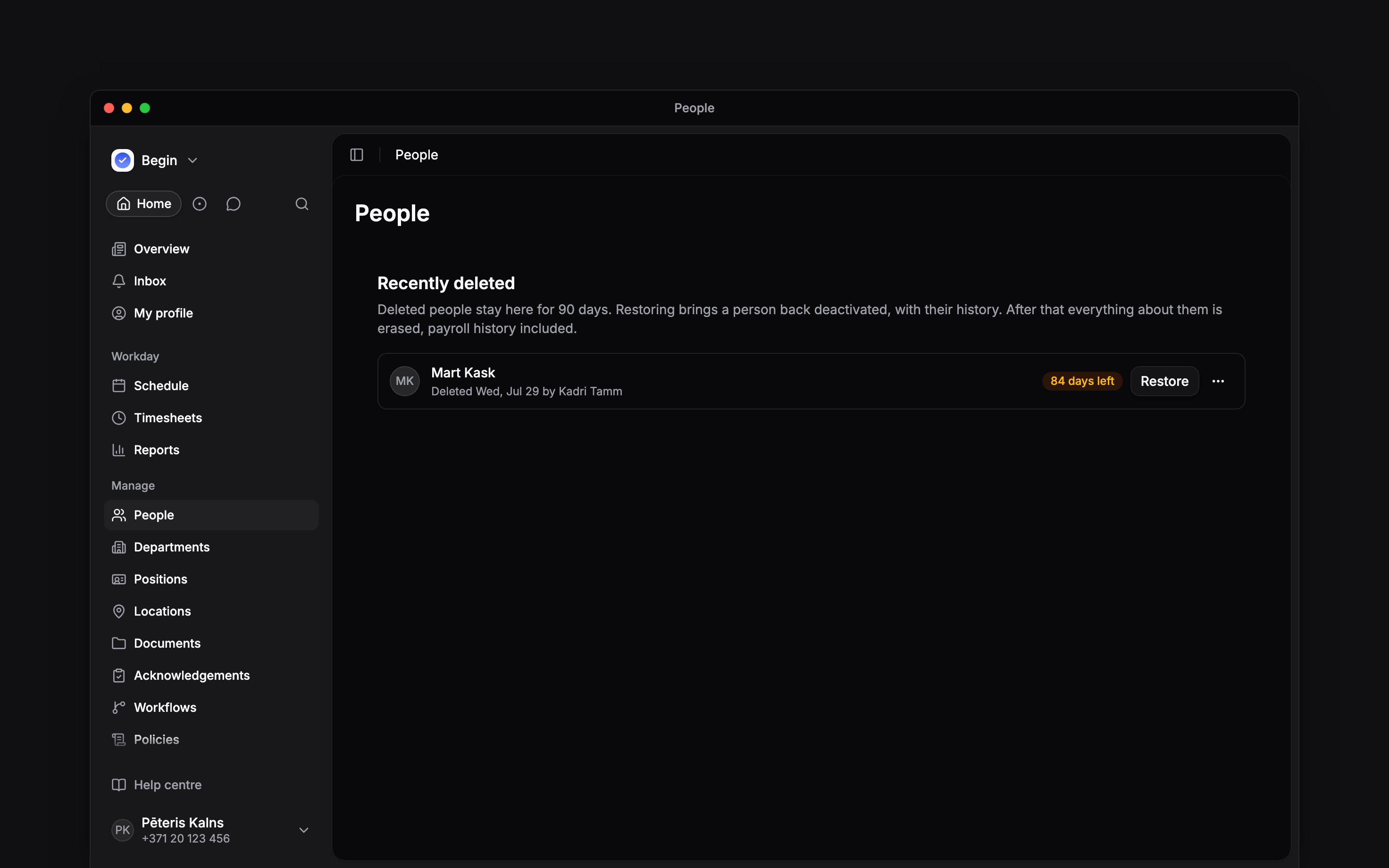
Open … → Recently deleted from the People page header. Each row shows how much time remains and the actions available for that record.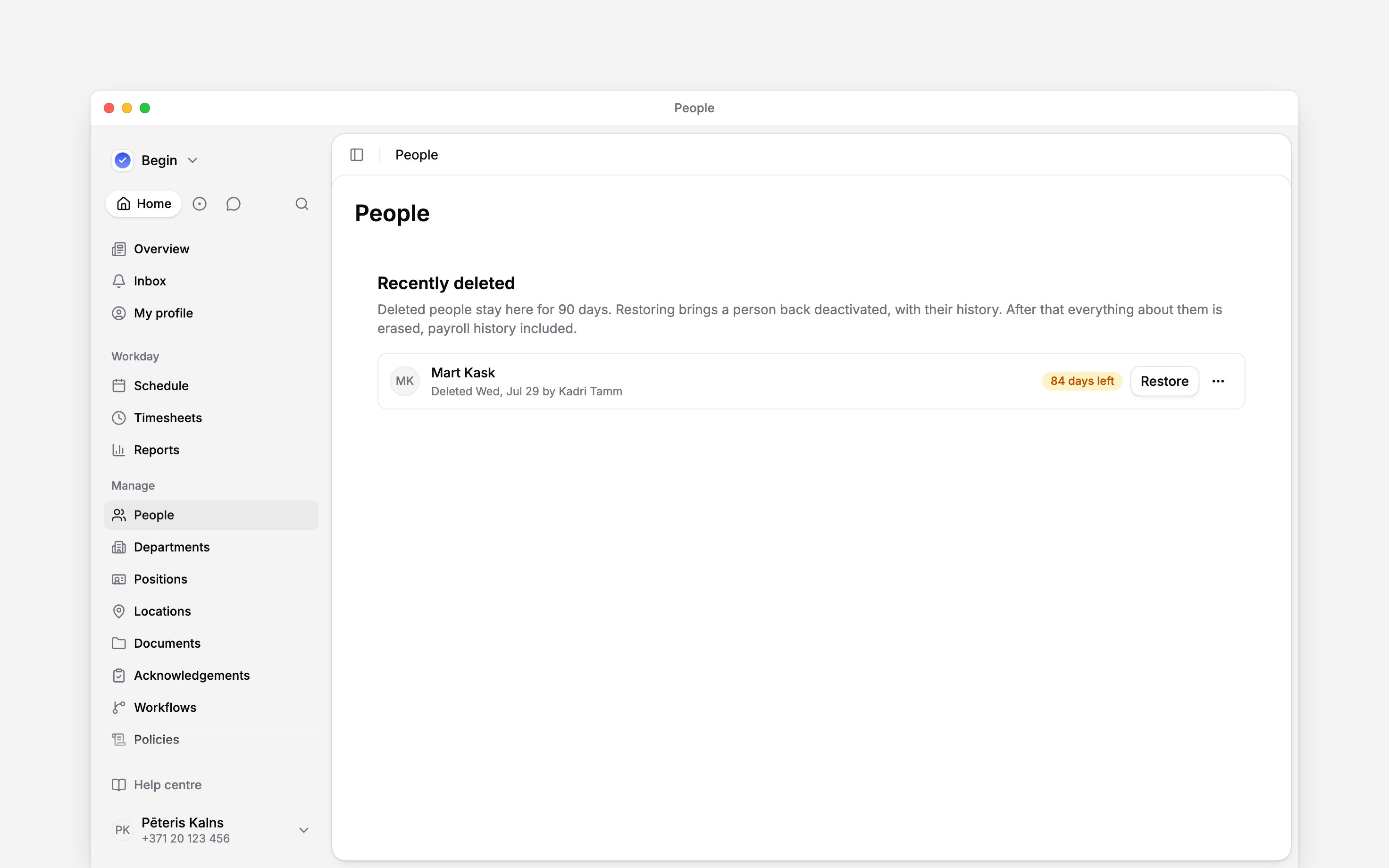
Next
Employment details
Set the end date on the job.
Data deletion requests
Answer a request about personal data.
Still need help?
Contact support
Email the Begin team and we’ll get back to you.
Ask Begin AI
Open the AI assistant and get instant answers based on these docs.