


 A workflow watches for something happening to a time entry and acts on it, with nobody looking at the page. It is how you find out that a shift started twenty minutes ago and nobody clocked in, rather than noticing at the end of the month.
Workflows sits under Manage in the sidebar and carries its own permission. If it is not
there, your role does not have it: ask an administrator rather than looking under Settings.
What can start one
The Time entry triggers cover the life of an entry: created, started, stopped, updated, deleted, approved and rejected. Time entry updated also runs when the entry’s status moves, so to act on any move between Pending, Needs review, Approved, Rejected and Cancelled, trigger on it and add Field changed on Status. Two setups are the ones most workspaces actually want:- To catch a punch outside the allowed location, trigger on Time entry created (it checks the clock-in punch) or Time entry stopped (it checks the clock-out punch) and add a logic gate with Pass when set to Any holding two Location distance checks: one for Outside expected area and one for No location captured. Each check reads the entry’s recorded location result, so together they catch both. It is the alerting half of the geofence a clocking policy enforces.
- Shift had no clock-in fires when a rostered shift has started and nobody clocked in. Its Grace period is how long to wait first, and leaving it blank means fifteen minutes.
Fill timesheets for people who never clock in
For people whose roster is their time record, the Fill timesheets from the schedule system workflow writes each ended shift into their timesheet as an approved system entry, marked Auto-filled from schedule. It waits in the workflow library and writes nothing until you turn it on.- Select New workflow on the Workflows page and pick it from the library. It joins the list as a draft under System workflows.
- In its trigger’s Advanced settings, include the people it covers, by name, position, location or department.
- Publish and activate it.
What it can check, and what it can do
Conditions narrow a trigger that fires too often. Besides the entry’s own status and duration, three are this domain’s own: Location distance check measures how far a punch was from the allowed location, Missing linked shift catches an entry nobody matched to a rostered shift, and Schedule vs actual compares the entry against the shift it is linked to. That last one takes an aspect (Clock-in time, Clock-out time or Paid duration), a comparison (Late, Early, Over or Under) and a tolerance in minutes, so “clocked out more than fifteen minutes over the planned shift” is one block. Location distance check takes a punch (Clock-in or Clock-out), a location (Within expected area, Outside expected area or No location captured) and an optional Distance limit (metres). Leave the limit empty and it reads the entry’s recorded location result instead, which after a clock-out covers both punches. A clock-out that automatic clocking made as the person left, or that they confirmed from its notification, is outside by design, so the clock-out check never counts it as outside or missing. The actions are Send notification, Request approval, Approve time entry, Reject time entry, Change time entry status, Add label and Remove label, plus three for clients: Add clients to a time entry, Remove clients from a time entry and Set a time entry’s clients. Entry status conditions and Change time entry status include Cancelled. Most useful workflows end in the first two: tell somebody, or put the entry in front of a person who can decide. Approve time entry, and Change time entry status set to Approved, leave alone an entry that auto-stop closed with no hours. It stays in Needs review until someone enters the real clock-out, and the run’s history shows that step as skipped. Add label is how a group of hours becomes its own number in a report, because the report’s label filter finds what the workflow marked. A shift workflow that labels the shift arrives at the same place, since clocking in copies the shift’s labels onto the entry.Beta
Build this one first: trigger on Shift had no clock-in with a grace period of ten minutes, filter it to the locations you are responsible for, and end it in Send notification to Reports to, with a fallback for people who have no manager set. Nobody has to watch the schedule to catch a no-show.
To catch a day that ran long, trigger on Time entry stopped, add Schedule vs actual set to Paid duration, Over and a tolerance of thirty minutes, and end it in Change time entry status set to Needs review. Paid duration is measured against the shift’s planned time minus its unpaid breaks, after the clock-out’s break and rounding adjustments. Clock-in time and Clock-out time judge the punch as it was made, before any rounding.
Labels and clients are rolling out gradually, so your workspace may not have them yet. If no label
or client action is offered, ask us to turn them on.
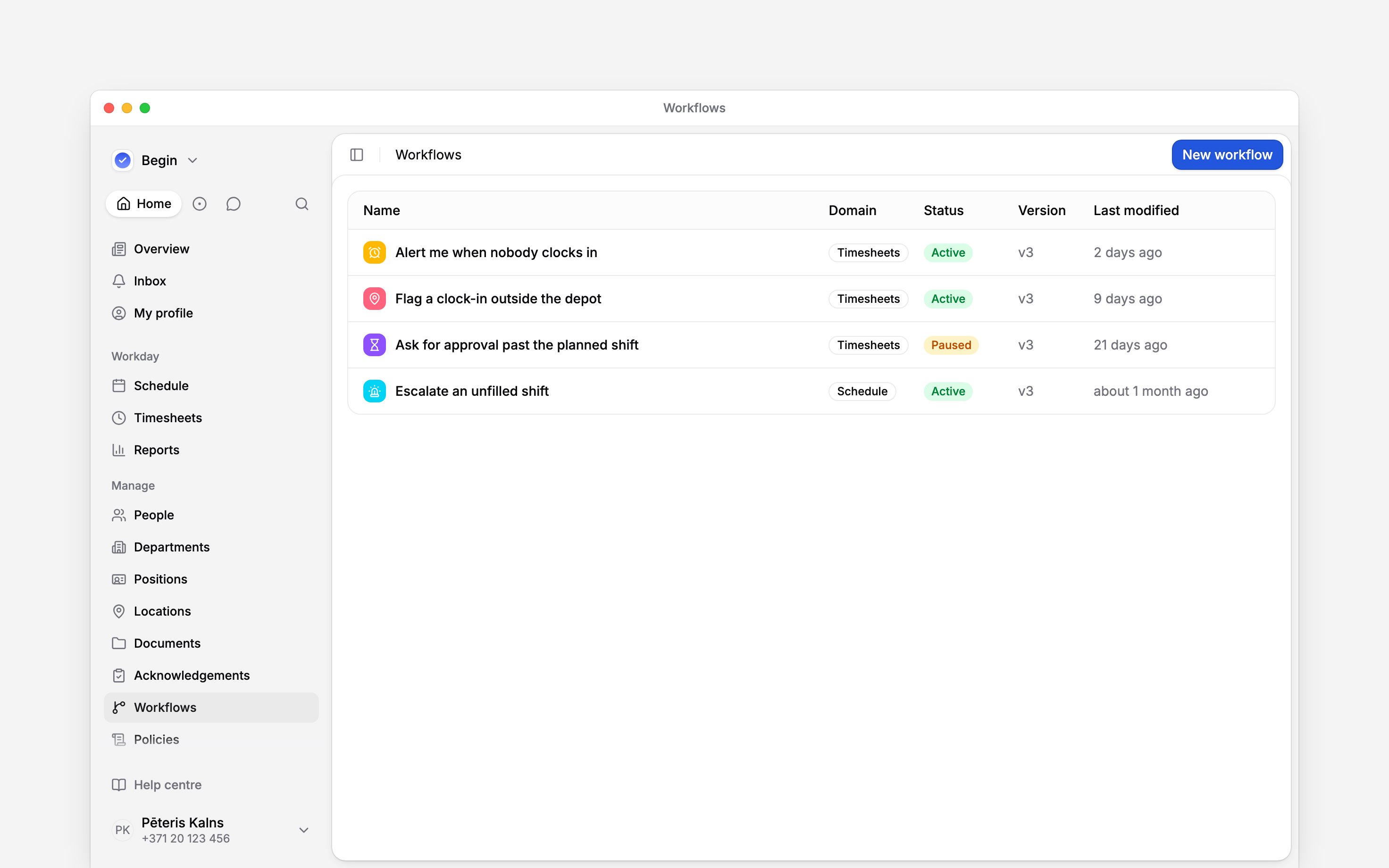
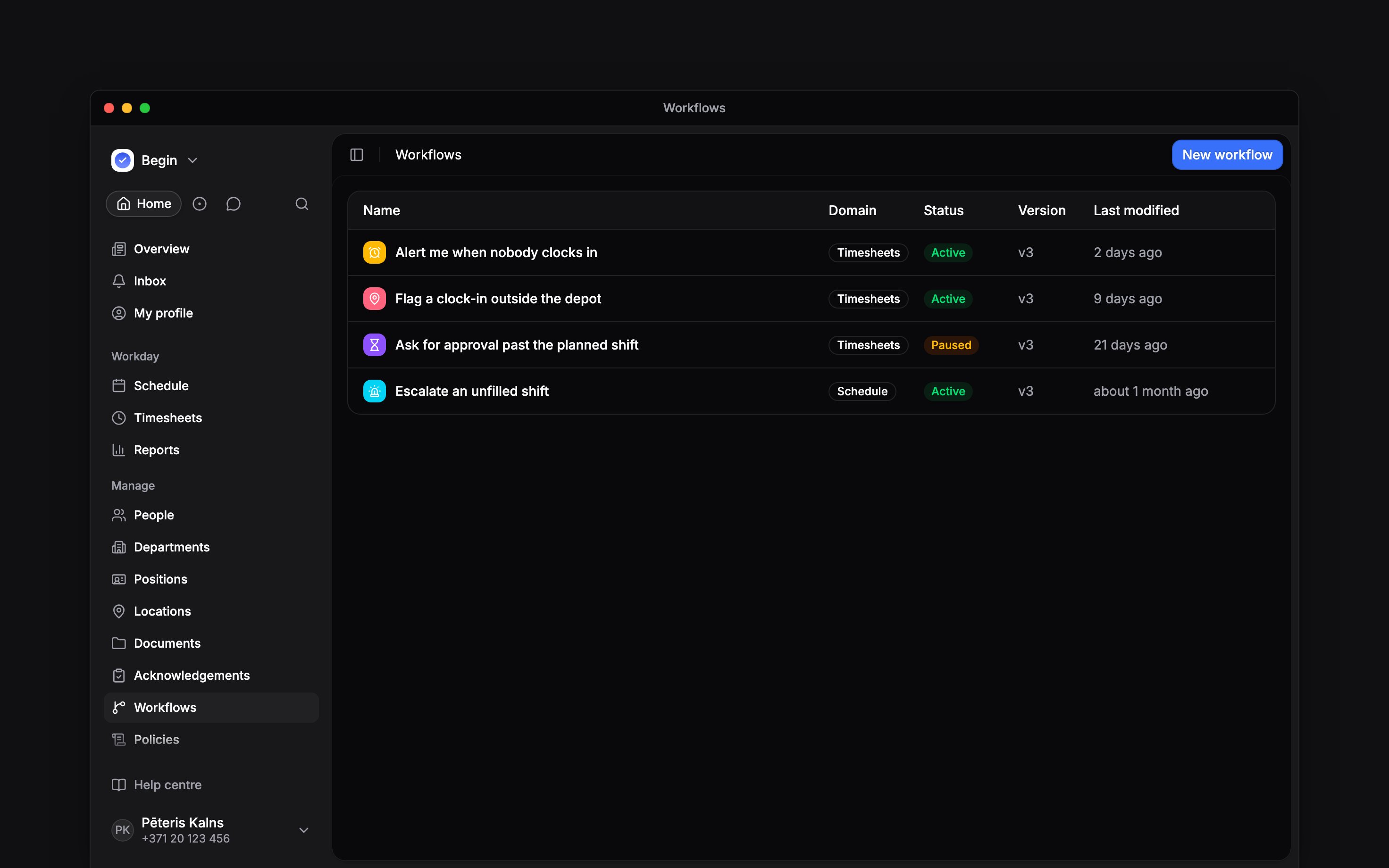
Each workflow carries the domain it watches and whether it is running
A clocking policy set to ask for approval writes its own workflow, and that one’s trigger is
locked to the policy. Edit the rest of it freely; change which entries it fires for on the policy,
not here.
Next
Approving timesheets
What to do with the entries a workflow puts in front of you.
Workflow execution history
Check which version ran and why an action failed.
Still need help?
Contact support
Email the Begin team and we’ll get back to you.
Ask Begin AI
Open the AI assistant and get instant answers based on these docs.