


 Open a notification to see what happened and the item it concerns. Its detail view depends on the subject: a shift change, a post and a document each offer different ways to follow up.
Open an update
1
Choose the item
Open Inbox. It opens on Priority; choose Other for colleagues’ updates, posts and
the workspace. Select a row; on a computer, its details appear beside the list.
2
Read the context
Check who triggered it and the affected dates or records. A grouped shift notification lists its
shifts; select the one you need.
3
Follow it up
Use the card’s action or link to continue. On a phone, use the back arrow to return to the inbox
list.
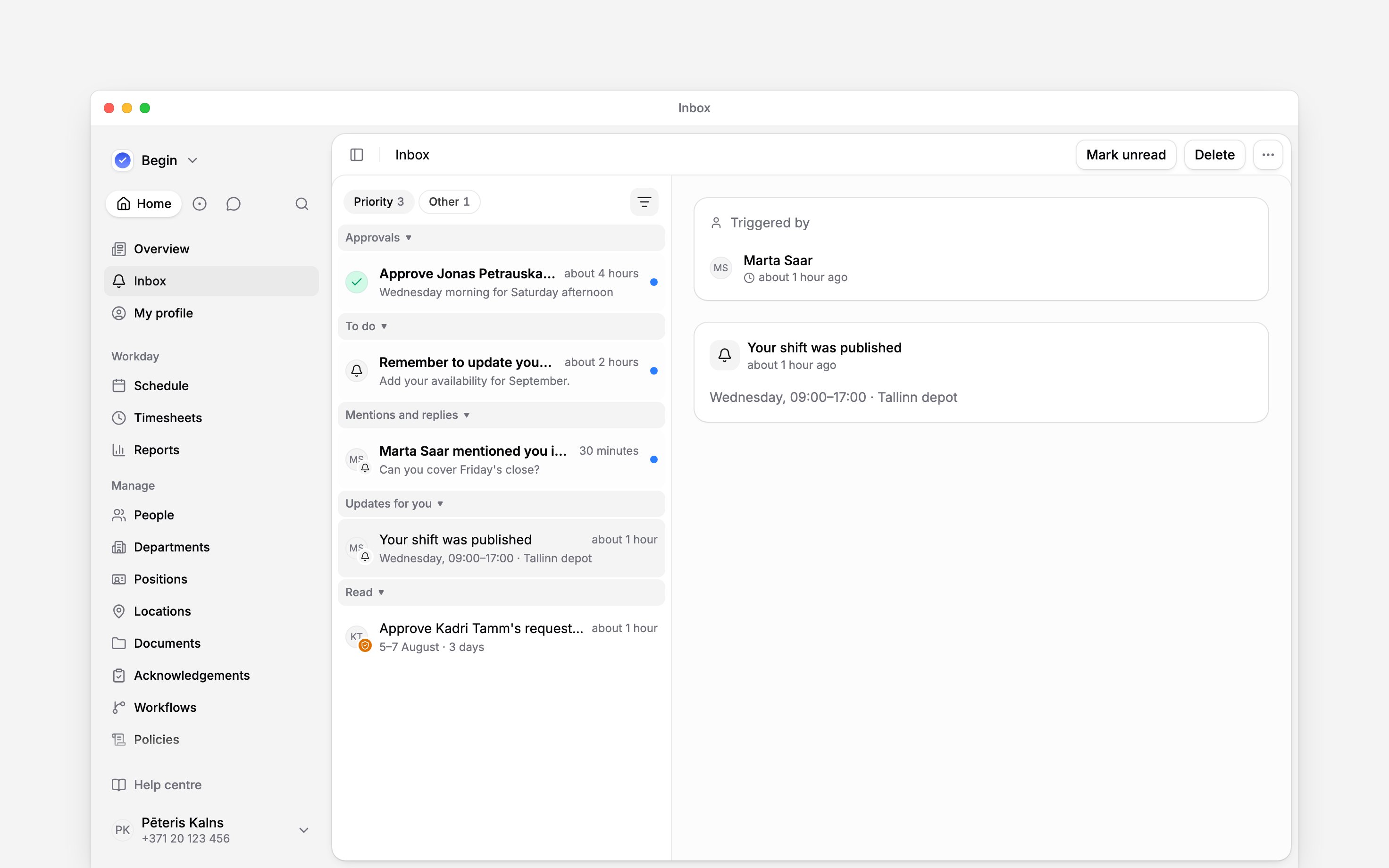
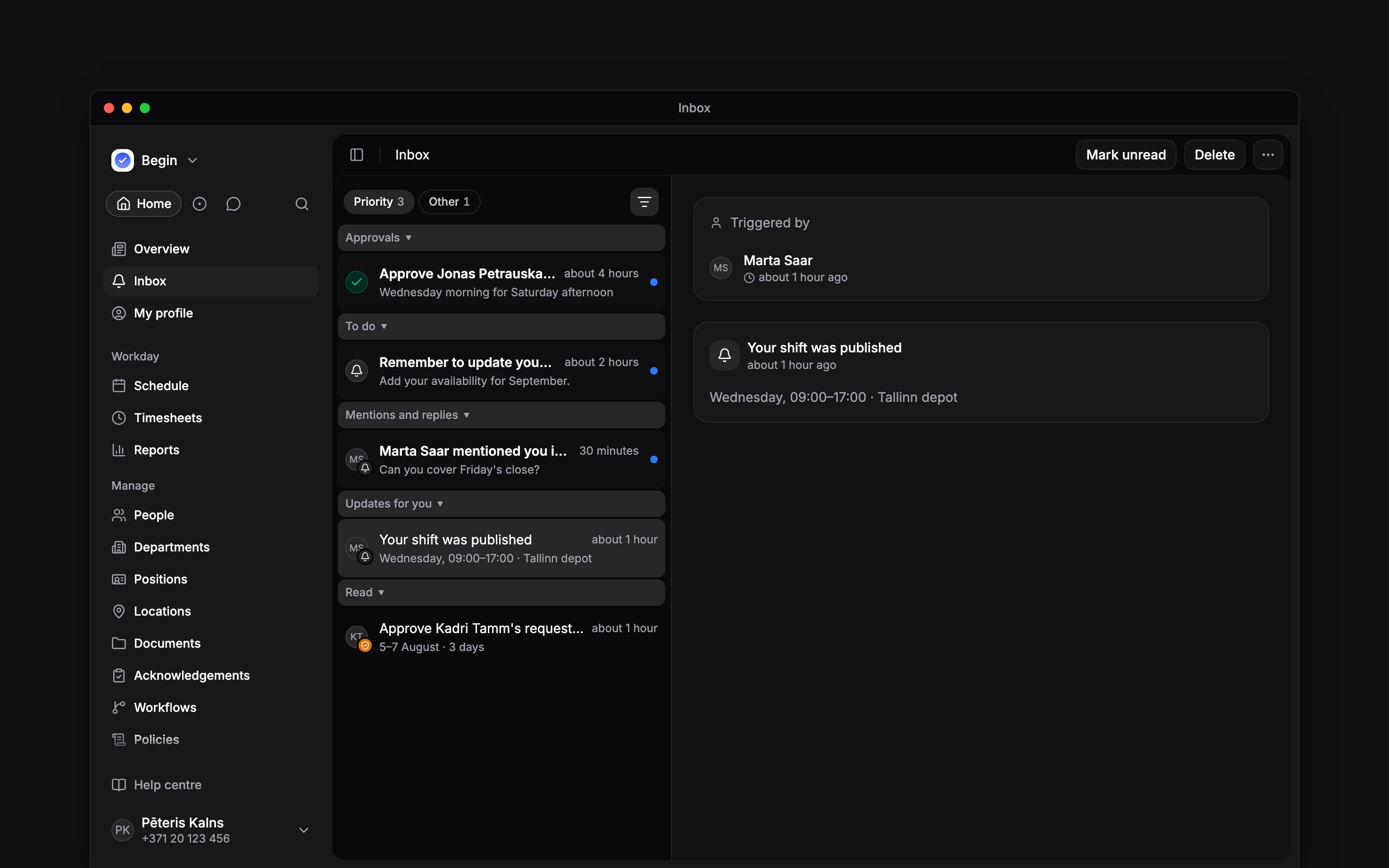
The selected item opens beside the list; on a phone, the detail replaces it.
Check the details before acting
Shift notifications can show the previous and changed values. The linked shift’s properties stay up to date, so check them before making a further change. A deleted shift has no live shift to edit. Where Comments and Activity appear, use them to follow the discussion and the record of changes. Editable properties depend on your permissions; seeing a notification does not grant permission to edit its subject. A pending review may appear inside a shift or time-entry notification. Follow Approving requests when you see review controls.Use the action on the card
Cards that wait for your answer, such as a data-deletion request, a support-access request or an open-shift offer, are under To do on Priority. So is a loop result whose run failed, was skipped or needs attention. A loop result whose run succeeded is under Workspace on Other. A post opens its content; a document card takes you to its document. People cards lead to the person’s record. A data-deletion request can be answered in Inbox: choose the available outcome, then Confirm. Its Open People link opens the people list. A support-access request offers Allow access or Decline. A loop result offers Open result, or Open loop when the run could not complete. An open-shift offer asks for your own response. It is different from a manager reviewing someone else’s claim: use the offer’s action rather than treating it as an approval.Beta
Open-shift offers are rolling out gradually. If open shifts are not available in your workspace,
ask us to turn them on.
Next
Approving requests
Make a decision when a card asks for review.
Managing your inbox
Snooze an item or clear it after following up.
Still need help?
Contact support
Email the Begin team and we’ll get back to you.
Ask Begin AI
Open the AI assistant and get instant answers based on these docs.