


 Choose which channel messages can notify you, then set when mobile alerts may arrive. These settings affect you; they do not change your colleagues’ preferences.
Quiet one channel
1
Open the channel’s settings
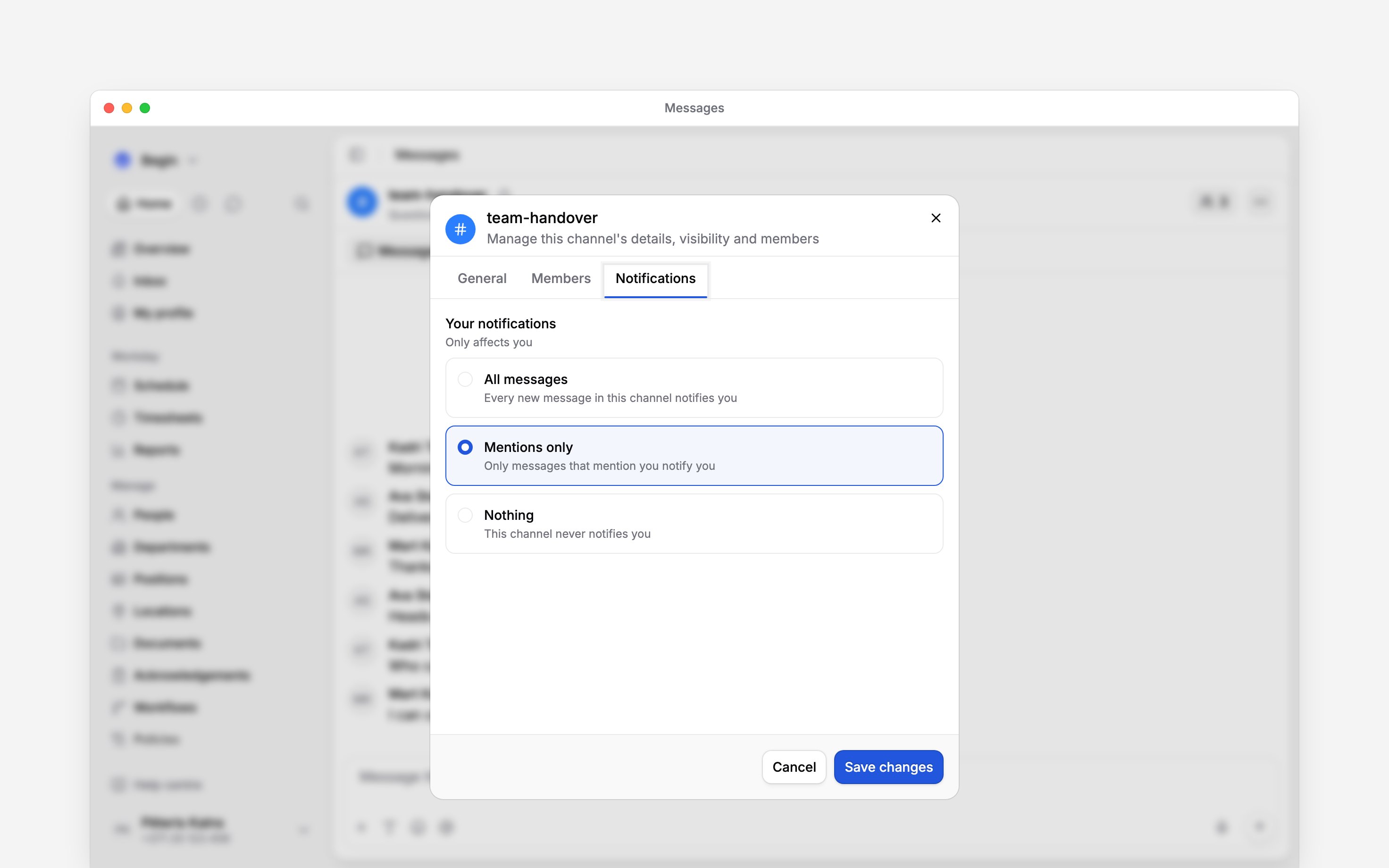
Open the channel’s three-dot menu, open Channel settings and choose the Notifications
tab. You must be a member of the channel.
2
Choose Your notifications
Select All messages, Mentions only or Nothing.
3
Save your choice
Click Save changes. The setting applies to this channel for you.
Choose when mobile alerts arrive
Open Settings → Notifications → Mobile app. Turn on Enable mobile app notifications and the Messages setting for new messages, mentions and thread replies. The same page holds the delivery schedule, temporary pauses and muting while on leave. They apply to every push notification, not only messages, so they live on notification settings.Chat message alerts are push-only. Turning on Email or Inbox notifications does not create email
copies or Inbox items for your conversations. Unread messages stay in Messages.
Check a missing alert
Check the channel’s preference, the Messages toggle and the mobile-app master switch first. Then check the delivery schedule, an active pause or approved leave, and the device’s notification permission for Begin. Begin avoids sending another push when you are already actively viewing that conversation. A mention only reaches eligible members of the conversation. A reply alerts the original message’s author rather than every person who has replied.Next
Finding messages
Find an earlier message, keep important information in Pins, and return to unread work.
Messages overview
Find the right conversation, keep replies together, and choose which messages notify you.
Still need help?
Contact support
Email the Begin team and we’ll get back to you.
Ask Begin AI
Open the AI assistant and get instant answers based on these docs.