


 Delete a position when you no longer need that job in your workspace. If only one person has stopped doing the job, remove their assignment instead.
Check before deleting
In Positions, open the position’s action menu and choose See people to check who holds it among the people you can access. If those people need a replacement position, assign it to them before deleting this one.Delete the position
1
Open its actions
Return to Positions and open the position’s action menu, or right-click its row.
2
Choose Delete
Check that the confirmation names the position you want to remove, and read the counts it lists:
the people who lose it, the upcoming shifts that carry it, how many of those are open shifts,
how many offers on them can still be accepted, and the rotas applied to the position. Those
rotas stop, and the future shifts they created are deleted.
3
Confirm the deletion
Click Delete position. The position disappears from the list. Cancel closes the dialog
without deleting it.
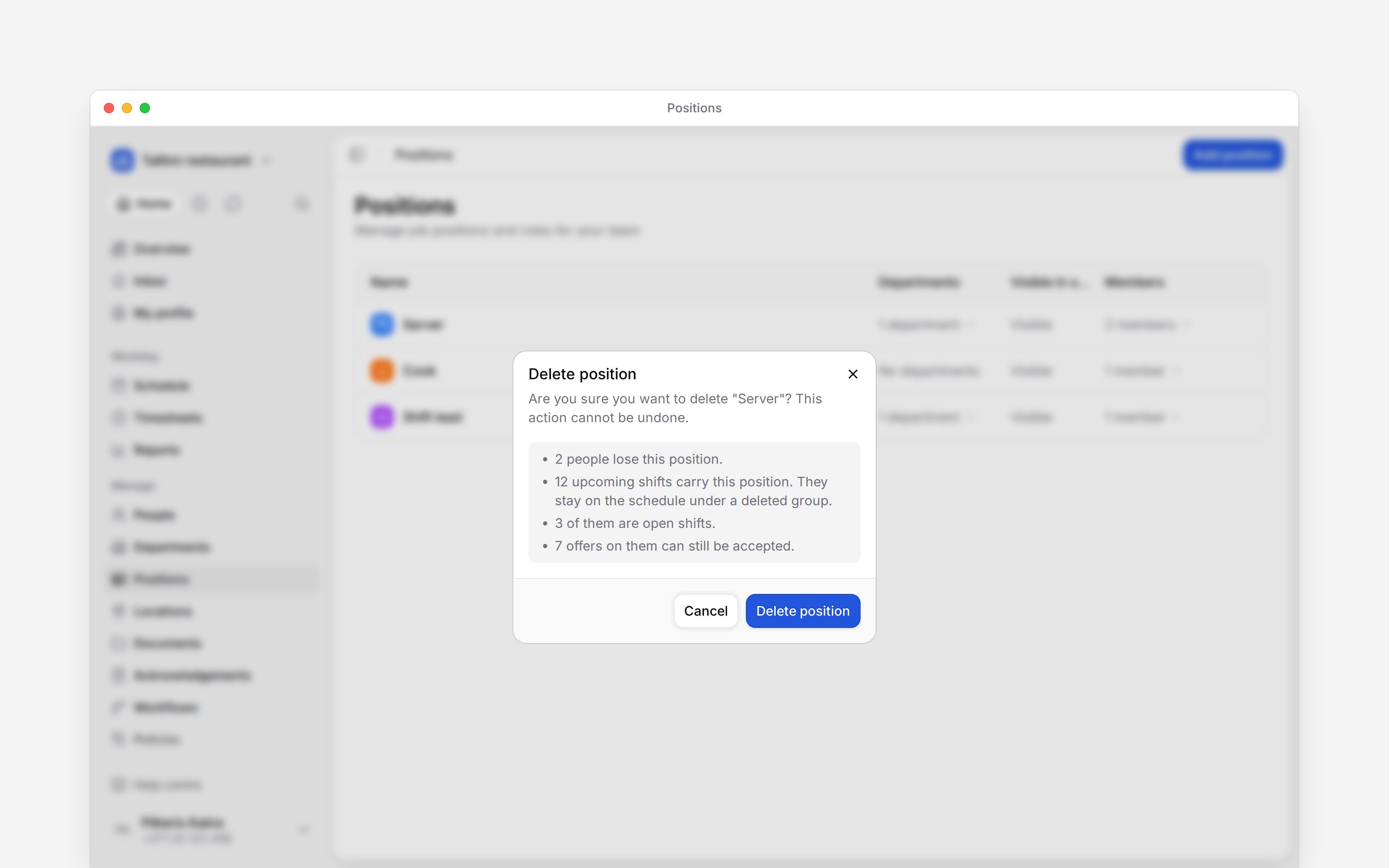
Read the counts before confirming.
What happens to existing work
Deleting a position does not delete existing shifts. Existing shifts, shift templates and timesheet entries keep it, shown as “Server (deleted)” below the active groups, so deleting it is not a way to clear the schedule. Edit a template to give it a new position before you use it again. An open shift that carries the position keeps its offers, and nobody holding one is told the position has gone. They can still take the shift. If you no longer want it taken, open Update offer and remove the people, or unpublish the shift. An acknowledgement request aimed at the position stops reaching new people, and its pending members are dropped at the next audience check (Audiences and deadlines). Policies that targeted the position drop it. A policy left with no person, position or department to target applies to nobody until you choose its targets again. Creating another position with the same name makes a new position. It does not restore the old member assignments.Next
Assigning members
Remove one person’s assignment instead.
Creating positions
Set up a replacement job.
Still need help?
Contact support
Email the Begin team and we’ll get back to you.
Ask Begin AI
Open the AI assistant and get instant answers based on these docs.