


 The execution log shows what happened after an event reached one workflow. Use it to confirm that the right trigger fired, see which record and published version it ran for, and follow each block to the step that stopped it.
Open the log
1
Open the workflow
Select its row on Workflows.
2
Open Publish
Select Publish in the top-right corner of the builder.
3
View recent runs
Select View execution log. The newest run appears first.
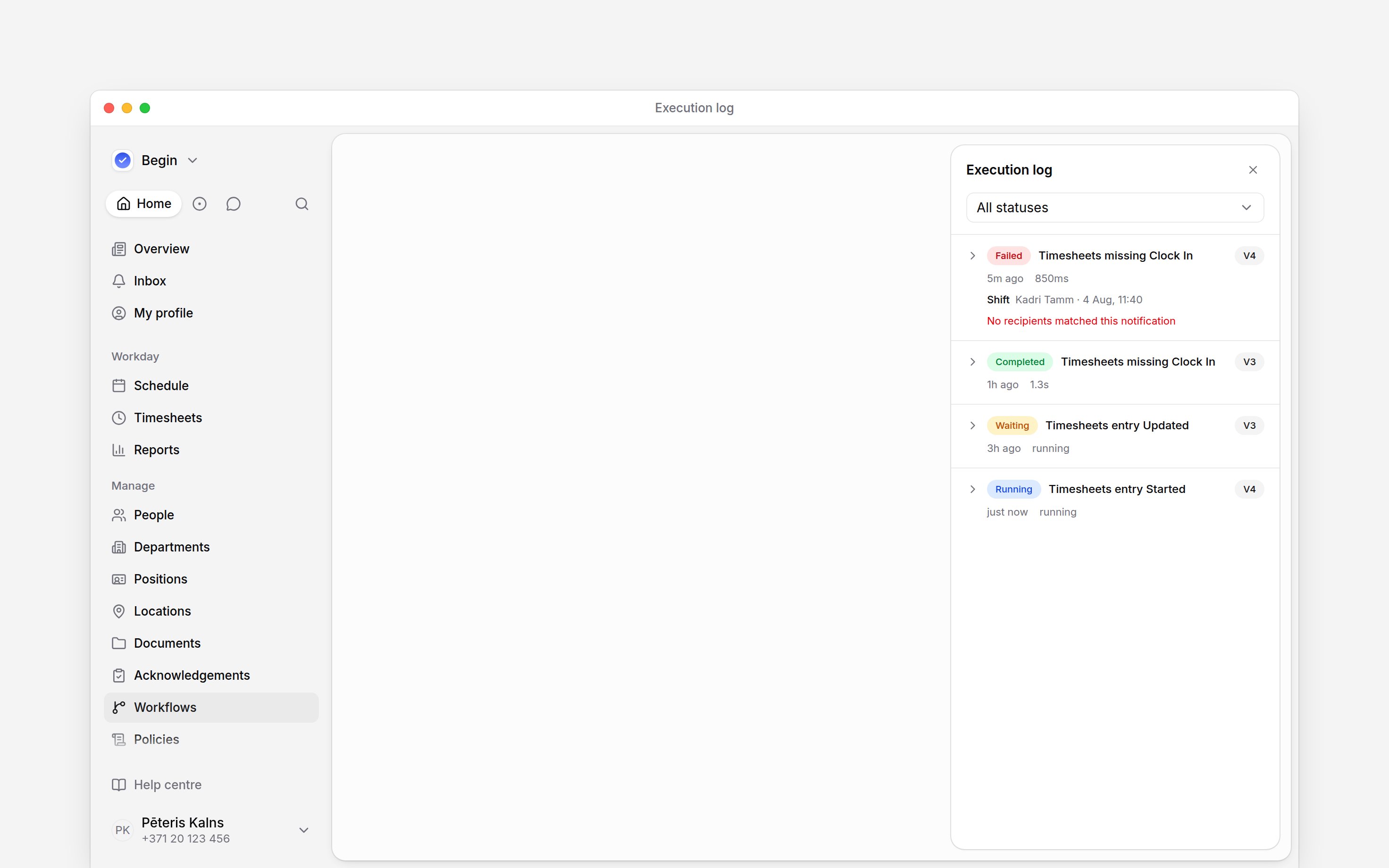
Read what happened
Each row shows the trigger event, when the run started, how long it took and the version it used. Under it, the row names the record the run was about, such as a shift, a time entry, a leave request or a person. Select that name to open the record.
To narrow the list, choose a status in the filter above it. Scroll down to load older runs.
See what each block did
Select a run to open its steps. Each step names its block, in the order the run reached it, and says what happened there:- a condition says whether it was met, and which condition it checked, such as a shift longer than 8 hours;
- an action says it was done, is waiting for a response, was skipped or failed, with the reason when Begin recorded one.
Get told when a run fails
You don’t have to watch the log. When a run fails, Begin sends an inbox notice to the person who last published the workflow. Built-in workflows have no such person, so everyone who can edit workflows gets it instead, as they do when the publisher has left or can no longer edit workflows. More failures of the same workflow update that one notice with a count while it is unread. Open workflow on the notice takes you to the builder. On Workflows, a red badge beside a workflow’s name counts its failed runs from the last 7 days.Diagnose a failure
Open the failed run and find the last step. Then check the row’s trigger and version. Confirm that the trigger belongs to the workflow’s domain, then compare the version with the current published version. Open the relevant block and correct the missing or invalid setting in the draft. Publish the correction before expecting a new event to use it. The execution log has no rerun control, so the failed row stays as evidence of what happened. You can also ask Begin AI why a run failed. It reads the same log, with the same limits on whose records you may see, and says when a run is still going or has aged out of the history.Pausing or changing a workflow does not rewrite its history. An older run continues to show the
trigger, version and outcome it had when it started.
Next
Triggers and conditions
Check whether the workflow listens for the event you expected.
Timesheet workflows
Follow a worked example for missing clock-ins and time-entry approvals.
Still need help?
Contact support
Email the Begin team and we’ll get back to you.
Ask Begin AI
Open the AI assistant and get instant answers based on these docs.