


 A rounding policy changes the time Begin records for calculations while keeping the original punch in the entry’s activity. Clock-in, clock-out and period totals are three independent choices.
Choose how each side rounds
For clock-in and clock-out, choose one mode:
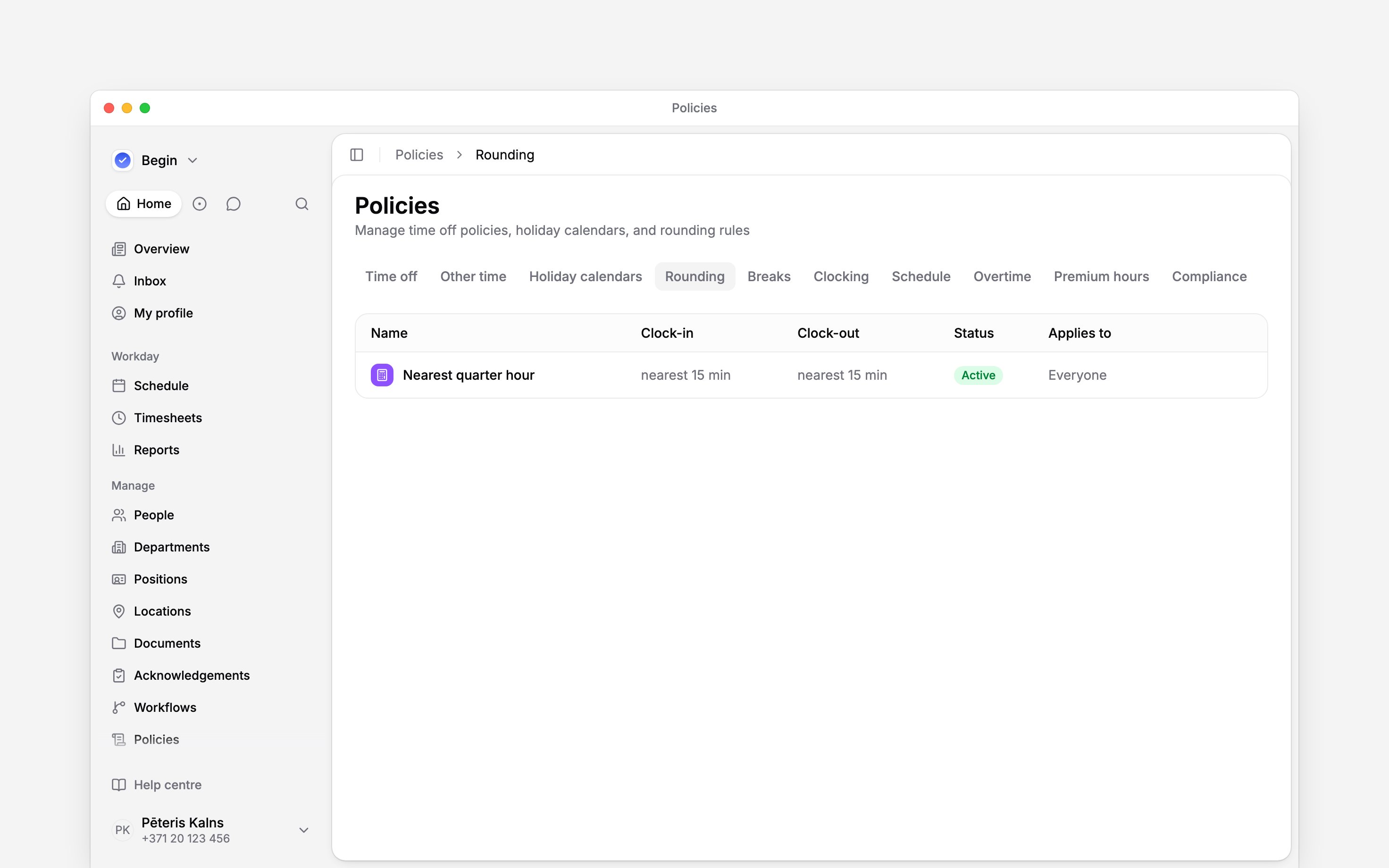
Up means a later clock time; Down means an earlier clock time. The same direction therefore has different effects at clock-in and clock-out. For example, a clock-in at 08:57 with a 15-minute Nearest interval becomes 09:00. Leave clock-out Off if only the start should change.
Snapping needs an entry linked to a shift. Without one, Begin leaves the punch unrounded. Set early and late windows separately: these are the tolerated distances from the scheduled time, not a rounding interval.
Create the policy
1
Start it
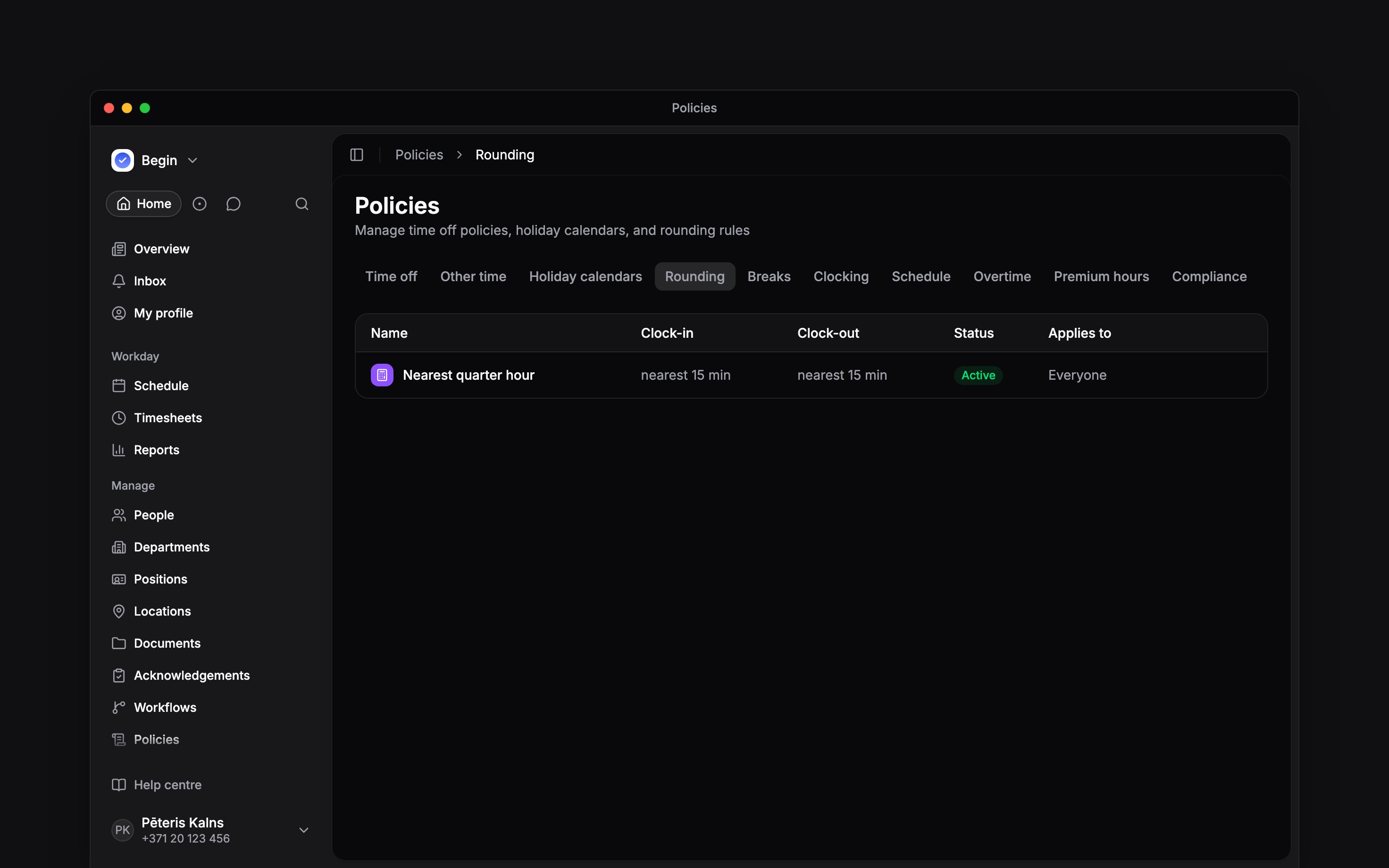
Go to Policies → Rounding, open Add, then choose Rounding policy.
2
Set clock-in and clock-out
Choose the mode and values for each side.
3
Decide period totals
Use Totals rounding only when timesheet and report totals should also move to a fixed
interval.
4
Target and activate it
Choose Applies to, set Status to Active,
then save. The workspace’s first rounding policy counts at once, for work already recorded too.
A later one counts from the day you save it; to start or end it on another day, set
When.
Ask Begin AI
Begin AI (Cmd / Ctrl + J) can create, change, archive or delete a rounding policy, including its icon and colour. On Manually approve it shows the change on a card and saves nothing until you confirm. On Automatically approve a new policy or a change applies at once, and archiving, moving an active policy back to Draft, deleting or changing earlier dates still waits for you. See approval modes.Round the kitchen's clock-ins up to the quarter hour from the start of last month, punches already recorded included
Check a rounded entry
Open a matching entry in Timesheets and compare its start and end with the original times in its activity. Confirm which policy applied and which side changed. If snapping did nothing, check the linked shift and the early or late window before changing the policy.Choose when a change starts
A policy change applies to clock-outs from the date you choose in Apply from when you save it: any day, today unless you pick a later one. Entries already closed keep their rounded times unless you save with Earlier dates too.Totals rounding grades a whole period at once, so a save that changes it starts on the first
of a month, next month unless you pick another, and any punch change saved with it waits too. A
policy that uses totals rounding takes a When of whole months. The change re-grades the period
that holds its Apply from date and every period after; a period that has already ended keeps
the grid that applied on its last day unless you apply the change to earlier dates. Totals
rounding does not change the punch-rounding choices above it.
Next
Settings and policies
Trace why a time entry differs from its punch.
Hour columns
Read the calculated totals that rounding changes.
Still need help?
Contact support
Email the Begin team and we’ll get back to you.
Ask Begin AI
Open the AI assistant and get instant answers based on these docs.