


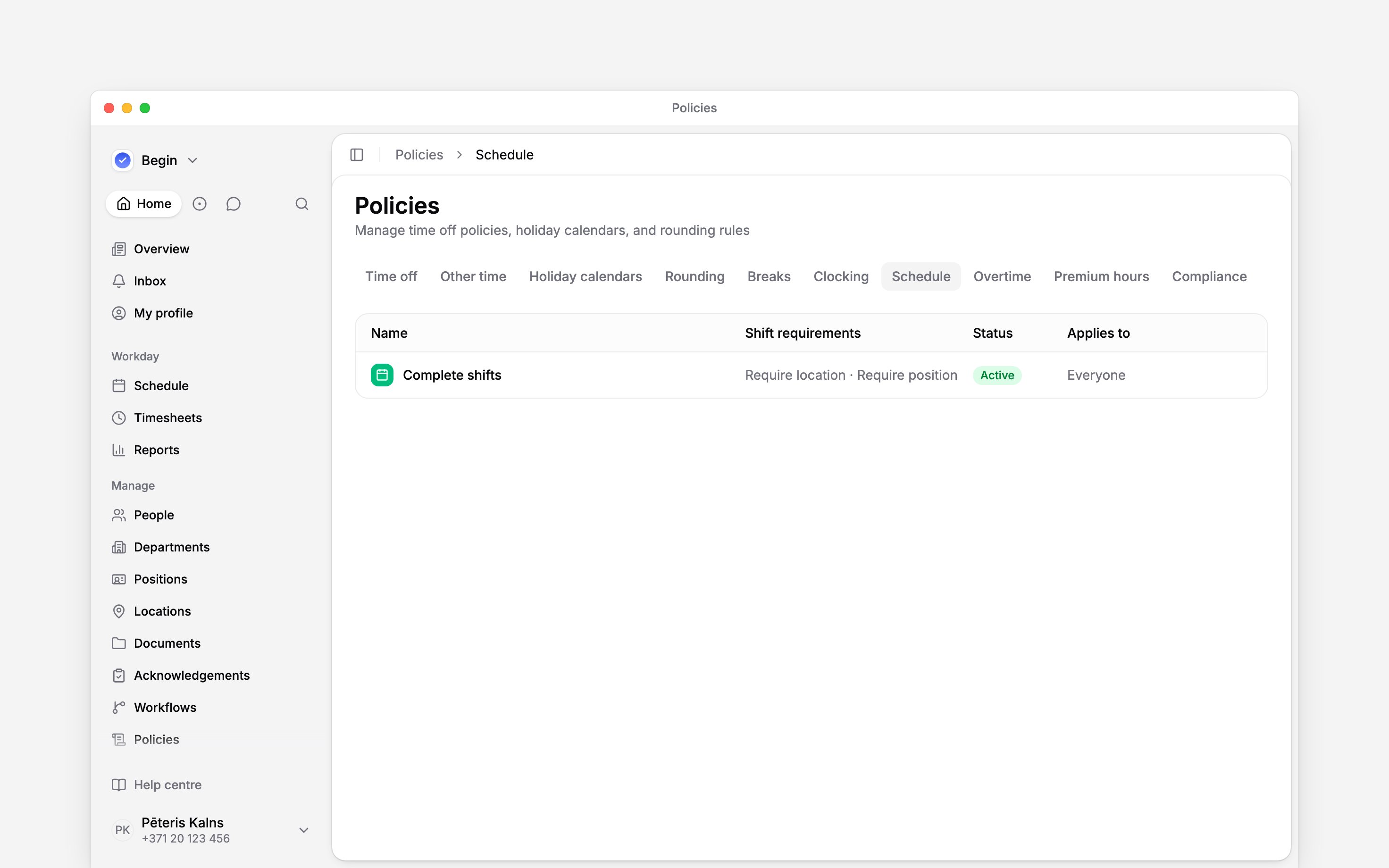
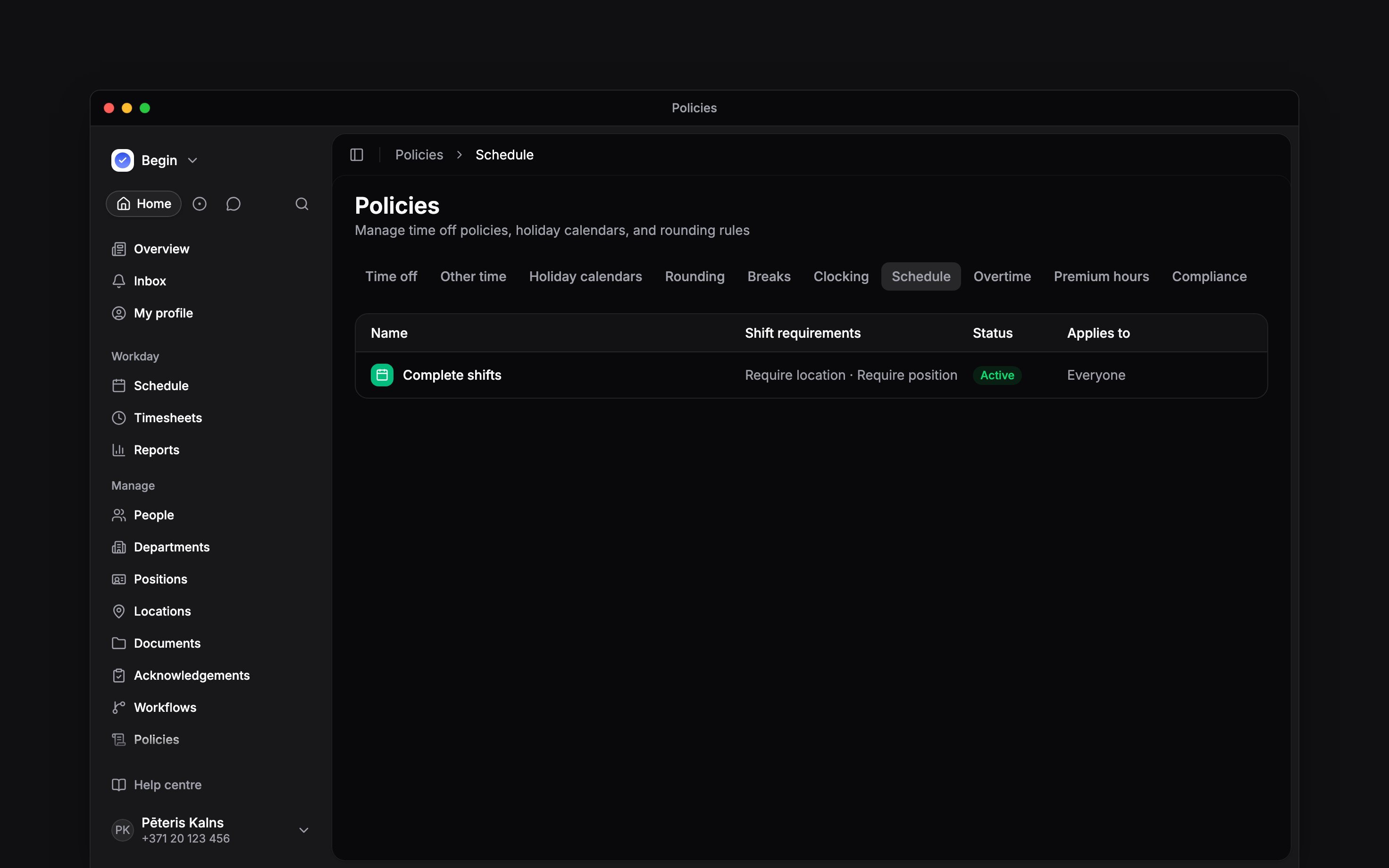
 A schedule policy makes selected shift fields compulsory. Use it when a shift must have a location, client, position or colour before Begin may save it.
Create a requirement
1
Start it
Go to Policies → Schedule, open Add, then choose Schedule policy.
2
Choose the required fields
On Requirements, choose Require for location, clients, position or colour. Inherit
leaves other matching policies in charge; a more specific Don’t require can relax a
requirement. You may require more than one field. The clients control appears where clients are
enabled.
3
Set the audience
Use Applies to to choose everyone or selected
people, positions, departments or locations.
4
Activate it
Set Status to Active, then save.
Ask Begin AI
Begin AI (Cmd / Ctrl + J) can create, change or delete a schedule policy, including its client requirement, icon and colour. On Manually approve it shows the change on a card and saves nothing until you confirm. On Automatically approve a new policy or a change applies at once, and archiving, moving an active policy back to Draft or deleting still waits for you. See approval modes.Require a location on every shop floor shift and show the policy with a blue store icon
Fix a shift that will not save
Begin refuses the save with a message such as Select a location for this shift. Add the required location, client, position or colour, then save again. One or more clients satisfies the client requirement. The requirement is evaluated for that shift and person, so another team may have a different set of required fields. Shifts saved before the policy are not re-checked until someone edits them. Copying shifts, applying templates and bulk changes follow the same requirements. A bulk action reports shifts it cannot change and leaves those shifts alone. Open shifts, time off and availability are exempt. A client requirement also waits until the workspace has an active client and the person can select clients. For example, require Position for a department whose shifts must always identify a job. Check one of its members in Policy tester, then open a shift for that person without a position. Begin should refuse the save and name the missing position; choose it and save. Check someone outside the department too, so you do not accidentally apply the rule to everyone. If several matching policies require different fields, Begin combines those requirements. Use Policy tester to see which policies supply them.Next
Schedule warnings and conflicts
Read the message shown while editing a shift.
Compliance rules
Check hours, days, shifts and rest against configured limits.
Still need help?
Contact support
Email the Begin team and we’ll get back to you.
Ask Begin AI
Open the AI assistant and get instant answers based on these docs.