


 Tag a shift or a time entry with the clients the work was for. The tag travels with the work: clocking in on a shift copies its clients onto the time entry, and a template or a rota puts its clients on every shift it makes.
Beta
Clients are rolling out gradually, so your workspace may not have them yet. If a shift has no
Clients field, ask us to turn them on.
Tag a shift
Open the shift, or start a new one, and pick its clients in Clients under Classification. A shift can carry up to ten. Creating a shift in a client’s row, while the schedule is grouped by client, fills that client in. The card on the schedule does not show clients. Hover a shift to read them in its details, or open it. Shift templates and shift patterns carry clients too. Every shift made from a template, or from a pattern day with its own hours, arrives with their clients. Applying a template to a shift you already have replaces that shift’s clients with the template’s, or clears them when the template has none.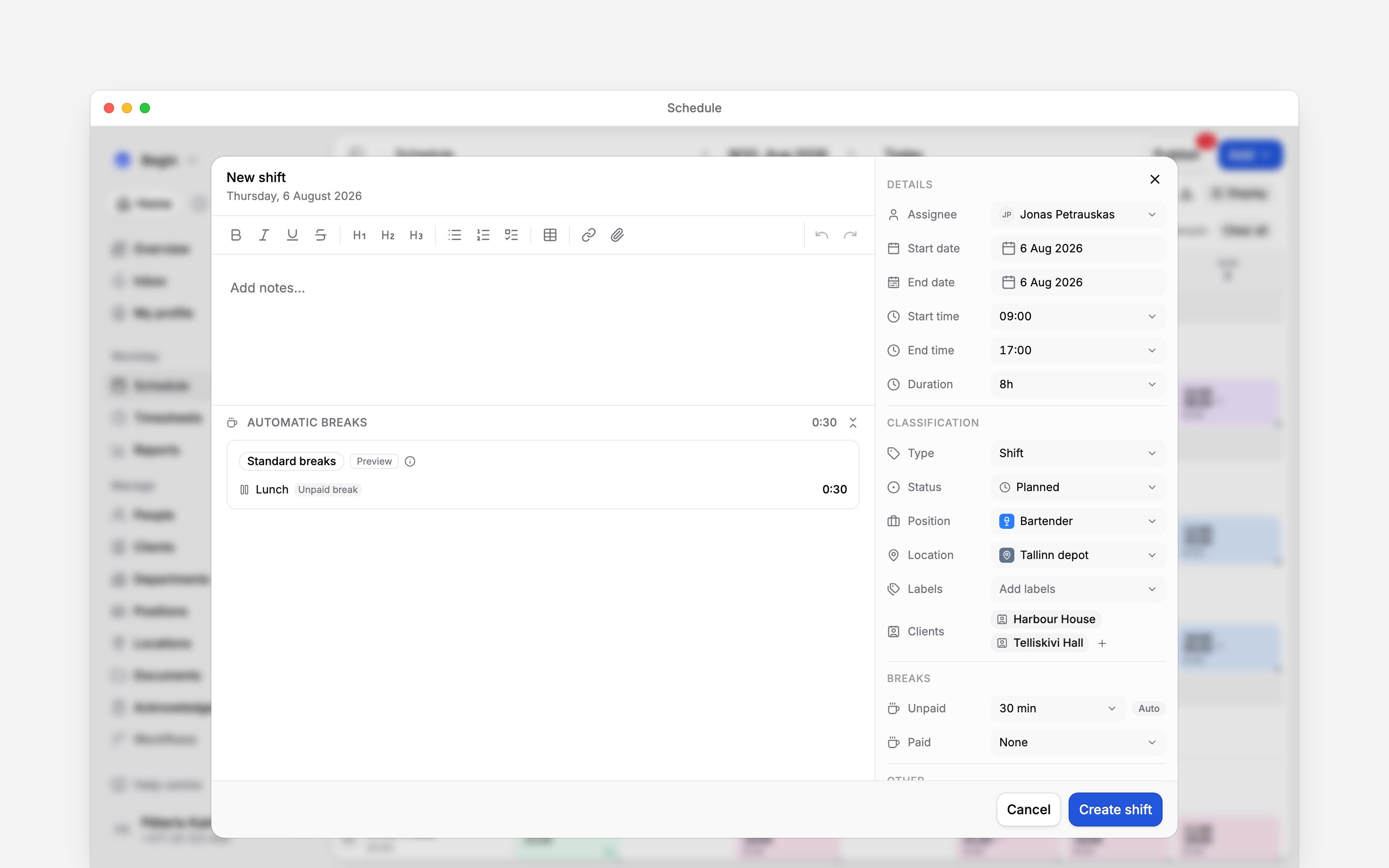
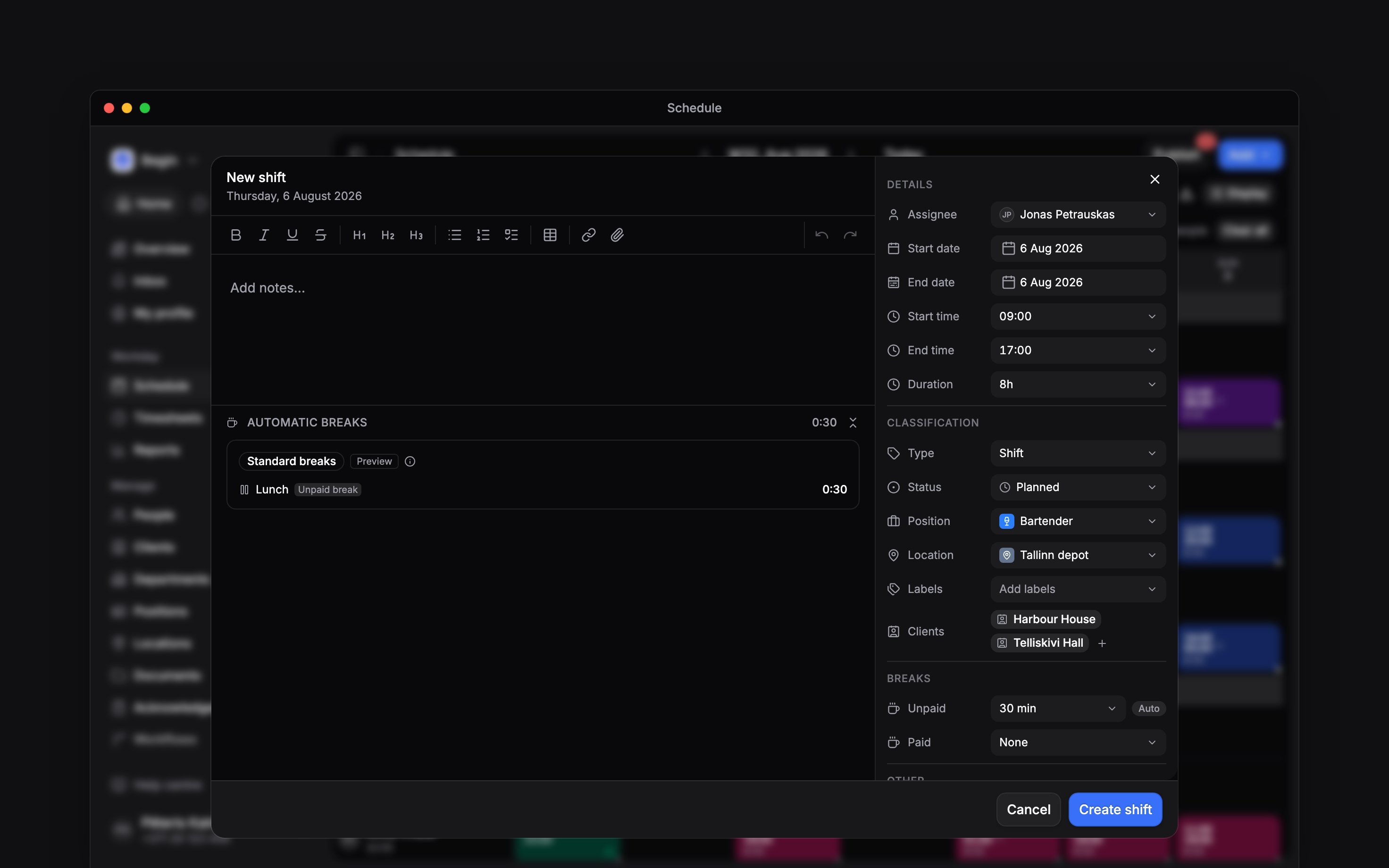
Add a shift for Jonas Petrauskas on Thursday from 09:00 to 17:00 for the client Harbour House.
Changing a shift’s clients notifies nobody, even once the shift is published. The shift’s history
and the client’s Timeline record the change.
Tag time
Time entries have the same Clients field, in Add time and when you open an entry. At clock-in, Select clients sits in the tracking bar with the clients of the person’s shift already picked. Left as it is, the entry takes the shift’s clients. Entries filled in from the schedule or added from a shift keep the shift’s clients too.Change many at once
Select shifts on the schedule, open Actions, then Clients:
Time off and availability in the selection are left alone. Remove clients also lists the archived and deleted clients the selection carries, which the search never finds. The timesheet offers the same three for the entries you tick, to a role that can edit other people’s time. A workflow can also add, remove or set clients on a shift or time entry when something happens to it.
Ask for a client at clock-in
In a clocking policy, set Clients to Require under Clock-in requirements. Someone who starts with no client sees Select at least one client to clock in. The picker then opens for them. The rule waits until your workspace has an active client. It covers clocking in from the browser, the app, the dashboard and a shift. An automatic clock-in goes through only when the person’s shift carries a client. Terminal punches and time added by hand are never asked.Next
Seeing work by client
Read the schedule, the timesheet and reports client by client.
Clocking restrictions
The policy that can require a client at clock-in.
Still need help?
Contact support
Email the Begin team and we’ll get back to you.
Ask Begin AI
Open the AI assistant and get instant answers based on these docs.