


 A shift template saves one shift’s hours and details. A shift pattern repeats a cycle of shifts. Once assigned, it becomes a person’s rota.
Beta
Clients are rolling out gradually. If a template has no Clients, ask us to turn them on.
Save a shift you keep retyping
In Settings → Schedule → Shift templates, name the template and set its hours, position, location, breaks and notes. Clients set on a template, or on a shift pattern’s day with its own hours, go onto every shift made from it (Tagging work with clients). For 24-hour cover, choose 24h in Duration. The end stays at the same local time the next day. Equal clock times alone mean zero hours. Custom pattern entries have the same control; a new 24-hour shift also supports Repeat. Use Add → From template, right-click a person’s day, or choose Apply template in the shift form. Applying to existing shifts replaces their hours, breaks, notes, labels and clients. A template that would leave a required client empty is refused for that shift. Deleting the template leaves those shifts alone. Find templates and patterns by name in Search. Copies keep the name with a translated copy suffix.Repeat a whole rota
In Settings → Schedule → Shift patterns, choose Weekly, Fortnightly, or Rotating cycle. Weekly patterns follow weekdays; rotating cycles count from the assignment’s start date. Follow working time and holidays skips holidays and non-working days, and shortens shifts to each person’s daily paid hours. It keeps start times and never adds or lengthens shifts. It starts on for new patterns and Repeat. Existing patterns keep it off; copies preserve the choice. Open shifts are unaffected. Turn it off to generate the full entered 24-hour cover. Across daylight-saving changes, local clock times stay fixed, so a 24-hour entry can span 23 or 25 elapsed hours. For Repeat, enter the same end time on the next date. The shift form’s Duration shows elapsed hours.1
Open the assign dialog
Choose Add → Assign shift pattern, or right-click the person.
2
Choose the pattern, people and dates
People and teams also offers departments, positions and locations for a team rota.
3
Check the preview
Read how many shifts it creates or shortens. Show skipped days explains existing shifts,
approved time off, employment dates, deleted templates and policy limits.
4
Assign it
Shifts land as drafts unless you choose Publish the shifts straight away.
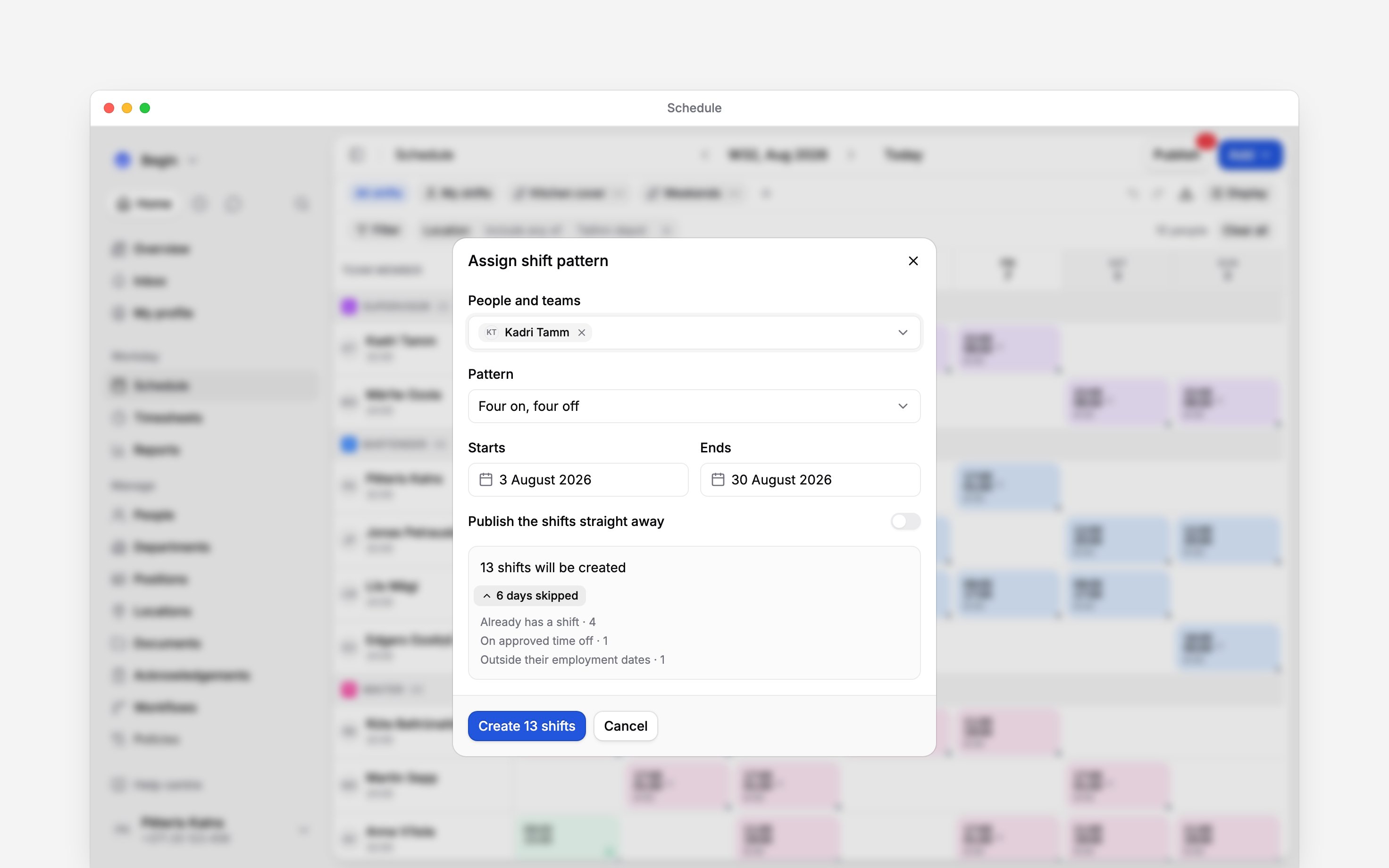
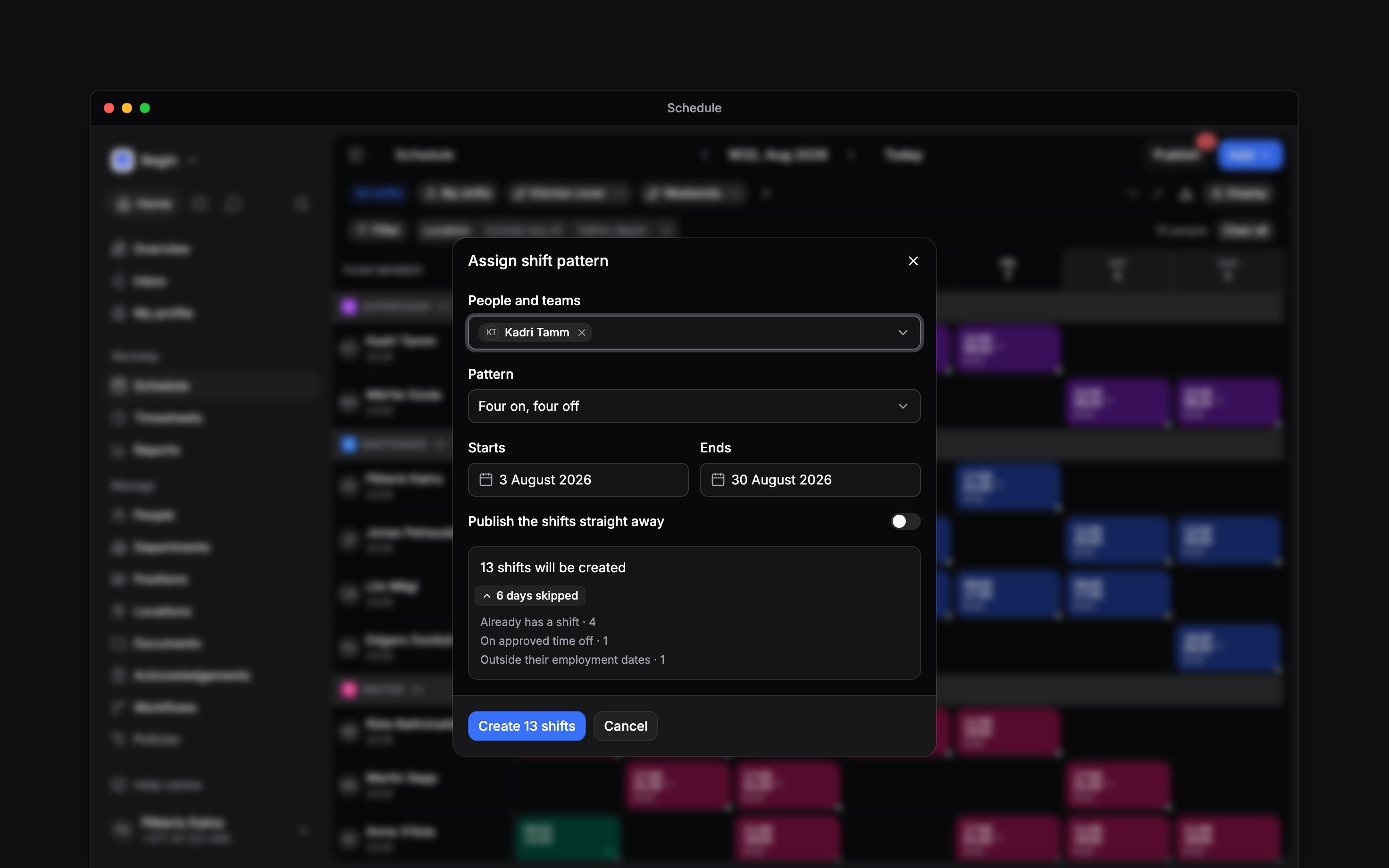
The dry run before you commit: what it will create, and every day it will not
Put a whole team on a rota
Assign to a department, position or location through People and teams. New members pick up the rota, unless their shifts would break a Block — no override compliance rule; a rule you can keep anyway does not stop them. Leavers and deactivated people lose future generated shifts. Worked shifts stay. People need not have accepted an invitation. Manage it from the pattern’s second line in Settings, its row menu, or Shift patterns when editing the department, position or location. Check the people and estimated shift count before saving. Removing a team rota asks whether to keep or delete its shifts. Remove it before deleting the pattern. Deleting the team itself ends its rotas and deletes future generated shifts; the confirmation shows how many rotas will end.Change a rota that is already running
The assign dialog’s Current patterns lists a person’s rotas. Regenerate shifts rebuilds from today; End this pattern asks whether to keep or delete generated shifts. On a generated shift, open Repeating shift in its context menu, or the Repeating shifts section in its editor:- Edit pattern changes the shared pattern.
- Edit rota changes this person’s dates and publishing choice.
- Detach this shift keeps one occurrence independent.
- End this pattern stops the rota.
Next
Publishing
How a draft week, a whole rota included, reaches the team.
Warnings and conflicts
Why Begin marks a shift a rota created, or refuses to write it.
Still need help?
Contact support
Email the Begin team and we’ll get back to you.
Ask Begin AI
Open the AI assistant and get instant answers based on these docs.