


 Buy Begin AI tokens when your workspace needs more than its monthly plan allowance; every plan, including Pro, has one. A top-up adds tokens to this workspace without changing its subscription, and you can buy before the monthly allowance runs out.
You need Manage billing, which Administrators have by default. Billing must be available for
your workspace. If you see Billing is not yet available, contact Begin support.
Understand the two balances
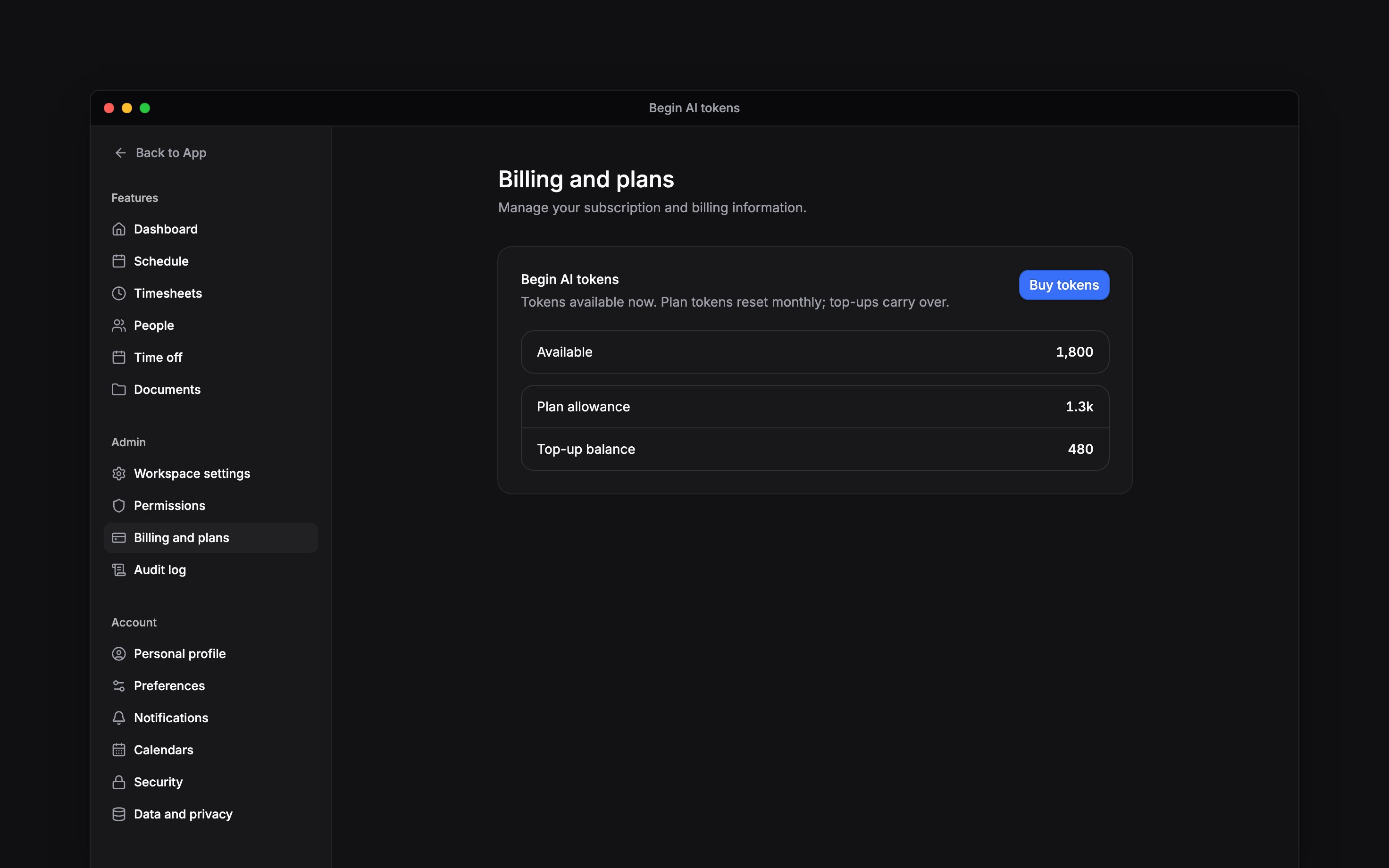
The Begin AI tokens card separates Plan allowance from Top-up balance. The available total combines both balances. Begin uses the monthly allowance first, then purchased tokens. The allowance resets each calendar month; unused monthly tokens do not accumulate. Purchased tokens carry over and never expire. The balance belongs to the workspace, so a purchase supports its members’ Begin AI usage rather than one person’s account. When both balances reach zero, Begin AI stops answering until the next month’s allowance or a top-up. Members see You’re out of AI tokens and cannot buy tokens themselves.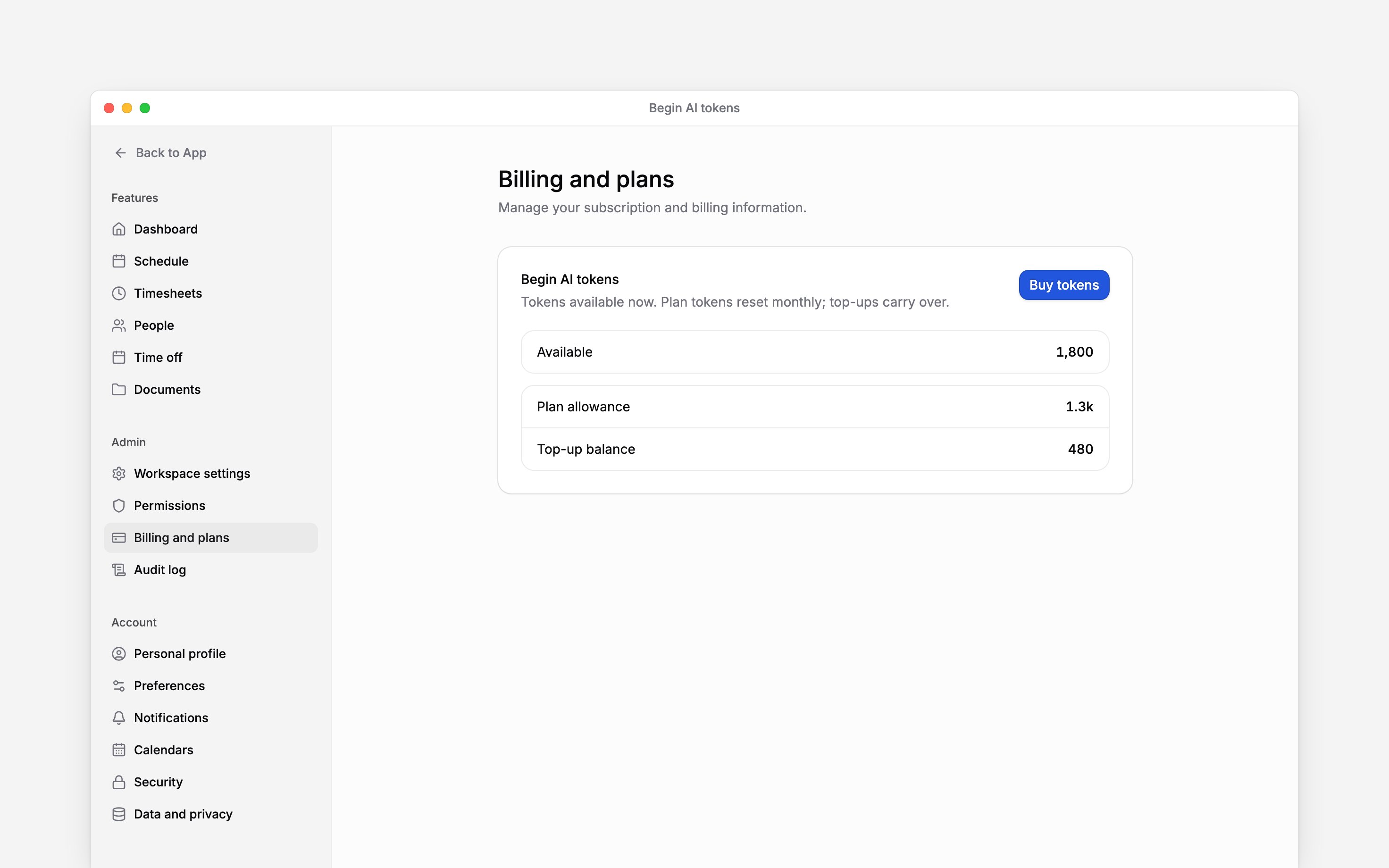
Buy a top-up
1
Open the token purchase
Go to Settings → Billing and plans. In Begin AI tokens, choose Buy tokens.
2
Choose the amount
Select a displayed amount, or choose Other and enter a whole-euro amount within the range
shown. Review the token quantity, any discount and Total before continuing. Prices exclude
VAT.
3
Complete payment
Choose the Buy … tokens button to open checkout. Complete the payment and return to Begin.
4
Check the balance
Review Top-up balance after payment is confirmed. The purchase adds to that balance; it does
not replace your remaining monthly allowance.
Follow usage and purchases
Further down Billing and plans, Begin AI token usage shows weekly usage for the last 12 weeks. Usage history lists monthly allowances, top-up purchases, AI usage and adjustments. Choose Load more for older entries. Look for Top-up purchase after buying tokens. For the purchase invoice, open Viewing invoices.Next
Viewing invoices
Find the invoice for a completed top-up purchase.
Choosing a plan
Compare the monthly allowances before changing your plan.
Still need help?
Contact support
Email the Begin team and we’ll get back to you.
Ask Begin AI
Open the AI assistant and get instant answers based on these docs.