


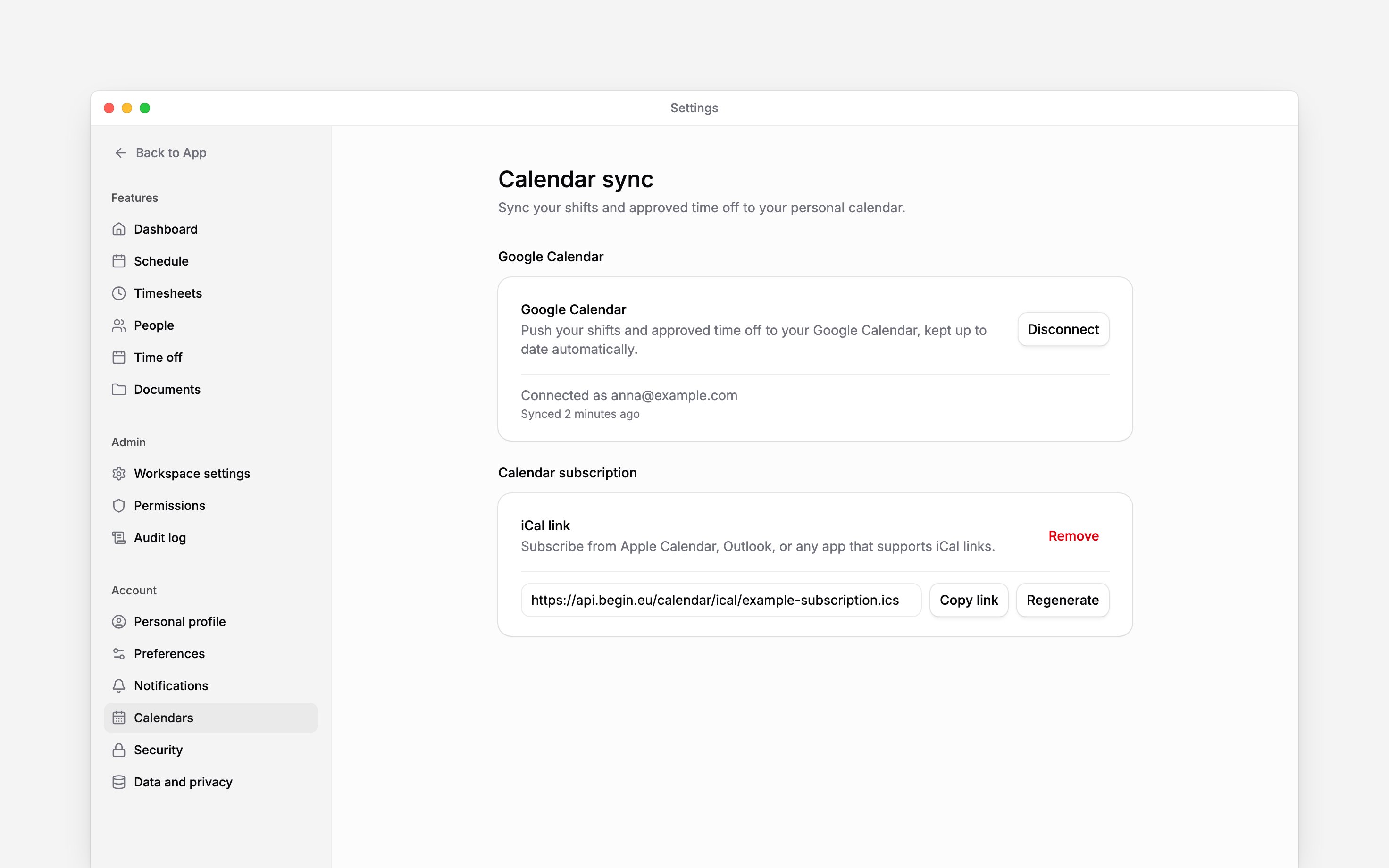
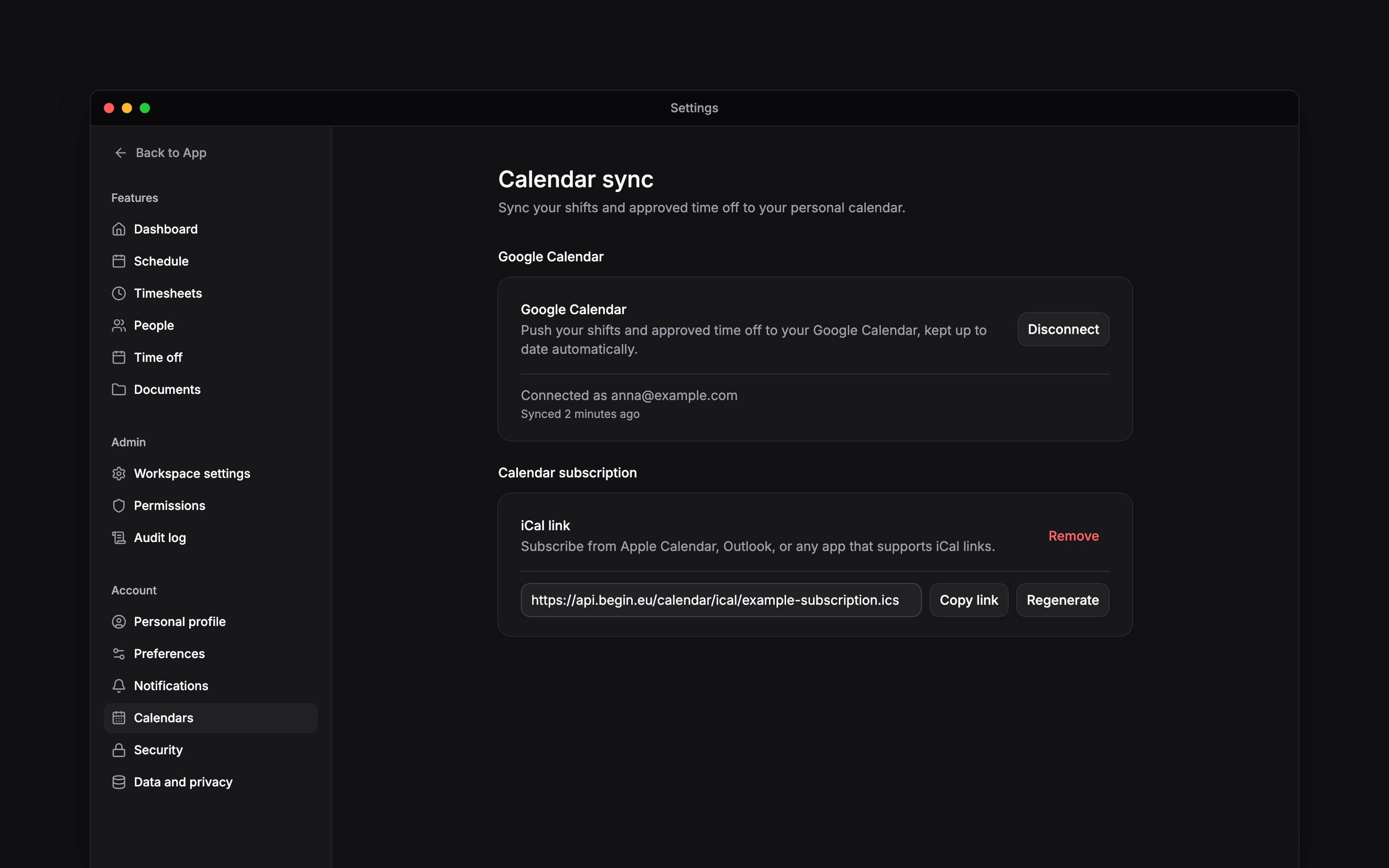
 Connect your personal calendar in Settings → Calendars to see your published shifts and approved time off from the current workspace. Each workspace has its own connection. This connects your own work, not the whole team’s schedule.
Google Calendar is switched on per environment by Begin. If you see Not available on this
workspace yet, use the iCal link or contact Begin support.
Connect Google Calendar
1
Start the connection
Under Google Calendar, choose Connect.
2
Approve access
Choose the Google account whose primary calendar should receive your work, then approve the
requested access. Begin does not ask you to choose a secondary calendar.
3
Check the connection
Return to Begin and check the connected email address and sync status. New changes sync
automatically. Open that Google account’s primary calendar and compare an upcoming published
shift with Begin to check its date and time.
Subscribe from another calendar app
Under Calendar subscription, choose Generate link, then Copy link. Add that link as a calendar subscription in Apple Calendar, Outlook or another app that supports iCal. Subscribe to the URL rather than importing a one-off downloaded file. Keep the link private: anyone with it can read the calendar feed. To replace a shared or exposed link, choose Regenerate and confirm. The old link stops working immediately; update the subscription everywhere you used it. Remove stops access through the current link. Begin AI can do the same for you: ask it to disconnect Google Calendar, or to create, regenerate or remove your subscription link, and confirm its card. It never shows the link in the chat; copy it from Settings → Calendars. Connecting Google needs your own Google sign-in, so Begin AI links you to the page to do it.Understand updates and disconnection
Only published work appears. Draft shifts and leave awaiting approval do not. The feed covers the past 30 days and the next 365 days. If an event is missing, check that it belongs to you in the connected workspace and falls within that window. Your calendar app controls when an iCal subscription refreshes. Calendar sync runs from Begin to your calendar. Editing a calendar event does not change the shift or time-off request in Begin.Choosing Disconnect for Google stops future syncing. Events already added to Google Calendar
stay there; remove them in Google if you no longer want them.
Next
Personalise your preferences
Choose your language and start page.
Secure your account
Review who can access your account.
Still need help?
Contact support
Email the Begin team and we’ll get back to you.
Ask Begin AI
Open the AI assistant and get instant answers based on these docs.