


 Begin checks every shift as you build it: against the compliance rules your workspace has set, and against what is already on that person’s calendar. Most of what comes back is information. Of those two checks, only a compliance rule can refuse a save.
Compliance rules are yours to set. They live in Policies → Compliance, and each one names the
people it is checked for. A workspace with none set sees no compliance marks on its schedule.
Read the dot
A small dot in a shift’s top-left corner marks a broken rule, and so does one on a team member’s avatar. Amber is a warning. Red is a rule that gates saving. Hover the dot on the avatar to read every rule it covers, each with the figure against its limit, like 8h / 1h max. No dots anywhere means one of two things: nothing is breaking a rule, or Compliance is unticked under Display, in Shift cards.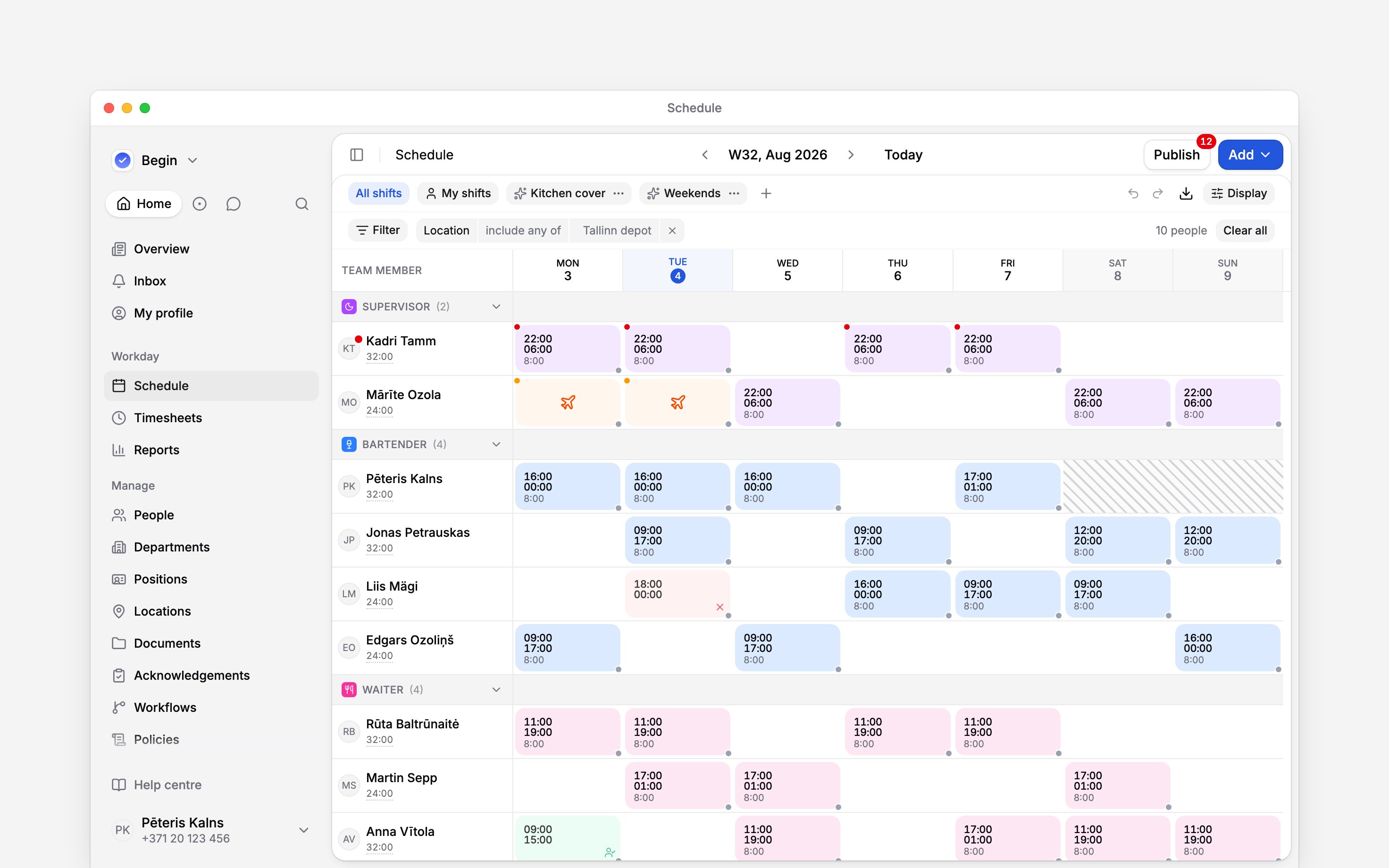
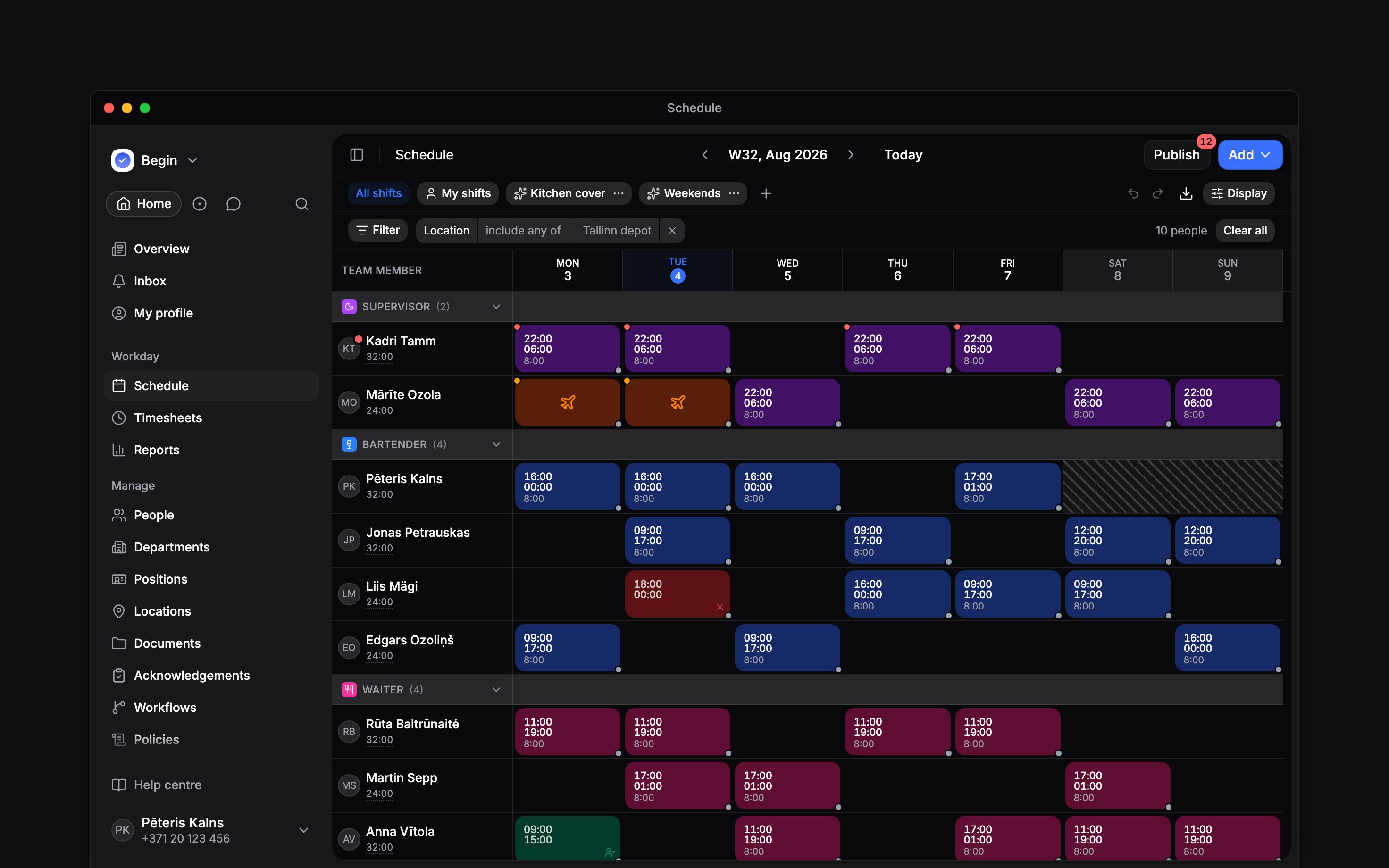
Red gates the save, amber only reports, and hatching marks days that count towards nothing
Which ones stop you
Dragging a shift asks the same question. The move is refused first, the warning opens, and cancelling puts the shift back where it was.
A refusal naming a field instead, like Select a position for this shift, is not compliance: it is a schedule policy that requires a position, location, client or colour on the people it applies to. Fill it in and save again.
Which ones only tell you
The shift editor’s Policies and compliance section opens with Overlapping time: what the assignee already has in those hours, whether that is another shift, approved time off, an unavailable block, or time they have already clocked. The assignee list marks a busy person before you pick them, with the hours they are taken. None of it refuses the save. Two overlapping records are legitimate often enough that blocking them would get in the way of ordinary corrections. Two more marks read the same way. Diagonal hatching across a run of days means no employment contract covers them, so nothing you put there counts towards that person’s hours. A dot on a time-off block means too many people are away on those days for the you have set; it warns you, and never refuses the time off. Or ask Begin AI (Cmd / Ctrl + J):Are there any scheduling conflicts next week?
What if a shift breaks more than one rule?
What if a shift breaks more than one rule?
It still carries one dot, in the colour of the worst of them: red if any rule gates saving,
amber if every one only warns.
Next
Creating shifts
The shift form the warnings appear in.
Time off
Absences, cover, and the clashes they cause.
Still need help?
Contact support
Email the Begin team and we’ll get back to you.
Ask Begin AI
Open the AI assistant and get instant answers based on these docs.