


 A post’s footer separates discussion, reach and reaction. Open the count that answers your question instead of treating one number as proof that everybody understood the update.
The post author can see who viewed their ordinary post. Anybody else needs View post viewers.
Without that access, the eye and seen count do not appear.
See who opened the post
Choose the eye count to open Seen. The list names each person who opened the post, when they last viewed it and any emoji they used on it. The author’s own view does not add to the count. The list is a record of opening the post, not an acknowledgement. Use an acknowledgement request when somebody must confirm that they have read or completed something.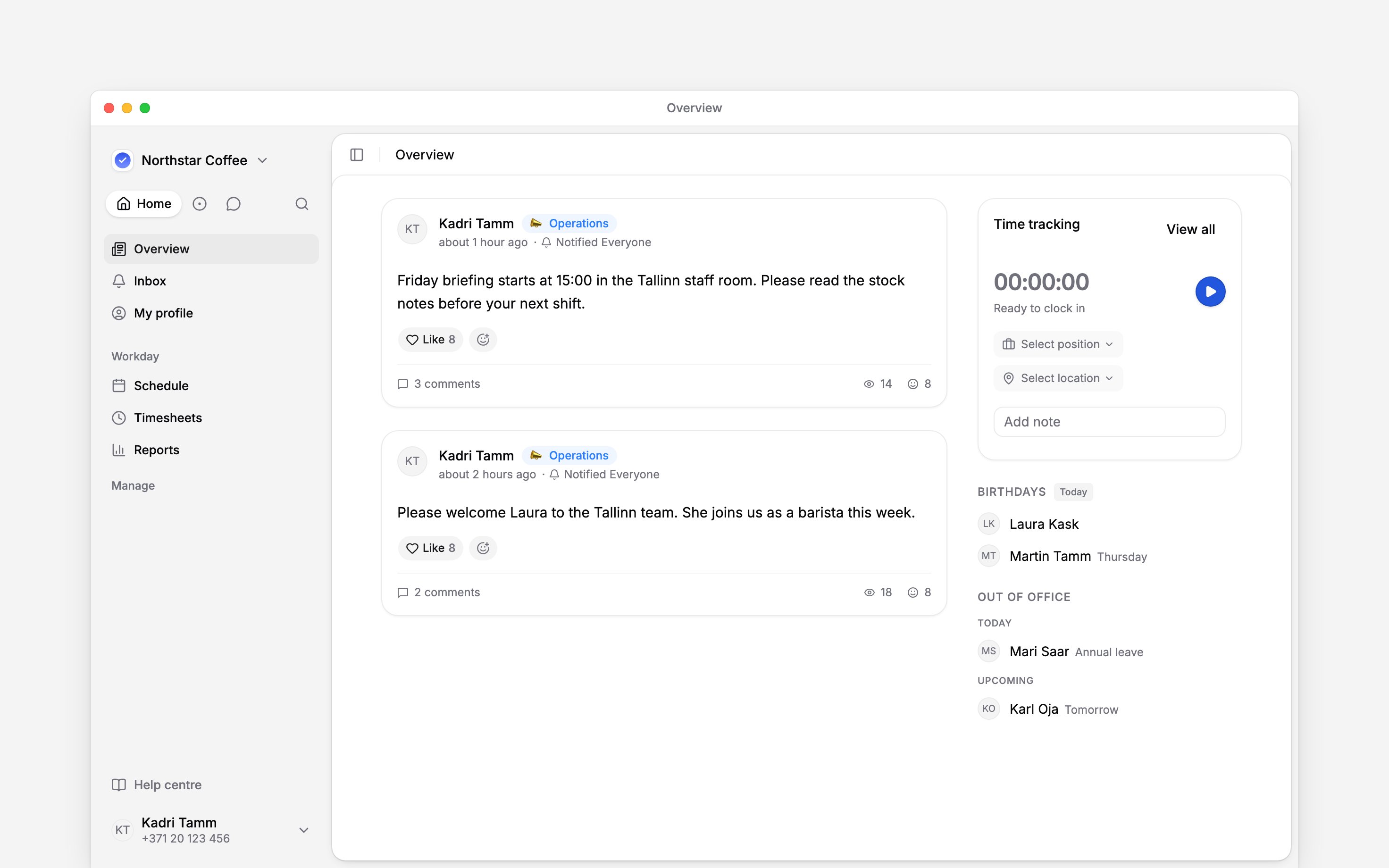
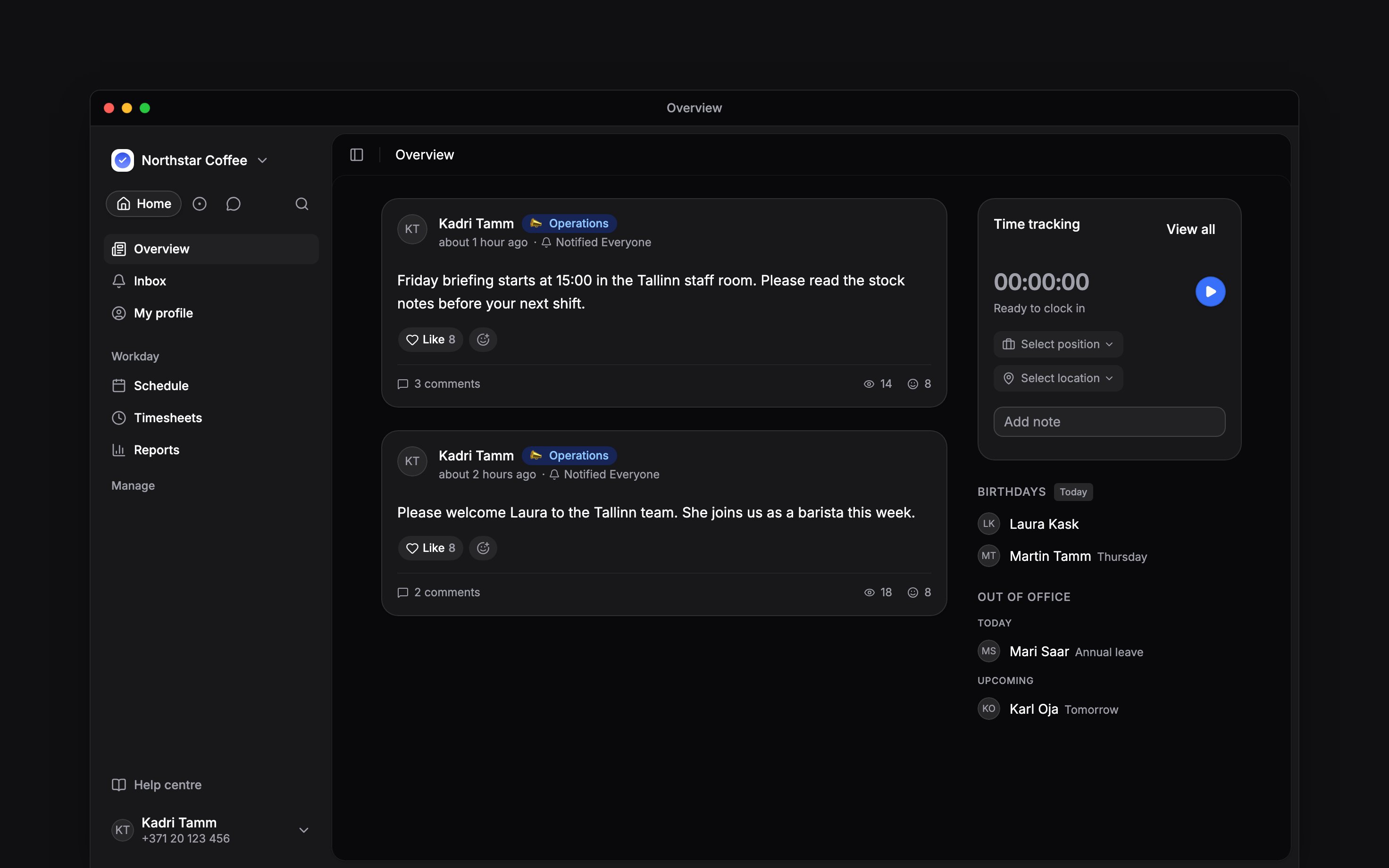
Comments, seen and reactions stay as separate controls on the post
Follow reactions and comments
Choose the reaction count to open Reactions. Each tab filters the list to one emoji, while the first reaction view shows each person once. The comment count opens the post discussion. Whether somebody may comment or add a reaction depends on the separate comment and reaction permissions in their role.Follow poll and attendance replies
On a poll, choose the respondent count to see who selected each option. On an Attending block, choose the answer summary to move between Going, Maybe and Not going. The post author and people with View post viewers can also open No response for attendance. That list follows the post’s Visibility scope, so it does not expose people who were never meant to receive the post.Next
Polls and events
See how the response controls and deadlines are set up.
Acknowledgements
Ask for explicit confirmation when seen is not enough.
Still need help?
Contact support
Email the Begin team and we’ll get back to you.
Ask Begin AI
Open the AI assistant and get instant answers based on these docs.