


 A swap trades one person’s shift for another person’s. Leave the other side empty and it becomes a one-way move: the shift changes hands and nothing comes back.
Ask for one
1
Start from the shift
Right-click the shift being given up and choose Request swap.
2
Pick the other person
Choose them under Swap with. Their shifts for that day appear under Shift to receive.
3
Choose both sides
Click the shift each person is giving. Each side has its own day picker, so the two need not
fall on the same day. Leave Shift to receive empty for a one-way move.
4
Send it
The button reads Request swap, or Request move when the other side is empty.
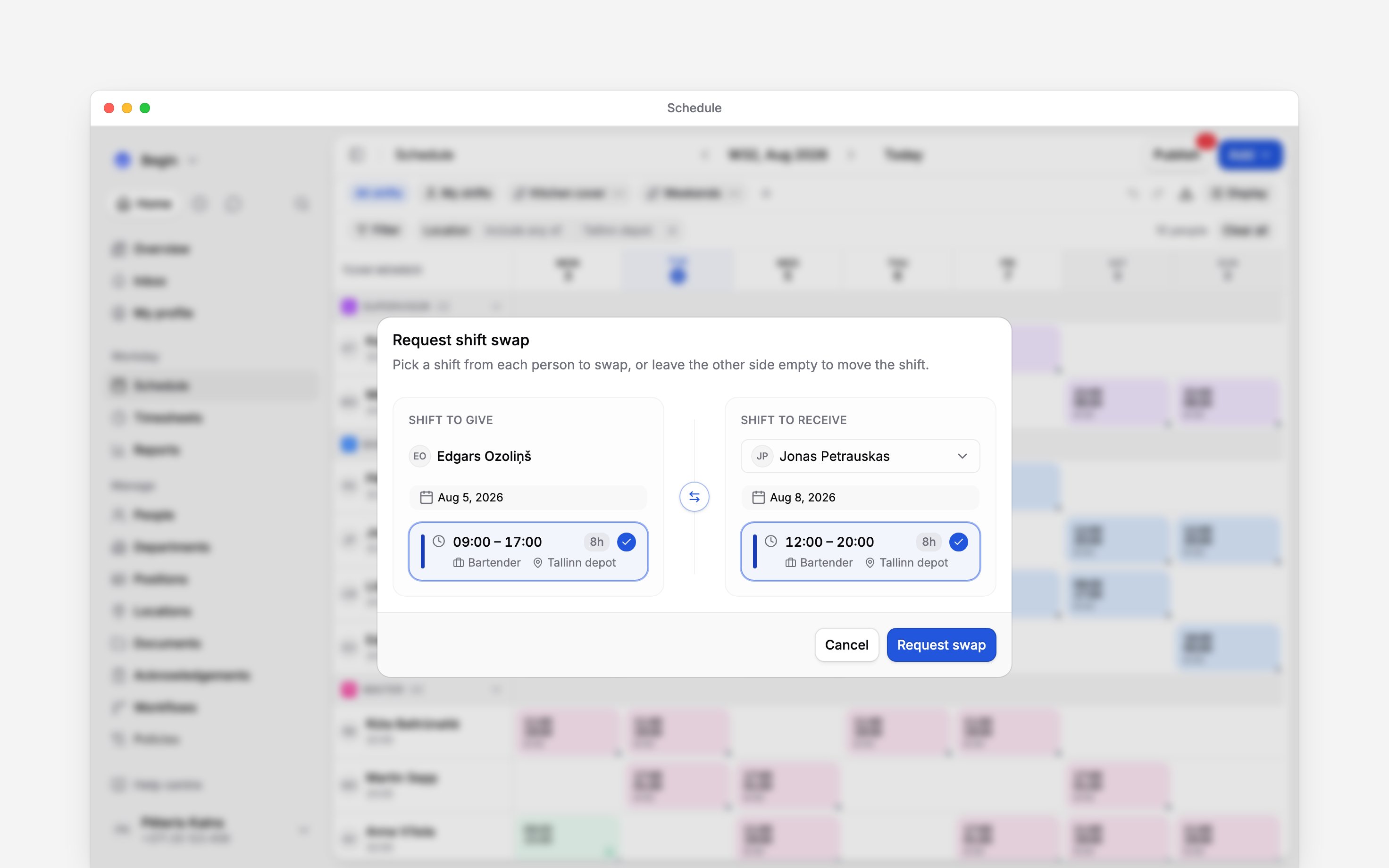
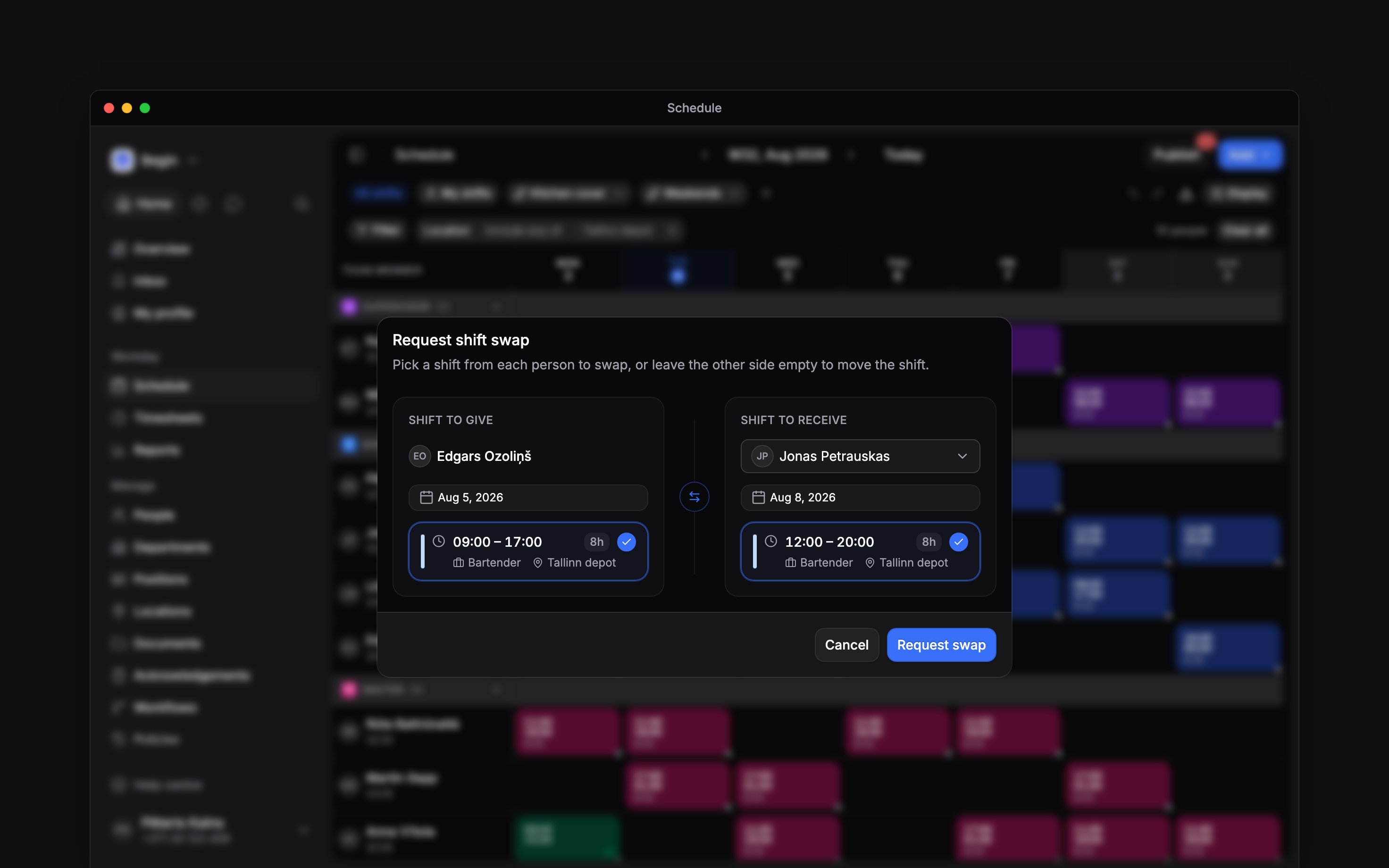
Each side picks its own day, so a Wednesday can be traded for a Saturday
Whether it waits for approval
That depends on one workflow, Shift swap approval, which every workspace starts with switched on. Unless someone has turned it off, yours is the first tab.- Approval on
- Approval off
A request goes for review rather than taking effect. You see Swap request submitted for
approval, the shift being given up shows Needs review, and the decision waits with the
requester’s manager, or with the admins and managers when they have none. A manager who cannot
see both people and both shifts cannot decide it, so it goes to the admins and managers who can.
Approving it performs the trade; rejecting it leaves both shifts where they were. A request
nobody decides before the shift starts closes on its own: the shift stays with the person who
asked and loses its Needs review status.
Your team can ask too
Swap shifts is on for the employee role, so a team member can right-click their own shift and start the same request. They can only file one they are part of: their shift going out, or a shift coming to them. Filing a swap between two other people needs a role that manages other people’s schedules. Switch Shift swap approval off and there is no request to file: a swap applies at once, which needs that same role. Your team can ask only while the approval is on.What cannot be swapped
What cannot be swapped
Only a shift can be swapped. Time off, availability blocks and open shifts are all refused, and
so is a swap whose two sides belong to the same person.
Asking Begin AI to swap two shifts
Asking Begin AI to swap two shifts
Begin AI swaps the two people at once instead of filing a request, so Shift swap approval
never sees it and nobody is notified. It needs Edit others’ shifts.
Next
Open shifts
The other way a shift finds a person, when nobody is giving one up.
Editing in bulk
Reassign many shifts at once, without a request each.
Still need help?
Contact support
Email the Begin team and we’ll get back to you.
Ask Begin AI
Open the AI assistant and get instant answers based on these docs.