


 Begin AI can update your workspace directly by creating shifts, inviting members and changing records. By default it previews every action for your confirmation. Change Approval mode in the composer when you want routine changes to run without asking.
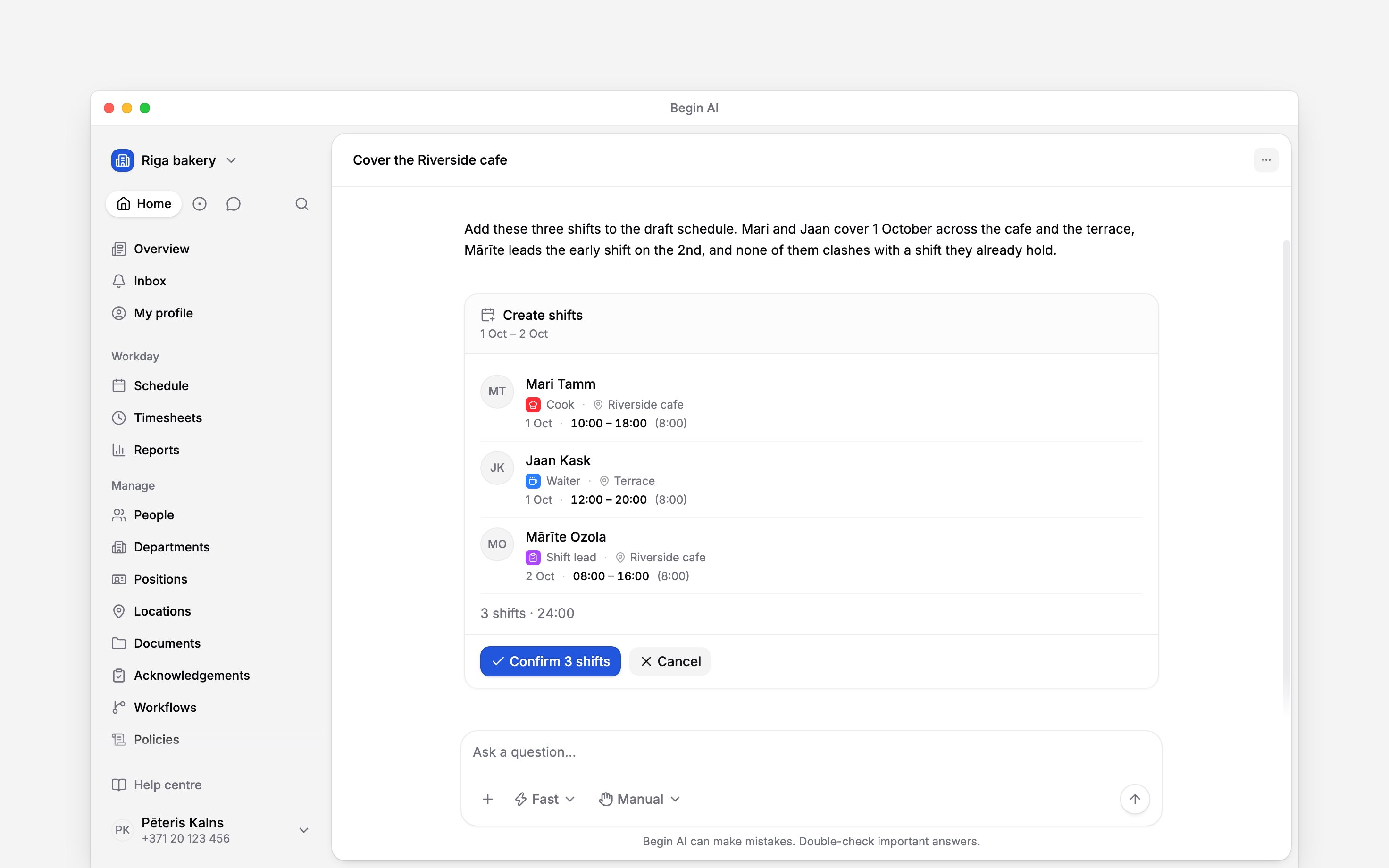
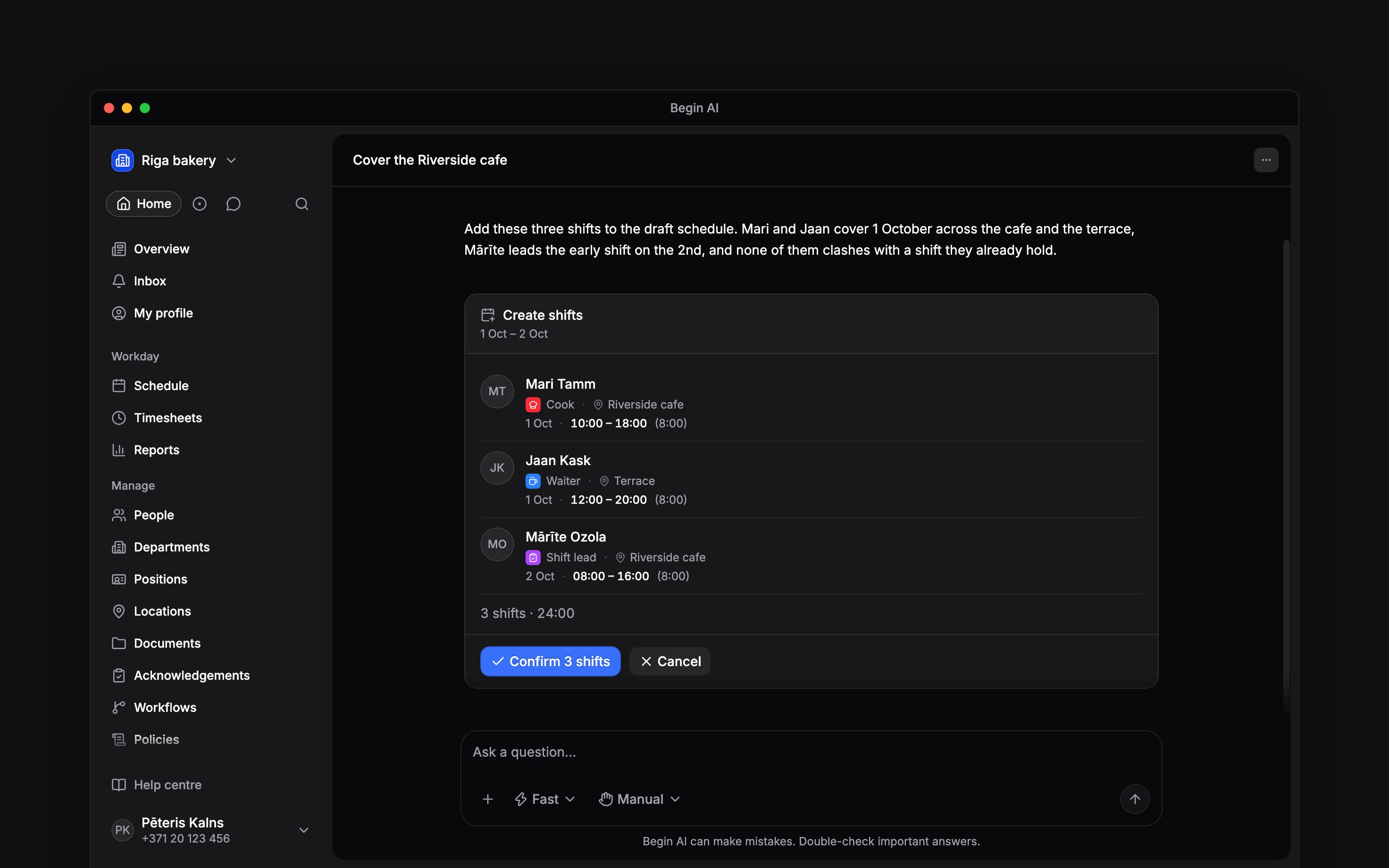
Manual approval shows the proposed change before anything is written.
Choose when it asks first
Describe the change
Give Begin AI the same details you would enter yourself: a person it can find, a date, and times on a 24-hour clock.Add a shift for Kadri Tamm on Thursday from 09:00 to 17:00.
Approve Kadri Tamm's pending time-off request.
Reject the shift change Mari Tamm asked for and tell her the rota is full.
Resend Mari Tamm's app invitation, she lost the email.
Label Kadri Tamm's Saturday shifts this month as Weekend premium.
Add a client called Harbour House with client number C-1042.
Give Kadri Tamm's Friday shift a 30-minute unpaid break.
Move Mari's Monday time entry to Kadi.
Put the Weekly hours report in my Payroll favourites folder.
Revert the bulk publish I ran this morning.
Deactivate everyone at the Tartu location except Mari Tamm.
Put the Kitchen and Bar departments first, in that order.
Book annual leave for everyone from 21 to 24 December as a winter shutdown.
Add a cover rule to the Kitchen department: at most two people off at once.
Add an Estonian holiday calendar for 2027 and fill it with public holidays.
Install the Estonian compliance template.
Regenerate my calendar subscription link.
Revoke the MCP clients I have not used this month.
Add a green shift colour called Cover and stop forgotten timers at the shift end after eight hours.
Set the welcome message to 'We can't wait to meet you' and use our standard offer letter as the default.
Create a break policy for the kitchen with a 30-minute unpaid break after six hours.
Snooze the payroll reminder in my inbox until Monday at 09:00.
Reply to the comment on Kadri Tamm's Friday shift that I can cover the late close.