


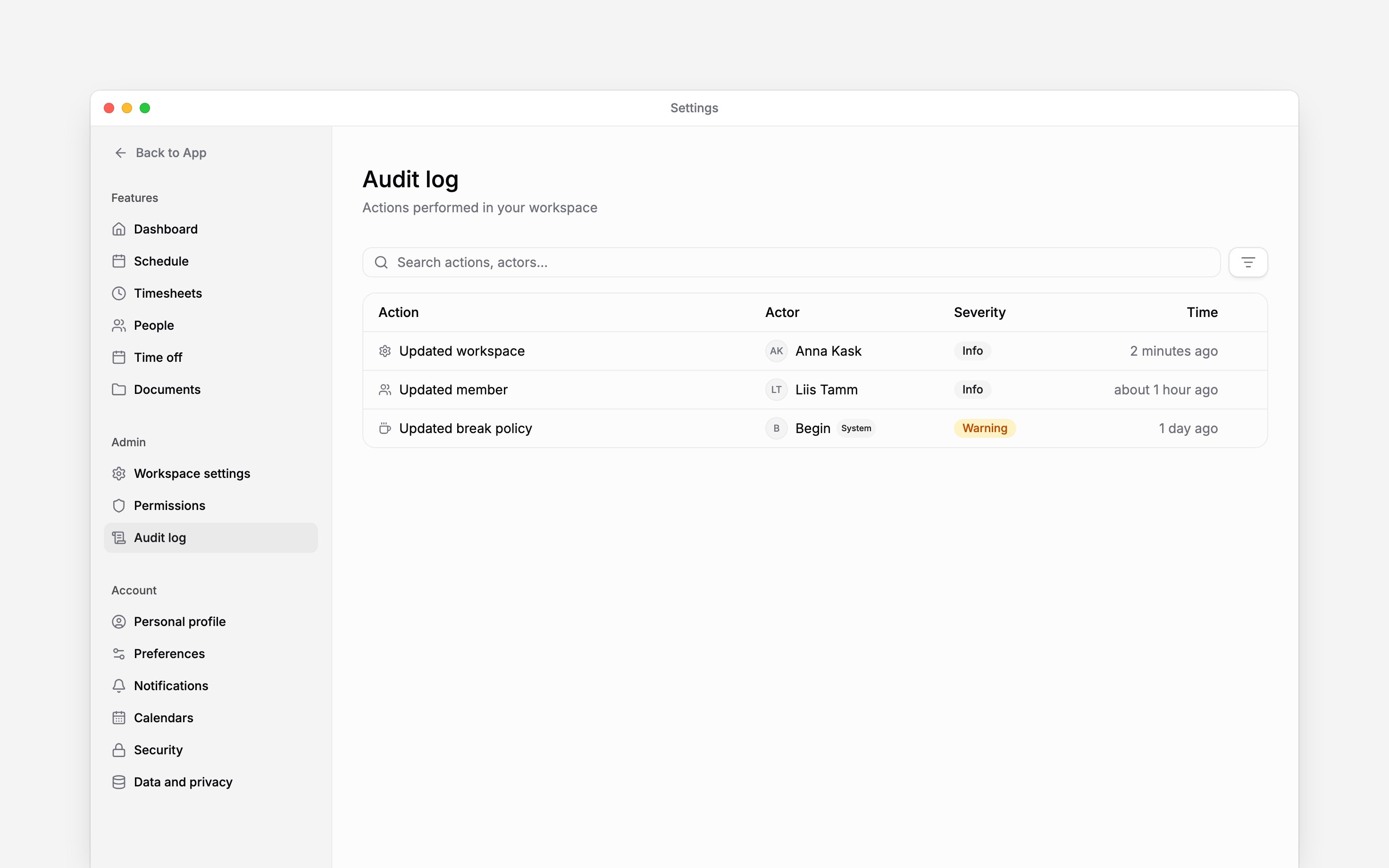
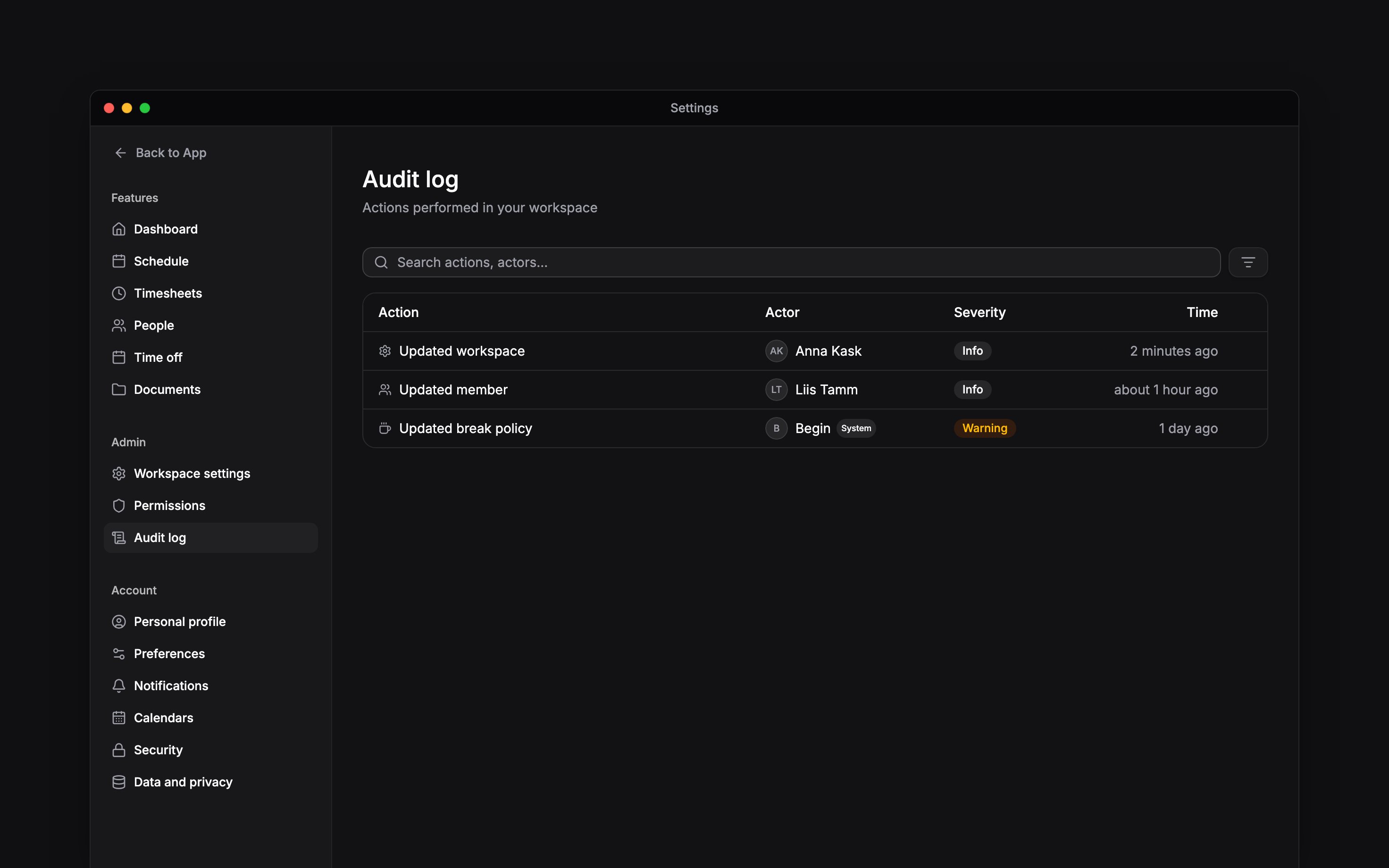
 Use Settings → Audit log to investigate who changed a workspace record and when. Check the workspace switcher first so you search the right organisation.
You need View audit log on your role. The audit log is a Pro feature: on Free, Standard or a
trial the page shows an upgrade message.
Find an event
1
Narrow the period
Open the filter control and choose the date range around the change you are investigating.
2
Find the person or record
Search by action or actor. Add an actor or resource filter if you know who made the change or
which kind of record was affected.
3
Refine the results
Filter Origin to separate Person, AI, Begin support, System, System
automation, Via terminal and MCP activity. Add severity when you need a particular
event level.
Read the details
Select an event to see its actor, time, origin, and recorded changes. Depending on the event, the detail can also include an IP address or affected resource. Changes made during Begin support access are recorded under the support person’s name. So are the changes Begin support or a Begin engineer makes at your request without support access: policy changes (breaks, rounding, clocking, overtime, premium hours, schedule, compliance, time off, other time, working time and holiday calendars), and onboarding changes (locations, departments and positions, new employees, employment terms and time-off balances). Use the actor and recorded details to distinguish their work from your own team’s activity. Where a resource link is available, open it to move from the event to the relevant record.A missing change in the detail does not prove that nothing changed. An event can only show the
information recorded by that action, and a value your role cannot see on that person’s profile is
hidden here too: their identification number, bank account, contact block, custom field values,
pay, job notes and the values filled into their generated documents stay hidden. An event whose
only changes are hidden from you is left out of the list. The Audit log page does not export
events.
Next
Roles and permissions
Grant View audit log without broadening unrelated access.
Support access
Review or revoke temporary support access.
Still need help?
Contact support
Email the Begin team and we’ll get back to you.
Ask Begin AI
Open the AI assistant and get instant answers based on these docs.