


 Open Settings → Schedule → Colours to change shared schedule colours. Default block colours distinguish kinds of time, while Shift colours are named choices you can apply to individual shifts.
You need Manage schedule settings. These changes affect the workspace, so agree on the meaning
of named colours with the people who build its schedules.
Set defaults for each kind of block
Under Default block colours, choose the swatch beside the block type you want to change. Begin saves your choice immediately. For example, you can give time off a different default from availability. Use the reset control beside an overridden type to return that type to Begin’s default. This does not rename or remove your named shift colours. Choose Use legacy colours if your team wants the familiar Heybegin block-type palette. This applies the preset to the workspace’s block types. It does not import old shifts or recreate your previous custom colour names.Create named shift colours
1
Add a colour
Under Shift colours, choose Add colour. A New colour row appears.
2
Give it a shared meaning
Replace the name with a term such as
Training and choose the swatch beside it. Both changes
save automatically.3
Use it on a shift
Return to the schedule and select the named colour when creating or editing a shift. The shift
uses that colour in place of its block-type default.
Remove or reset choices
Use Remove colour beside a named colour and confirm Remove to take it off the list. At least one named colour must remain. Reset to defaults replaces all named colour labels and values with Begin’s defaults. Read the confirmation before selecting Reset: there is no undo. This reset is separate from the per-type reset controls above. An individual block’s named colour takes priority over its block-type default. Clear the individual colour choice if you want that block to follow the shared default again.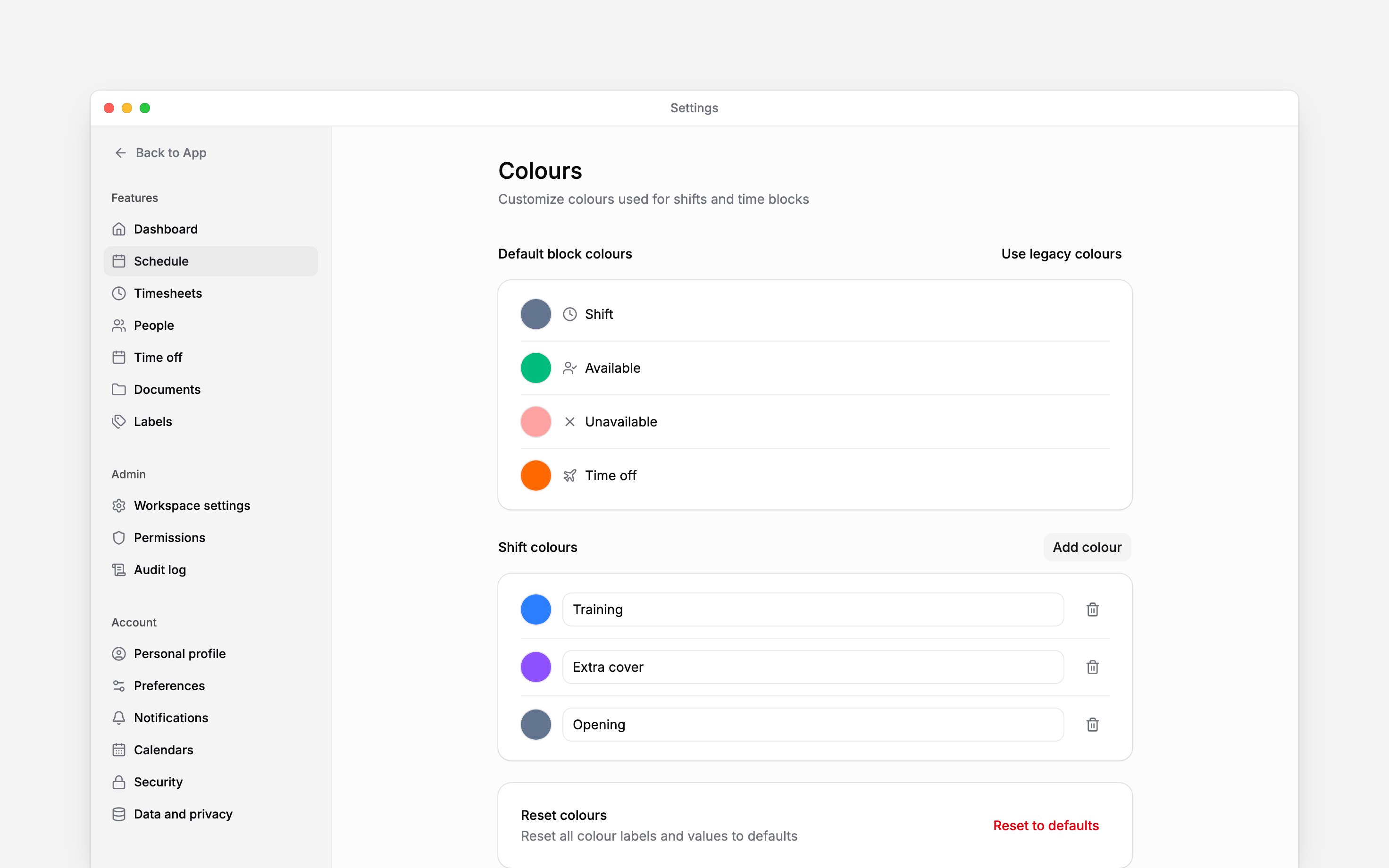
Next
Reading the schedule
Choose how colours and blocks appear.
Labels and groups
Tag work for filtering instead of relying on colour.
Still need help?
Contact support
Email the Begin team and we’ll get back to you.
Ask Begin AI
Open the AI assistant and get instant answers based on these docs.