


 Use a Department filter in Reports to narrow a report. What it selects depends on what the report’s rows are: linked positions for rows of shifts or time entries, or direct membership when the rows are people.
Narrow a report
1
Open a report
Go to Reports and open the report you want to check. Choose its date range.
2
Choose the department
Open Filter, choose Department and select the department. Start with one department so
you can check what it includes.
3
Check the source and rows
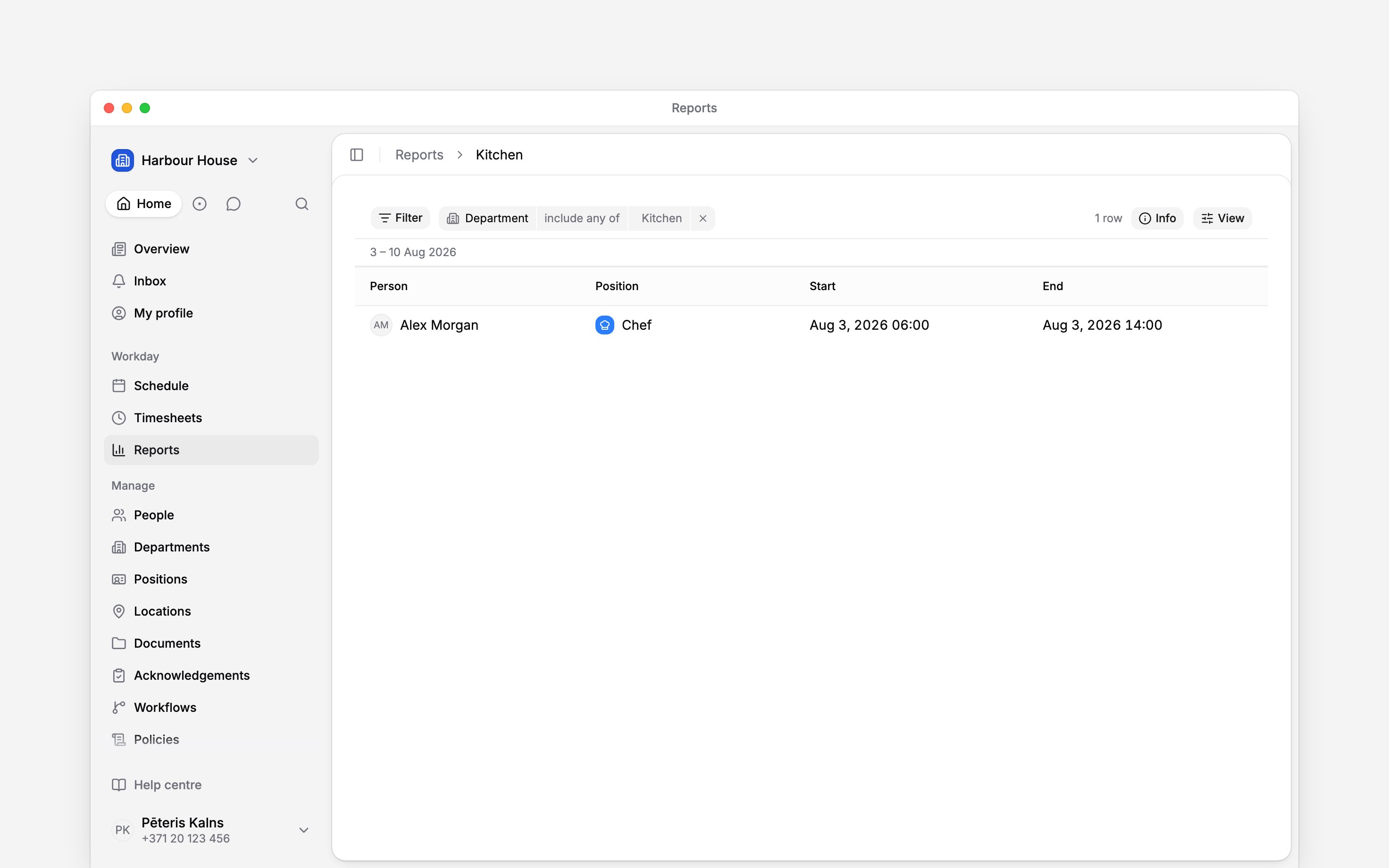
For individual shifts or time entries, leave Group by empty. Check that the records belong
to the positions linked to your department.
Match the filter to the question
For example, Kitchen can contain the Chef position while Alex belongs directly to Front desk. Alex’s Chef shifts and time entries appear in a Kitchen list of shifts and in Timesheets filtered to Kitchen, and Alex’s row shows on a schedule filtered to Kitchen. A Kitchen report grouped by person leaves Alex out, because Alex is not in Kitchen’s people list.
If a list of shifts or time entries is empty, check the department’s linked positions. Assigning
people alone does not give the report any positions to match.
Read totals in the right context
Calculated hour columns need a report grouped by person. They are not a breakdown of payroll hours by department. See Hour columns before comparing totals with a record list. A position can belong to several departments, so separate department reports can contain the same work. Do not add their totals together as though each department were a separate share of the workspace.Next
Assigning people and positions
Choose who belongs to the department.
Building a report
Choose the source, grouping and columns.
Still need help?
Contact support
Email the Begin team and we’ll get back to you.
Ask Begin AI
Open the AI assistant and get instant answers based on these docs.