


 Build a workflow by choosing what starts it and what Begin does next. Your work saves as a draft first, so you can finish the flow before any event starts it.
Your role needs permission to create and update workflows. Your plan also sets how many custom
workflows the workspace can create, and drafts count towards it: delete one to free a slot. Begin
shows an upgrade message when the workspace reaches that limit.
Create the draft
1
Start a new workflow
Open Workflows under Manage, then select New workflow. When the library offers
built-in workflows, pick one to add it as a draft and open its builder, or select Create from
scratch.
2
Name it and choose a domain
This step is for a workflow you create from scratch; a workflow picked from the library opens
its builder straight away. The domain decides which part of Begin can start the workflow. Add a
description when another manager will need to understand its purpose from the list. Select
Create workflow to open the builder.
3
Add the trigger
Select the first plus button, choose Trigger, then choose the event that should start the
flow.
4
Add what happens next
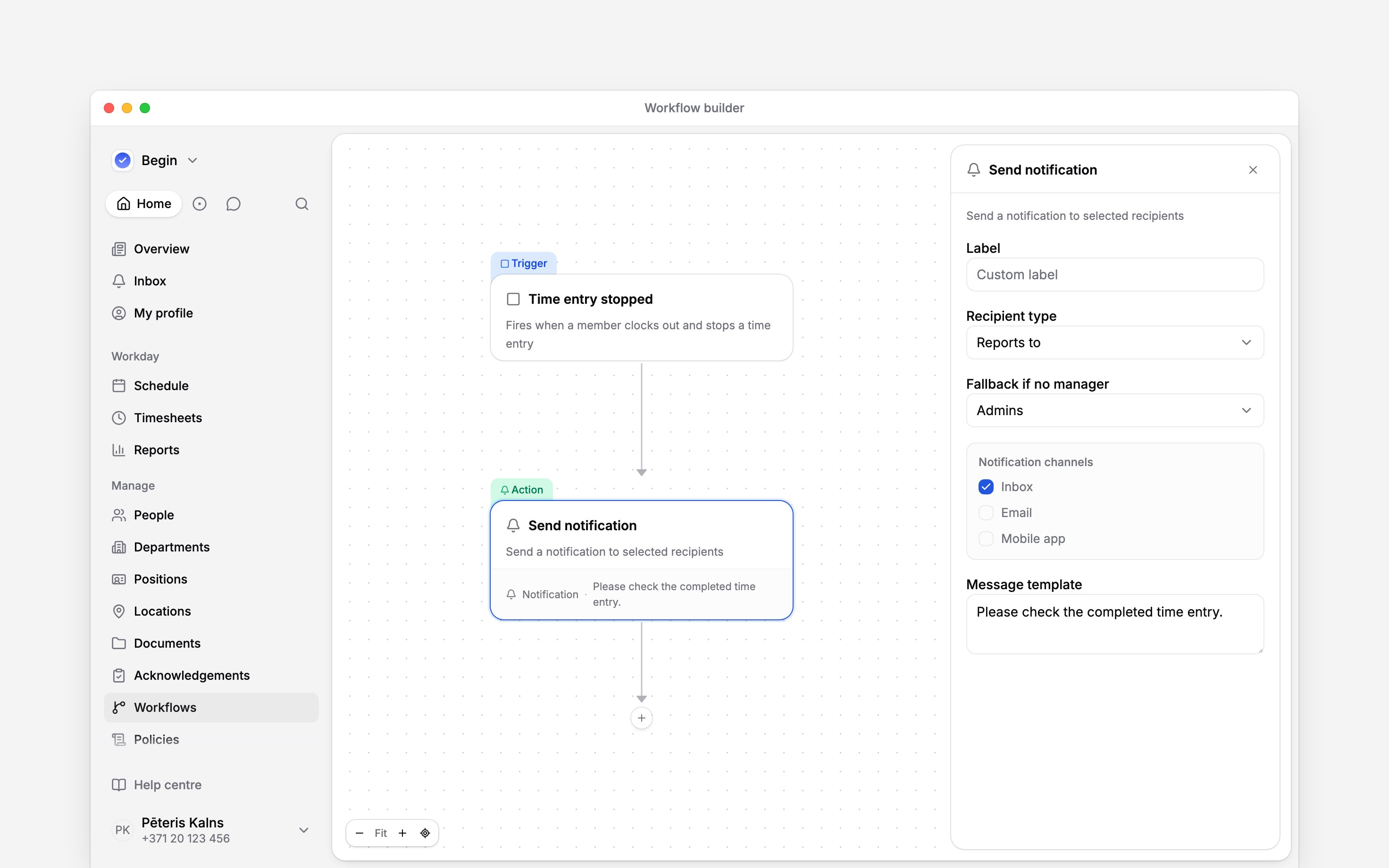
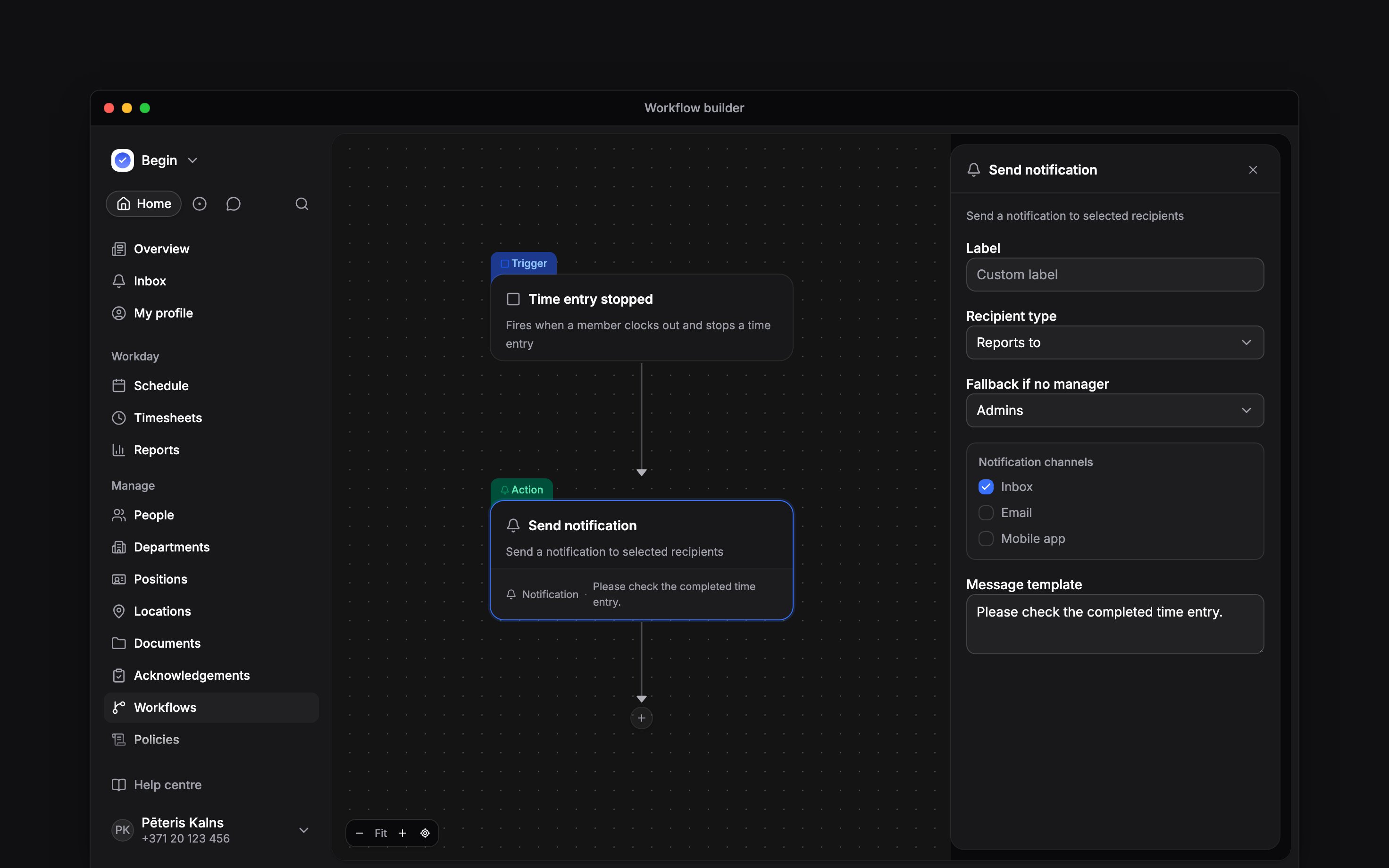
Use the next plus button to add an action. For Send notification, open the block and choose
Recipient type and Message template. Use Reports to for the person’s direct manager.
Open Advanced to pick Notification channels and a Fallback if no manager, so an
unassigned manager does not silently leave nobody to notify.
5
Wait for the draft to save
The header shows Last saved after Begin has stored your latest blocks.
Test it on a real record
Select Test run in the builder header (on a phone, it is in the Publish menu). Choose a recent shift, time entry or leave request and select Run test. Begin walks the workflow as it stands on the canvas, saved or not, and lists each block with its result: whether a condition was met, who a notification would reach and who an approval would wait for. Nothing is changed, sent or recorded in the execution log. A test run acts as if you made the change, so a notification sent to whoever made it would reach you. You can also ask Begin AI to test a workflow. It tests the last saved draft against a record you pick, tells you what each block would do, and changes nothing.Publish it, then turn it on
1
Open Publish
Select Publish in the top-right corner of the builder.
2
Create a numbered version
Select Publish workflow. The menu shows the new version number when it is ready.
3
Activate the workflow
Select Activate in the same menu. You can also close the builder and use Activate from
the workflow row’s menu.
Check the first result
For example, a Timesheets workflow can connect Time entry stopped to Send notification. Narrow the trigger to one person while you check it. After their next normal clock-out, open Publish → View execution log and check the latest run and its notification. Activating a workflow does not replay earlier events. If no run appears, check that the workflow is Active, its domain matches the trigger and the person matches its filters. A failed run has an error in the execution log.Saving the draft does not publish or activate it. A workflow needs at least one trigger, and every
other block must connect to a trigger before Begin can activate it.
Next
Triggers and conditions
Pick the right domain event and narrow when the action runs.
Changing and pausing
Update an active workflow without losing its published versions.
Still need help?
Contact support
Email the Begin team and we’ll get back to you.
Ask Begin AI
Open the AI assistant and get instant answers based on these docs.