


 A channel keeps a team conversation in one place. Use one for a department, a location or a topic that people will return to. Choose its visibility before posting anything private.
Creating and managing channels depends on your role. If Create channel is missing, ask an
administrator to check your permissions. Creating a channel and sending messages also need the
workspace’s Messages add-on.
Create a place to talk
1
Open Messages
Choose New → Create channel.
2
Name the conversation
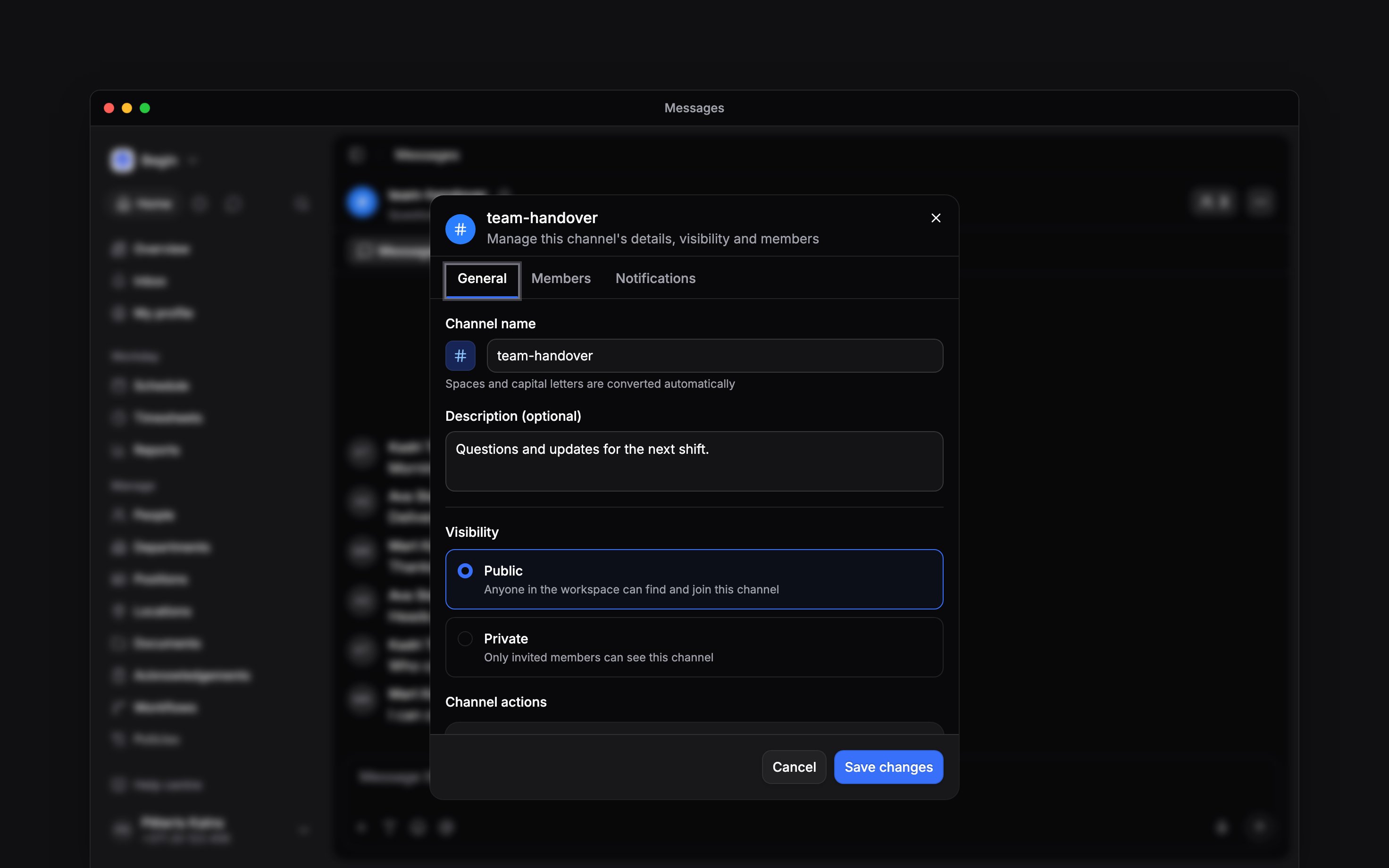
Enter a name and, if useful, a description. Check the name preview: Begin converts spaces and
capital letters automatically.
3
Choose who can find it
Choose Public for a channel anyone in the workspace can find and join, or Private for
invited members only.
4
Add people and create
Select the people, or the department or role selection, who need the channel, then click
Create. The channel opens, ready for your first message.
Change who can read it
Open the channel’s three-dot menu and choose Channel settings → General to edit its name, description or visibility. Click Save changes and confirm a visibility change. A public channel can be read before joining. Click Join channel to participate. A private channel needs an invitation; knowing its name does not give someone access.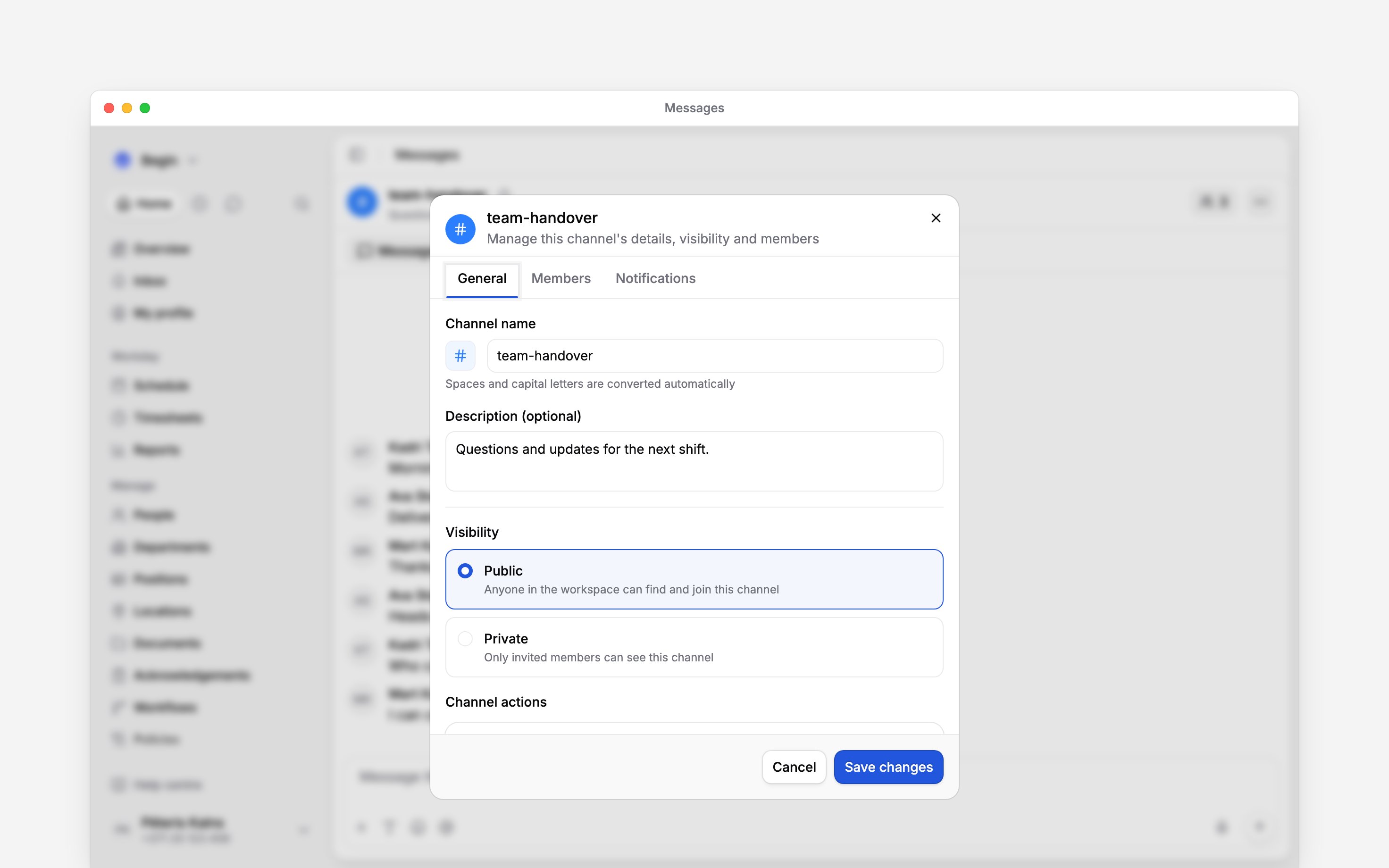
Leave or put a channel away
Choose Leave channel to stop belonging to it. You can rejoin a public channel; a private channel needs another invitation. If you created the channel, you cannot leave it and cannot hand it to someone else. Archive it when it has finished, or leave it in place and set your notifications for it to Nothing. Choose Archive when the conversation has finished. The channel moves to Archived, keeps its history and stops accepting messages. Use Restore channel there to reopen it. A restored channel with saved member selections reopens with the people those selections name today, plus anyone added by hand. Delete permanently removes the channel and its messages from use and cannot be undone. Archive and delete actions require the relevant management permission; their absence is not a reason to leave and recreate the channel.Next
Managing channel members
Add the right people to a channel and keep its membership in step with your team.
Replies and reactions
Send a message, keep a reply with its question, and correct what you wrote.
Still need help?
Contact support
Email the Begin team and we’ll get back to you.
Ask Begin AI
Open the AI assistant and get instant answers based on these docs.