


 Use Applies to to decide who a policy reaches. You can start with Everyone, then add a more specific policy for selected people, positions, departments or roles when their rules differ.
Choose the audience
1
Open the policy
Go to Policies, choose its tab, then add a policy or open an existing row. It opens ready to
edit when you have edit access, and read-only when you do not.
2
Set Applies to
On the General tab, leave Applies to on Everyone for a workspace-wide rule. To
narrow it, switch it to Custom, select + (Add condition) and add a position, department,
role, person, person’s location, shift location or employment type. A role target keeps a rule
on Employee without reaching managers or administrators.
3
Activate it
On the same tab, set Status to Active, then save. Draft and archived policies do not
take effect.
Leave people out
Select the word in the middle of a chip to switch it between include any of and do not include (is any of and is not for people). A do not include chip leaves out the people it names, even when another chip names them: for example, everyone in Kitchen except one person. When every chip is do not include, the policy reaches everyone except them, so Custom with one Employment type chip set to do not include Contractor means everyone except contractors. Switching back to Everyone removes every chip. A Person’s location chip reaches the people assigned to that location on their profile, wherever their shifts are, so a night premium for two sites reaches only their staff. A Shift location chip, which only clocking, schedule, rounding and breaks policies offer, works the other way: it matches where the shift or entry is, whoever works it. An Employment type chip reads the type from the person’s current job on Job & pay, so a change there takes effect at once and moves this year’s time-off balance with it. A person with no job record is never left out by type, and is not reached by a chip that includes only some types. Leaving people out never changes which precedence level a policy matches at. Policy tester lists a policy that leaves the person out under Not in effect on this date, with the type it leaves out or Leaves this person out.Choose when a policy applies
Every policy except time off, other time, working time and holiday calendars has When under Applies to. Leave it on Always, or choose Between dates and pick a start, an end or both. Outside those dates the policy has no effect. Inside them it outranks a policy without dates for the same people, so a summer policy for Everyone from 1 June to 31 August replaces your default policy for those months and hands back to it on 1 September. A department’s own policy still beats a company-wide summer policy, because who a policy is aimed at counts first. Compliance rules only count the shifts inside their dates. With Totals rounding or a Summarized period of overtime, the dates must start and end with a whole month or window. To start a new policy later, or to end one on a set day, use When rather than a date on the save. Working time has no When: a new working time policy or an archive takes its date from Apply from instead.Preview the result
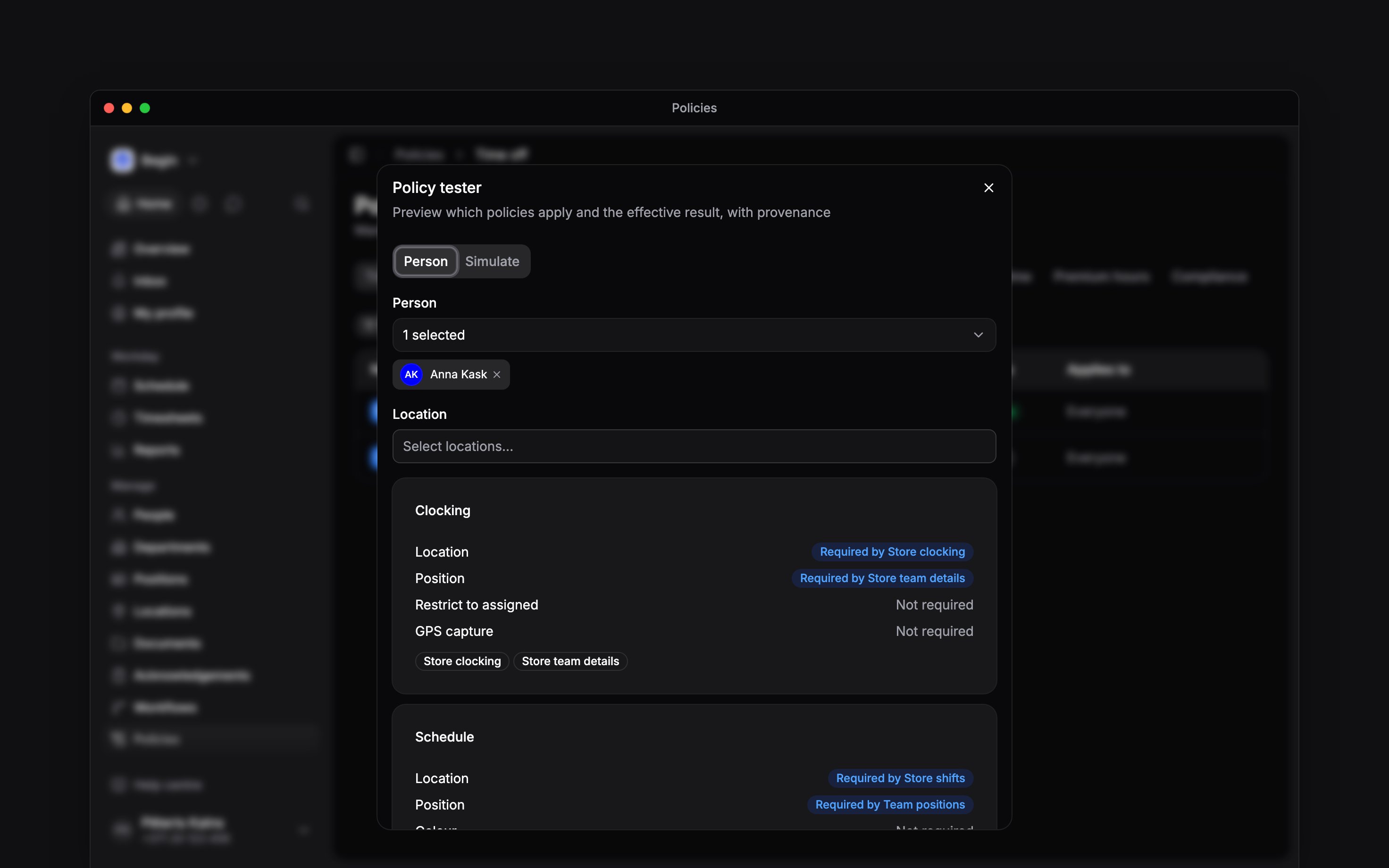
Open Policy options (the three-dot menu beside Add) and choose Policy tester. You can also search for Policy tester in the command palette (Cmd / Ctrl + K). Pick a person to use their current assignments, or choose Simulate to test a position, department and location without changing anyone. The cards name the policies that apply. Where several rules contribute, the result also names which policy supplied each requirement. Check one person who should get the rule and one who should not, and read the source name: someone outside the audience may get the same requirement from another policy. To see the policies on another day, pick it in Date; Today returns to the current rules. A past or future date shows the policies as they stood that day, but the person’s positions and departments are still today’s, and the tester says so. Policy changes lists the days a policy reaching that person starts, changes or stops applying, with later days marked Scheduled; choose a day to show the policies on it. On a day the person already has approved time, Overtime and Premium hours also show Approved time on this date: the policy and settings that approval kept. Those are what the person’s hours on that day count with, even when the rule shown above has changed since; a later change reaches them only when it is applied with Earlier dates too. You can also ask Begin AI which policies apply to a person, optionally at one location or on a given date. It uses the same resolution as Policy tester and names the policy behind each answer. Anyone can check their own policies this way; checking a colleague’s needs access to the Policies page. Each card also lists the policies that reach the person but have no effect on the date, under Not in effect on this date, with the reason: it is archived or a draft, it starts later, or its When has not started or has ended. If the expected rule is missing from both, check the person’s current assignments and its targets. For families with location-scoped matching, select the location you want to test. Time-off, overtime, premium-hours, compliance and working time policies do not take a shift location; they take a person’s location, which follows the person rather than the shift. Simulate does not represent a real person, so it cannot match a policy targeted directly to that person.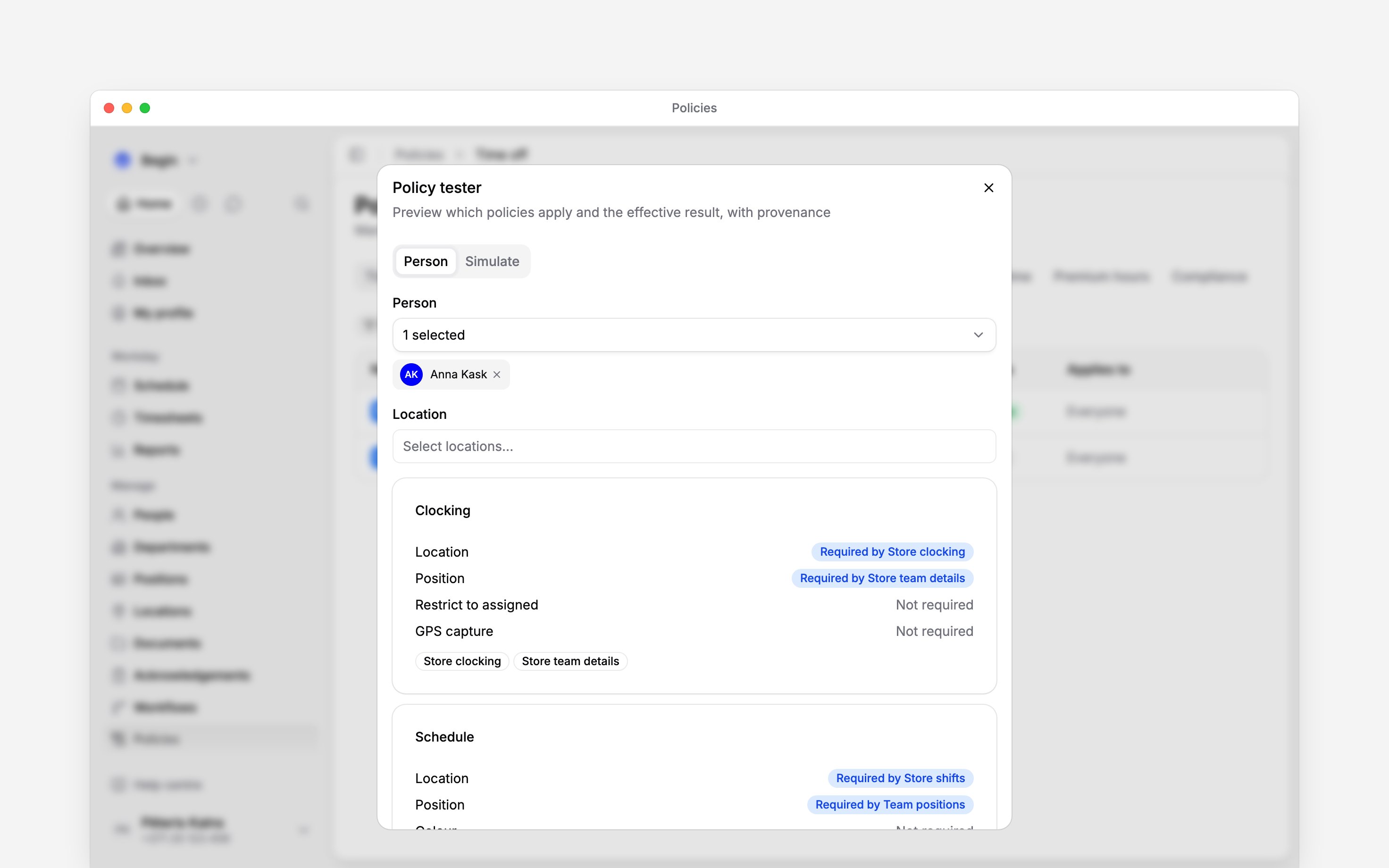
Choose when a change starts
When you edit a policy, every editor except time off, other time and holiday calendars has Apply from beside Save: Today, A later date or, on overtime, premium hours and rounding, Earlier dates too. Choose A later date and pick the day, and the policy keeps its current settings until then, then switches on its own. A new policy and an archive apply when you save them, except on working time, where they take the Apply from date too. Most changes take any day and open on Today. Two take only the day a period begins: an overtime change to or from a Summarized period, where a window begins under both settings, and a Totals rounding change, on the first of a month. An overtime change that moves people onto another overtime policy, by changing who it applies to, its status or its When, also takes only a day that begins a window under the policy each person leaves and the one they join. Someone no policy covers counts as monthly, so a change that leaves them uncovered or picks them up takes the first of a month. The workspace’s first overtime, premium hours or rounding policy counts at once, for work already recorded too; a later new one counts from the day you save it. A new workspace already has its first overtime policy, Monthly overtime: to cover recorded work with other overtime settings, change that policy and save it with Earlier dates too. Time off, other time and holiday calendars have no date: they apply when you save. The name, description, icon and colour are never dated. A policy holds one scheduled change at a time, and its row shows Changes with the date. Open the policy to Edit scheduled change or Cancel scheduled change (time off offers cancel only). An edit saved for today is copied into the scheduled change too, and saving another dated change asks before replacing it. Archiving or deleting a policy cancels its scheduled change, and both ask first. Status changes and deletes from a row apply at once. Changing When is dated like any other setting, so the days before the change keep the dates they had. To correct days already worked under an overtime, premium hours or rounding rule, choose Earlier dates too in Apply from and select Continue. Your settings then apply from the day in the past year you pick until the policy’s next change, which stays. To carry the current settings back, change nothing. The day follows the rules a later one does, and overtime adds one. Break policies keep their own recalculation. The preview counts entries that move and those kept: a later change governs them, moving them would shift other days’ figures, or their person has too much to update at once. It lists the payroll exports that covered those days, to resend, and says if the list is incomplete. For overtime and premium hours, approved entries of the people the policy covers today keep their approval and show re-applied policy settings in their activity; entries awaiting approval, or approved before settings were frozen, follow automatically. If it stops partway, choose Resume, now or when you next open it. It needs Edit & add on Policies, Edit others’ time entries not limited to part of the team, and a Who can they see? reaching everyone the policy covers, then or now; for Everyone, only locations or over 5,000 people, that is the whole workspace.Resolve equal matches
Two equally specific policies in one family may disagree. Begin marks both rows with a warning icon; point at it to see the other policy and why the two conflict. The policy editor repeats the same note above its form. Open either policy and choose Check who this affects in Policy tester. It opens empty over the policy, so pick a person or use Simulate to see whom the disagreement reaches. Change the targets or align the settings so the effective result is unambiguous. Time off works differently, because every time-off policy that matches a person applies and keeps its own balance. Two time-off policies in one absence category are marked only when they could give someone the same days twice: both grant the same statutory leave, or one is aimed at a person or group the other already covers. Separate leave types for everyone, such as sick leave and a health day, are not marked, and neither is a pair where one policy is unlimited.Conflict marks appear once a scan has completed, and the scan needs permission to see people as
well as policies. If you do not see them, use Policy tester to check the effective result.
Next
Time off and entitlements
Apply leave and balance rules to the right people.
Clocking restrictions
Combine audience and workplace rules for clocking.
Still need help?
Contact support
Email the Begin team and we’ll get back to you.
Ask Begin AI
Open the AI assistant and get instant answers based on these docs.