


 A clocking policy controls how a person may clock, what the clock-in must contain and whether their device location is checked. It does not round the time they submit.
Choose the restrictions
- Clocking methods: restrict clocking to selected terminal, web or app methods. A Don’t restrict rule can allow a method that a broader rule restricts.
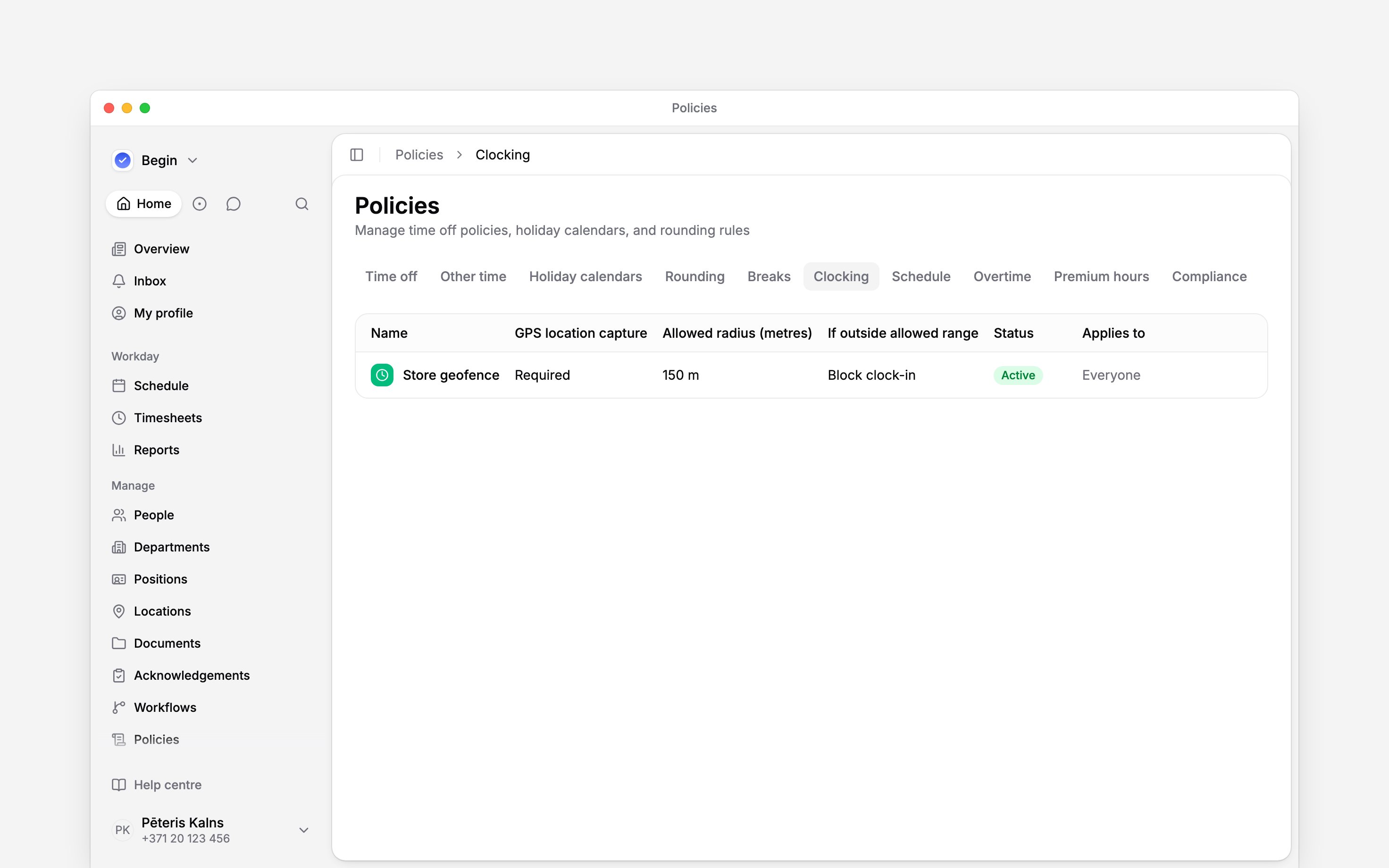
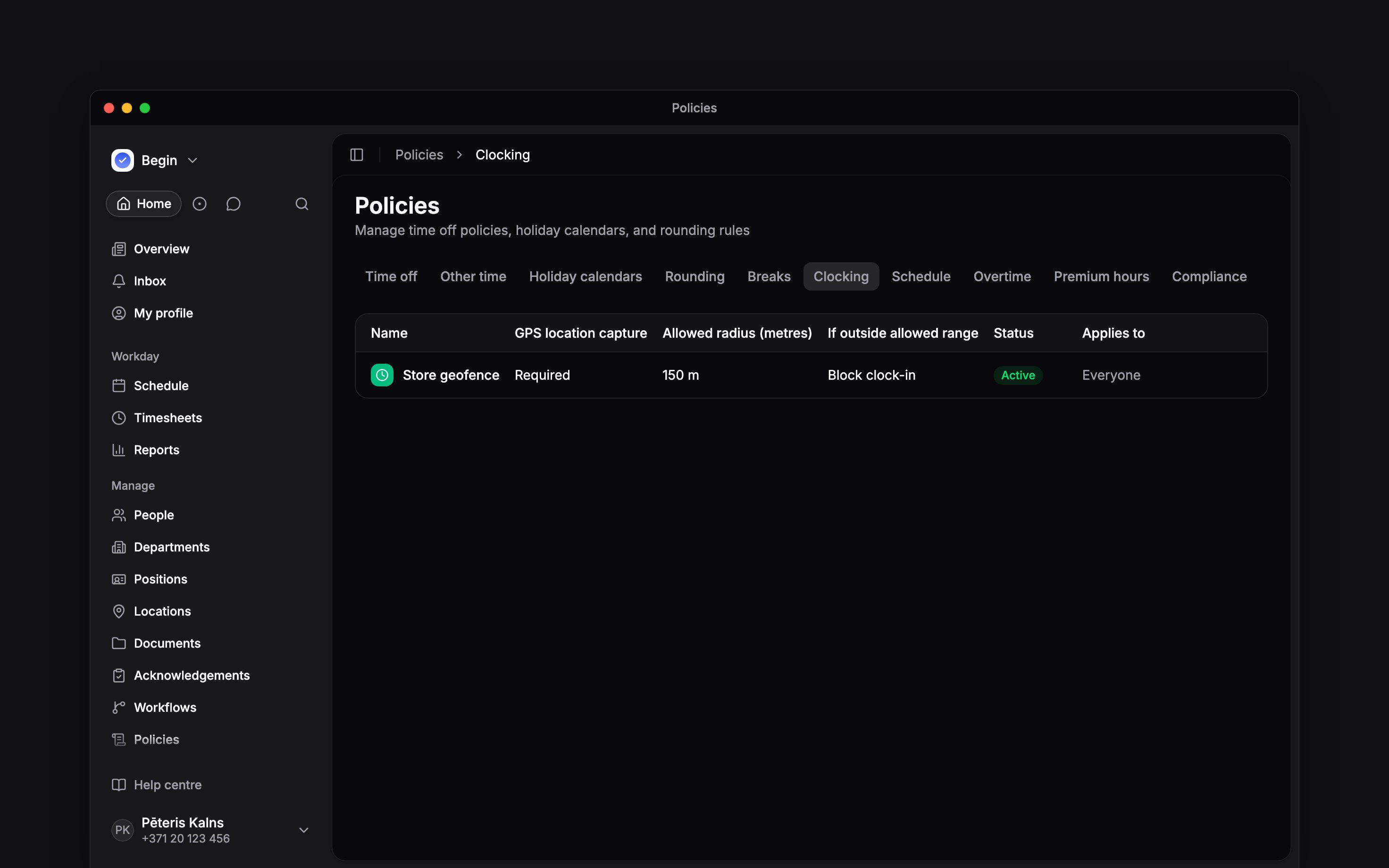
- App and web location capture: keep it off, make it optional, or require it. For required capture, set an Allowed radius (meters) around the location (workplace). Under If outside allowed range, a new policy starts on Record location only: the punch goes through and the location is kept. On the Pro plan you can choose Block clock-in or Allow and flag for review. Workspaces moved from Heybegin keep both options on their current plan.
- App and web details: require a position or location, and restrict each choice to the person’s assignments.
- Clients: require at least one client at clock-in and in Add time. A linked shift supplies its clients. Editing other fields on an older entry is allowed, but clearing required clients is refused. The rule waits until your workspace has an active client. An automatic clock-in under it goes through only when the person’s shift carries a client.
- PIN clock-in: Allowed, Blocked, or Inherit the decision from another matching policy.
- Automatic clocking (Pro plan): let the phone clock people in and out at a location, or ask them first. See Automatic clocking.
Beta
Without a matching clocking policy, all clocking methods and PIN clocking are allowed. A GPS check needs a targeted shift location with a map pin; a location without a pin is never checked.
Clients are rolling out gradually, so your workspace may not have them yet. If Clock-in
requirements has no Clients, ask us to turn them on.
Create the policy
1
Start it
Go to Policies → Clocking, open Add, then choose Clocking policy.
2
Set the capture rule
On the Location tab, choose whether location capture is off, optional or required. For
required capture, set Allowed radius (meters) and If outside allowed range.
3
Choose methods and details
On Methods, set the allowed clocking methods and the PIN clock-in rule. On
Requirements, set any required position, location or client.
4
Target and activate it
On General, choose Applies to, set
Status to Active, then save.
Check before your team clocks
For a radius rule, confirm the location has a map pin first: a typed address without a map pick sets no pin, so the check never runs. Choose Block clock-in when an outside-radius clock-in must be refused, or Allow and flag for review when it should be accepted with a flag for review. Both need the Pro plan, or a workspace moved from Heybegin, which keeps both on its current plan. Otherwise, below Pro, a saved block or flag rule acts as Record location only until the workspace upgrades. Requiring a Location field and capturing device location are separate decisions: choosing a location name is not a GPS check. After saving, use Policy tester for a real person and the intended location. Review the effective methods and field requirements. Then verify the intended clock-in flow at that location. App and web clocking need device permission when location capture is required. Terminals enforce the allowed terminal method and PIN rule. They use the terminal’s registered location and do not enforce GPS checks or required position, location or client selections. Test a normal terminal punch separately; the policy tester also displays settings for app and web clocking.Combine matching rules
Matching clocking policies can contribute different settings. A narrower rule can override one restriction while the rest still come from broader policies. Use Policy tester when you need to see the composed result for a person.Next
Automatic clocking
Set up the phone-side switch for automatic clocking.
Rounding time
Adjust accepted punches without changing who may clock.
Still need help?
Contact support
Email the Begin team and we’ll get back to you.
Ask Begin AI
Open the AI assistant and get instant answers based on these docs.