


 Use a table document for certifications such as a forklift licence or completed training. Each record belongs to a person and can carry completion and expiry dates, so you can find what needs renewing.
Add a person’s record
You need edit access to the table document to change its records, and Full access to change columns or options. Permission to edit people alone is not enough. Ask someone with Full access to share the table with the access you need. By default a person sees only their own records, not a colleague’s. Seeing other people’s records needs permission to view others’ documents or an explicit share of the table.1
Open the person's Documents tab
Open the certification document marked Table. This view shows records for that person.
2
Choose Add record
The person is already selected. Choose the certification type and enter the completion and
expiry dates the table asks for.
3
Save the record
It appears in the table with its current status. Check the dates if the status is unexpected.
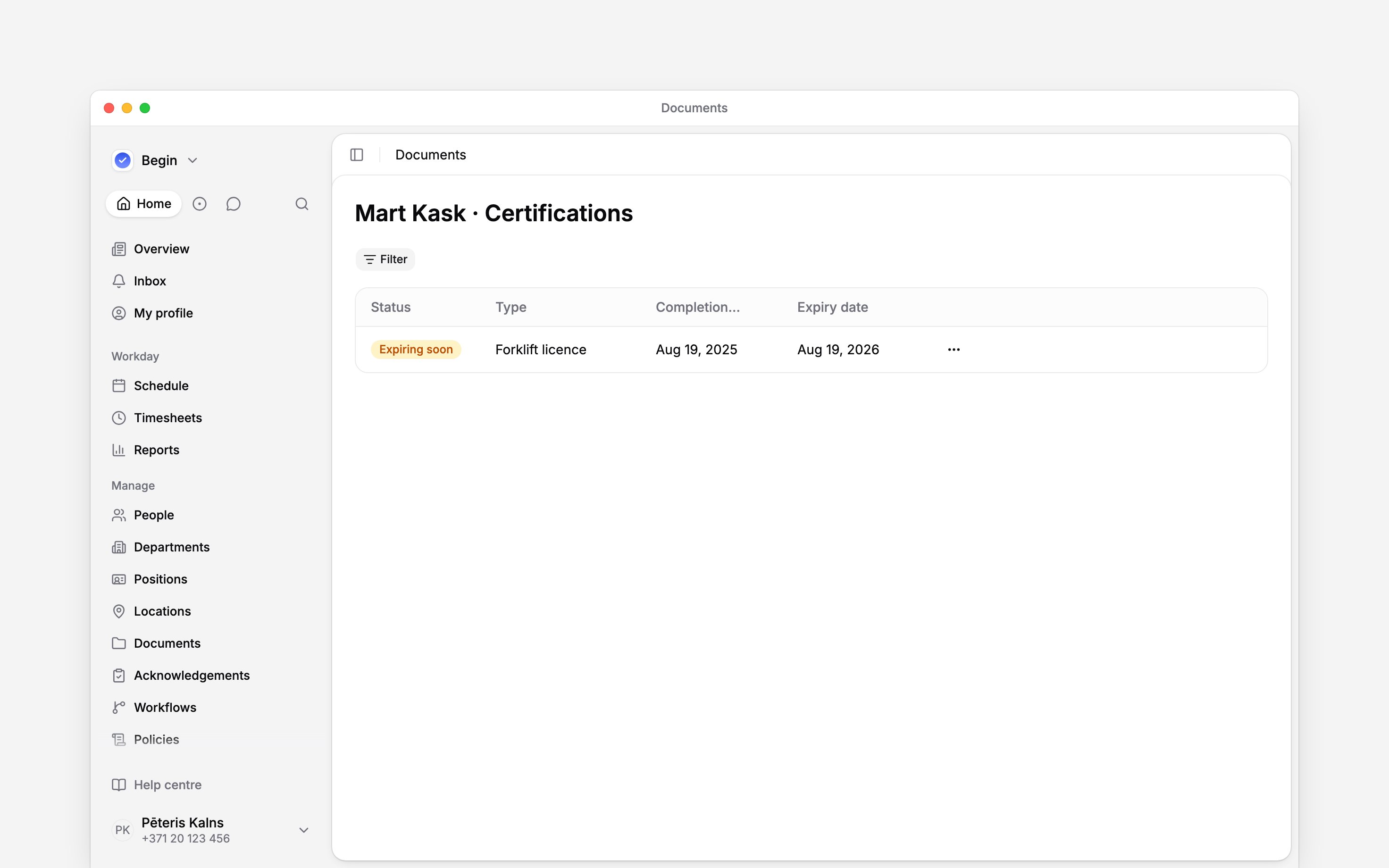
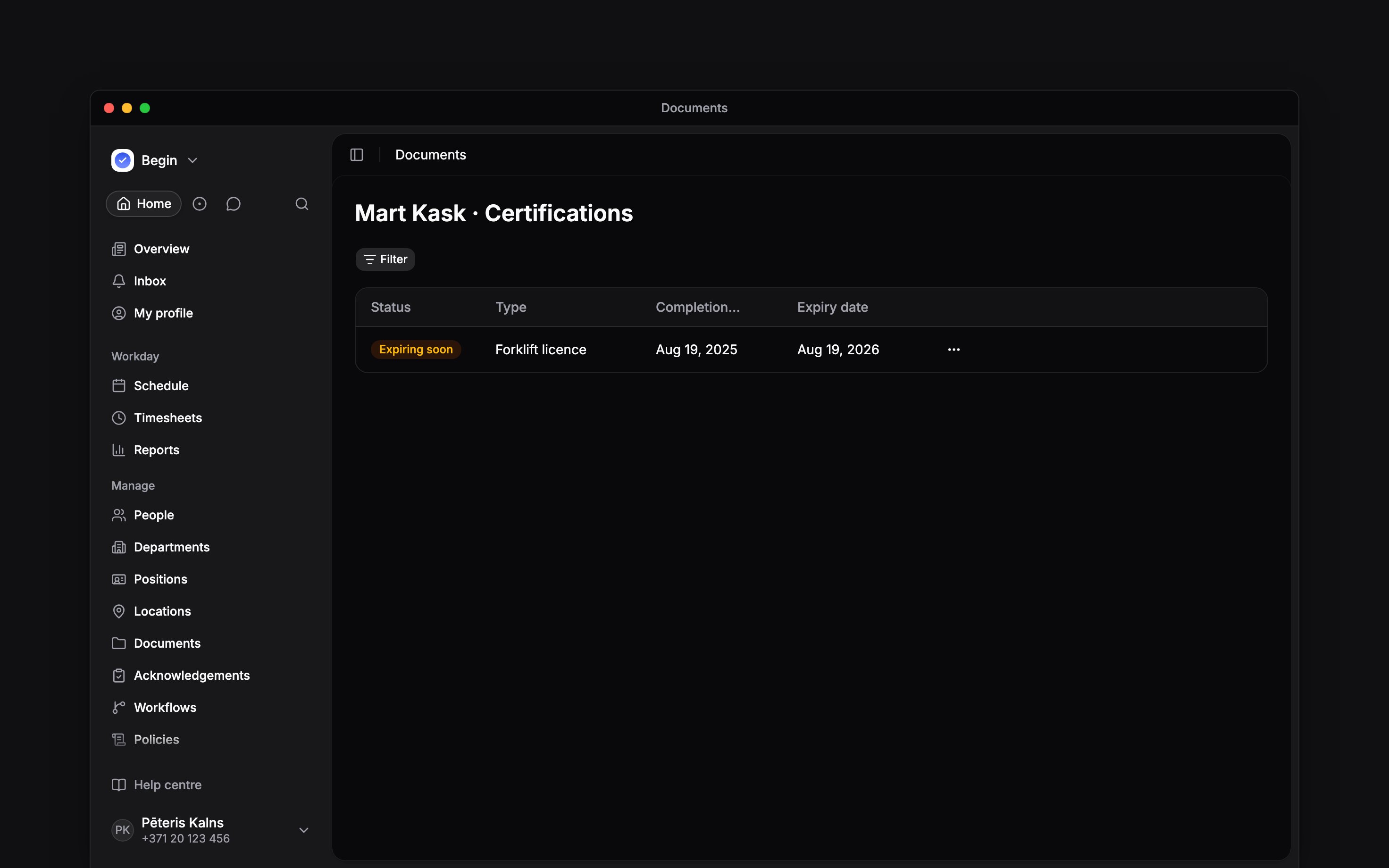
Find what needs renewing
Open the table document from workspace Documents to review its records across people. Use the status filter to find Expired records or the expiry filter to find records expiring within the selected period. To find records in a window, filter on a date or number column and choose between: for example, expiry dates from 1 November to 31 December, or 8 to 16 training hours. Both ends are included, and leaving one end empty keeps that side open. The certification setup can show Valid, Expiring soon and Expired. The status follows the dates rather than a label you manually keep in sync. A record without the dates needed to calculate expiry does not prove that a qualification is current. In the certification setup, Expiring soon covers the 30 days before expiry. Other table definitions can use different fields and status rules. To be warned automatically, add a workflow that triggers before a record date (Workflows). The default notice is 30 days before the expiry date.Add a missing type
If the certification type is missing, open the table from workspace Documents. With Full access to the table, open the Type column menu and choose Edit options. Add the option, then return to the person’s table to file the record under it. Changing a column’s options changes the shared table definition. It does not create the person’s certification record on its own.A file and a table record are different. Uploading a certificate does not by itself enter its type
or expiry date in the certification table.
Next
Managing documents
Store the supporting certificate file.
Member profiles
Check the person the record belongs to.
Still need help?
Contact support
Email the Begin team and we’ll get back to you.
Ask Begin AI
Open the AI assistant and get instant answers based on these docs.