


 Run payroll from the provider’s Sync or Export tab after setting up its connection and mappings. A sync sends data to the provider; an export produces a file you still need to import there.
Your role needs permission to manage integrations to open Settings → Integrations.
Run payroll from the provider’s Sync or Export tab after setting up its connection and mappings. A sync sends data to the provider; an export produces a file you still need to import there.
Your role needs permission to manage integrations to open Settings → Integrations.
Run and check a month
1
Choose the period
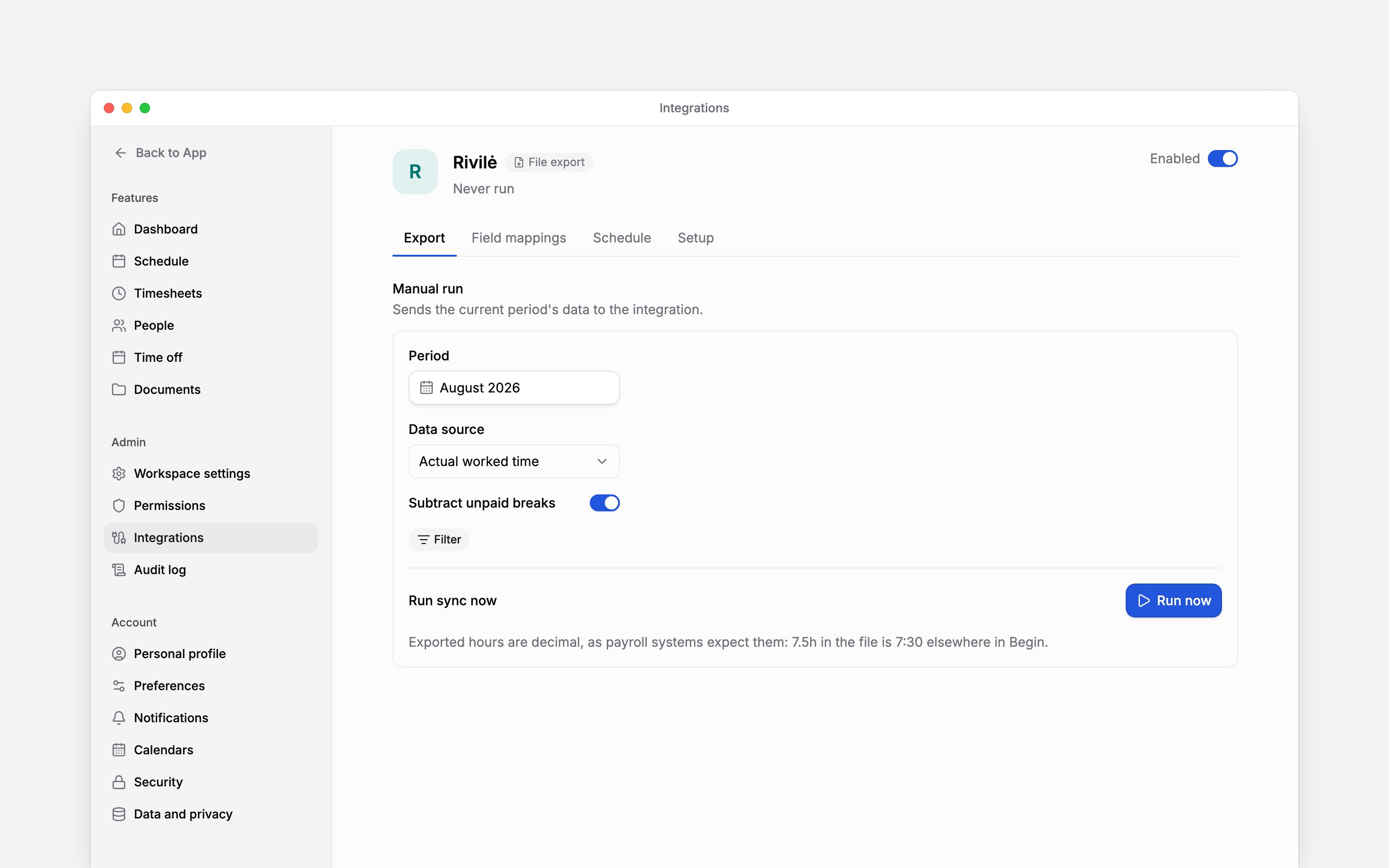
Open your integration and select the month. The period follows your workspace’s timezone.
2
Narrow the run
Use the people, location or department filters if you only want part of the company. Check any
provider-specific options, such as Rivilė’s hour source and break handling.
3
Start the run
Choose Run now. If it cannot run, check the explanation: the integration may be off,
credentials may be missing, or the catalogue entry may not support runs yet.
4
Read the result
Wait for the run to end as Success, Partly done, Warning or Failed. Review
processed, failed and skipped records and open the errors. For a file export, download the
result from History and import it into payroll. The file stays there for 90 days, then the
row shows File expired; run the export again if you need it after that. Open Run details
on a row to see what the run used and produced: who started it, its data source and filters, the
settings and field mappings as they were at the time, and how many people and worked hours it
exported, including any unconfirmed entries.
Resolve incomplete results
Warning means records were skipped and need attention, even if other records went through. Partly done means some records succeeded and others failed. Read the errors before repeating the entire run: sending again is not a universal undo or replacement operation. Payroll people who are not in Begin do not cause a warning or count as skipped records. Employee and contract imports can still list their unmatched counts in the run details. Unchanged import values do not cause a warning either. Check personal and export codes, enabled mappings, payroll document types, and whether the hours are approved. Credentials can be replaced in Setup. Saved secret values are not shown again. Pay attention to the unit: payroll files use decimal hours, so 7.5 means seven hours and thirty minutes. It is not 7 hours and 50 minutes.Control automatic runs
Open Schedule, turn on Sync on a schedule, and choose Frequency. Where the integration offers a Data source (Taavi and Rivilė), choose whether automatic runs read worked time or the published schedule; a manual run starts from the same choice. The page shows the next run; automatic runs use your workspace’s timezone. A scheduled Taavi or Rivilė run also leaves a file in History, but nobody imports it for you: download it and import it into payroll each month. Automatic runs select the month containing yesterday’s date in that timezone. On the first day of a month, that means the previous month. They do not reuse the month and filters you picked for a manual run. A scheduled slot is skipped while an earlier run is still going, and a run that makes no progress for 30 minutes is marked Failed. Turn off Sync on a schedule to stop automatic runs. Turn off the integration’s header switch to disable the connection. Removing credentials also disables it and stops scheduled syncs until new credentials are saved. To start over, use Remove in the Danger zone on the Sync tab: it deletes the connection, credentials and field mappings and keeps the run history. None of these actions recalls data already sent to payroll.Next
Choose an integration
Compare providers and connection methods.
Merit Palk
Check data groups and contract-export restrictions.
Still need help?
Contact support
Email the Begin team and we’ll get back to you.
Ask Begin AI
Open the AI assistant and get instant answers based on these docs.