


 An overtime policy decides when worked hours move into the overtime column. It compares calculated worked time with the person’s norm; it does not set a pay rate.
Choose the basis
Check the person’s employment details and norm before choosing the basis. A policy cannot correct an incorrect workload or employment period. With Daily, a day with 10 calculated worked hours and an 8-hour norm produces 2 overtime hours. A shorter day elsewhere does not cancel that daily excess.
For a Summarized period, set Period length and Period start. For example, a three-month window beginning in January covers January to March before the next window begins in April. Begin evaluates the full period, so a longer day may be balanced by a shorter day before the window ends.
A Summarized period also sets Shift across a month’s end: which month counts the hours of a shift that runs past midnight into a new month. Month it starts counts them all in the first month, Month it ends in the second, and Split at midnight counts each side in its own month. A new policy uses Month it starts. A Daily policy always counts the shift in the month it starts.
A new workspace starts with Monthly overtime: a one-month Summarized period for everyone, counting a shift in the month it starts. If the team counts overtime another way, open Monthly overtime and change it. A second policy for everyone does not replace it: archive Monthly overtime first. A workspace brought over from Classic starts with its own overtime policies instead. With no overtime policy, Begin also measures overtime against each calendar month.
Create the policy
1
Start it
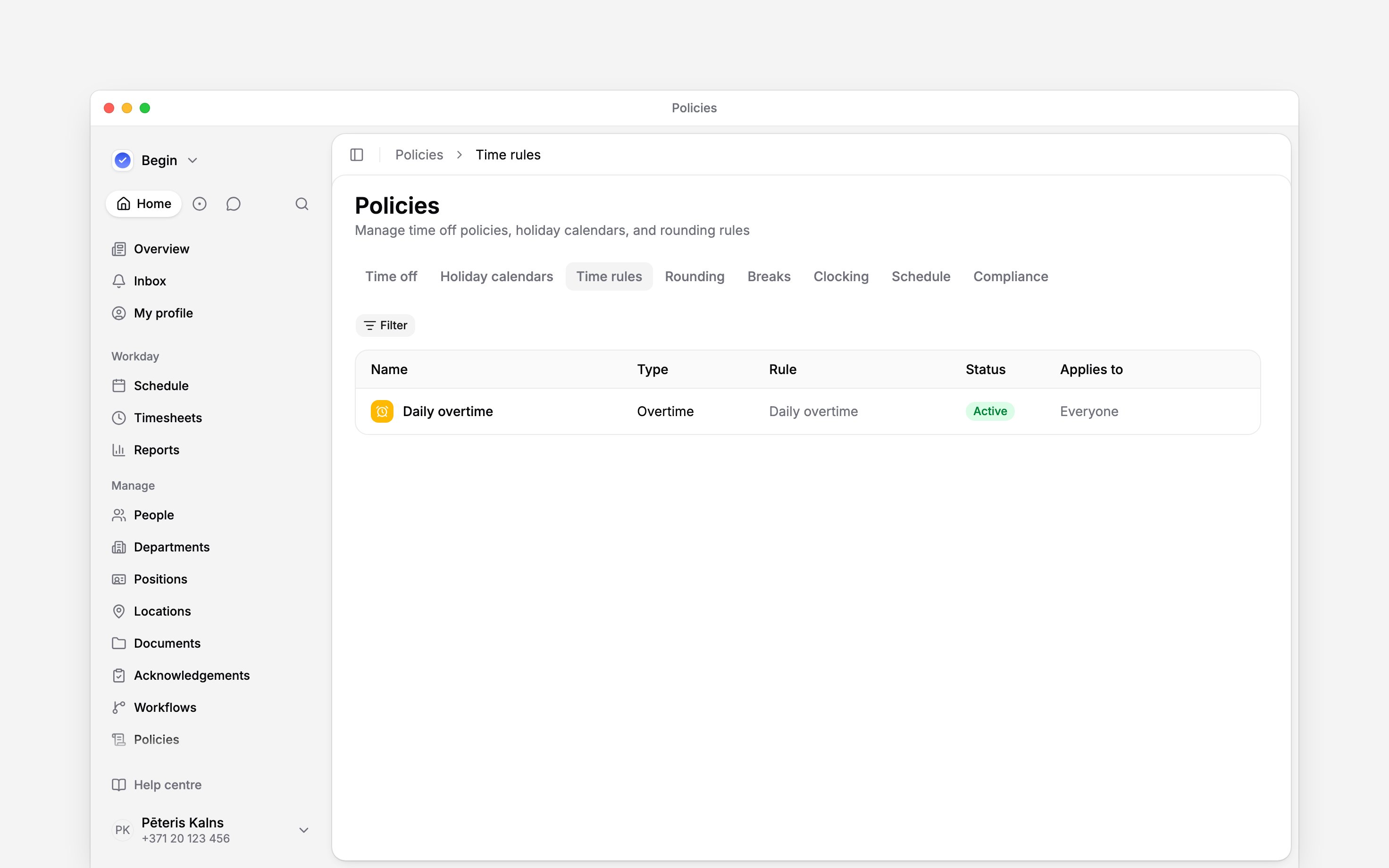
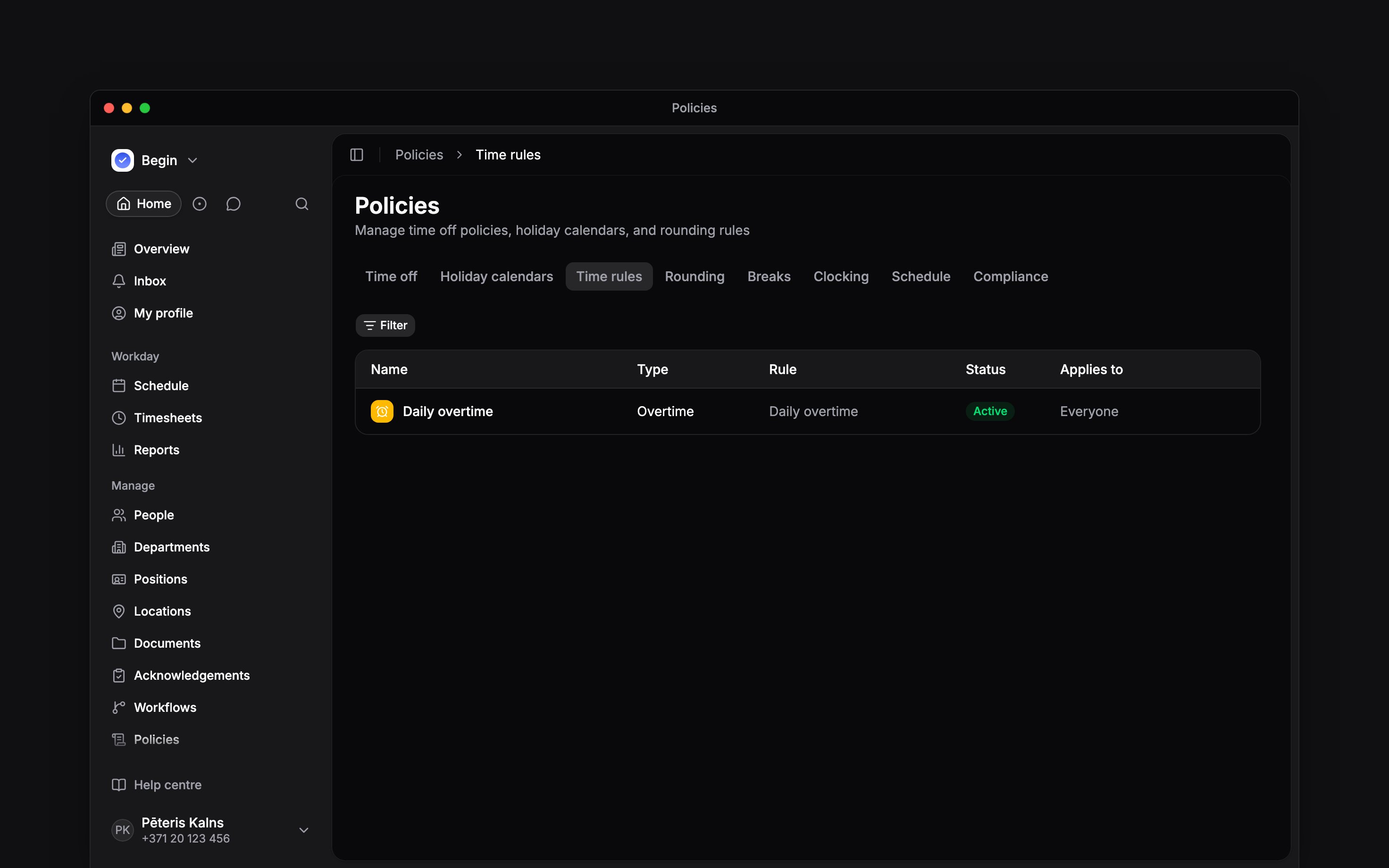
Go to Policies → Time rules, open Add, then choose Overtime policy.
2
Choose the basis
Under Accrual basis, select Daily or Summarized period. For a period, set Period
length, Period start and Shift across a month’s end.
3
Set the audience
Use Applies to to choose everyone or selected
people, positions or departments.
4
Activate it
Set Status to Active, then save. The policy counts from the day you save it; to start or
end it on another day, set
When. In a
workspace with no overtime policy yet, the first one counts at once, for work already recorded
too.
Ask Begin AI
Begin AI (Cmd / Ctrl + J) can create, change or delete an overtime policy, including its icon and colour. On Manually approve it shows the change on a card and saves nothing until you confirm. On Automatically approve a new policy or a change applies at once, and archiving, moving an active policy back to Draft, deleting or changing earlier dates still waits for you. See approval modes.Count the warehouse's overtime monthly from the start of last month, already counted hours included
Read the result
Use Policy tester to confirm the person receives the intended overtime policy. Then compare Worked, Norm and Overtime in hour columns, after accounting for breaks and rounding. Reports show overtime as a calculated hour bucket beside worked and norm hours. Check the selected date range before comparing a summarised period, because a partial window does not describe the final period balance.Choose when a change starts
A policy change starts on the date you choose in Apply from when you save it. While the policy stays Daily, that is any day, today unless you pick a later one. If either the old or the new settings use a Summarized period, the change can start only where a window begins under both, and Apply from opens on the next such day. For a three-month window beginning in January, that is the next of 1 January, 1 April, 1 July and 1 October. Earlier days keep the rule that applied then, whether or not their entries are approved, and a report that spans the change sums each stretch under its own rule. To change earlier days too, choose Earlier dates too in Apply from, select Continue and pick a day in the past year by the same rule. If the policy has a later change that differs from your settings, its date must also start a window under both whenever either uses a Summarized period, and under the rule each person that change moves onto or off this policy leaves and the one they join. From that day to the later change, approved entries of the people it covers take your settings unless the preview counts them as kept, entries awaiting approval follow them, and reports recalculate from that month on.Next
Hour columns
Read overtime beside worked and norm hours.
Premium hours
Classify evening and night hours separately.
Still need help?
Contact support
Email the Begin team and we’ll get back to you.
Ask Begin AI
Open the AI assistant and get instant answers based on these docs.