


 Approving is what makes recorded hours count in approved-only figures. Until somebody signs an entry off it sits in the table like any other, but it is missing from Weekly paid hours and approved-only calculated report hours. Payroll exports exclude it by default; an integration set to Include unconfirmed hours can include pending or needs-review entries, but never rejected or cancelled ones. Raw report rows, counts and durations still keep every status visible. This is the month-end job.
Approving is its own permission, Change timesheet status. Administrators and managers have it;
an employee role does not. Without it Approve is absent from every entry’s ⋯ menu, whatever
the entry’s status.
Approve one, a selection, or the whole period
Right-click an entry, or open its ⋯ menu, and choose Approve. The action is there for anything not already approved, including rejected and cancelled entries, so read the entry’s own Status rather than the menu to know where it stands. For several at once, tick their checkboxes and pick Approve selected from the actions the selection bar offers. Grouped by Member, Position or Location, the box on a group’s header ticks the entries loaded under it, so one person’s month takes a single tick. A group longer than 50 entries loads the rest as you scroll, so scroll to its end first. For everything in front of you, the period action names its own count: Approve all 24 entries in period. That last one is the one to read twice. Approve all acts on the period you have open and the filters you have applied, exactly as Publish does on the schedule. Filter to one location and approve, and nobody outside it is touched. The count on the button is what would actually go through, so if it is larger than you expected, something is in view that you did not mean to sign off. The same scope applies to Delete all, which asks you to confirm and then removes every entry in view. To delete one entry, right-click it or open its ⋯ menu and choose Delete. With the entry open, the ⋯ at the top of its details offers the same Delete, which is the quickest way on a phone. Both ask you to confirm first. Ten entries or fewer apply while you wait. More than that runs in the background, appears in the sidebar as Approving entries, and can be cancelled part-way. Above 2,000 entries the action is refused; narrow the filter and go again.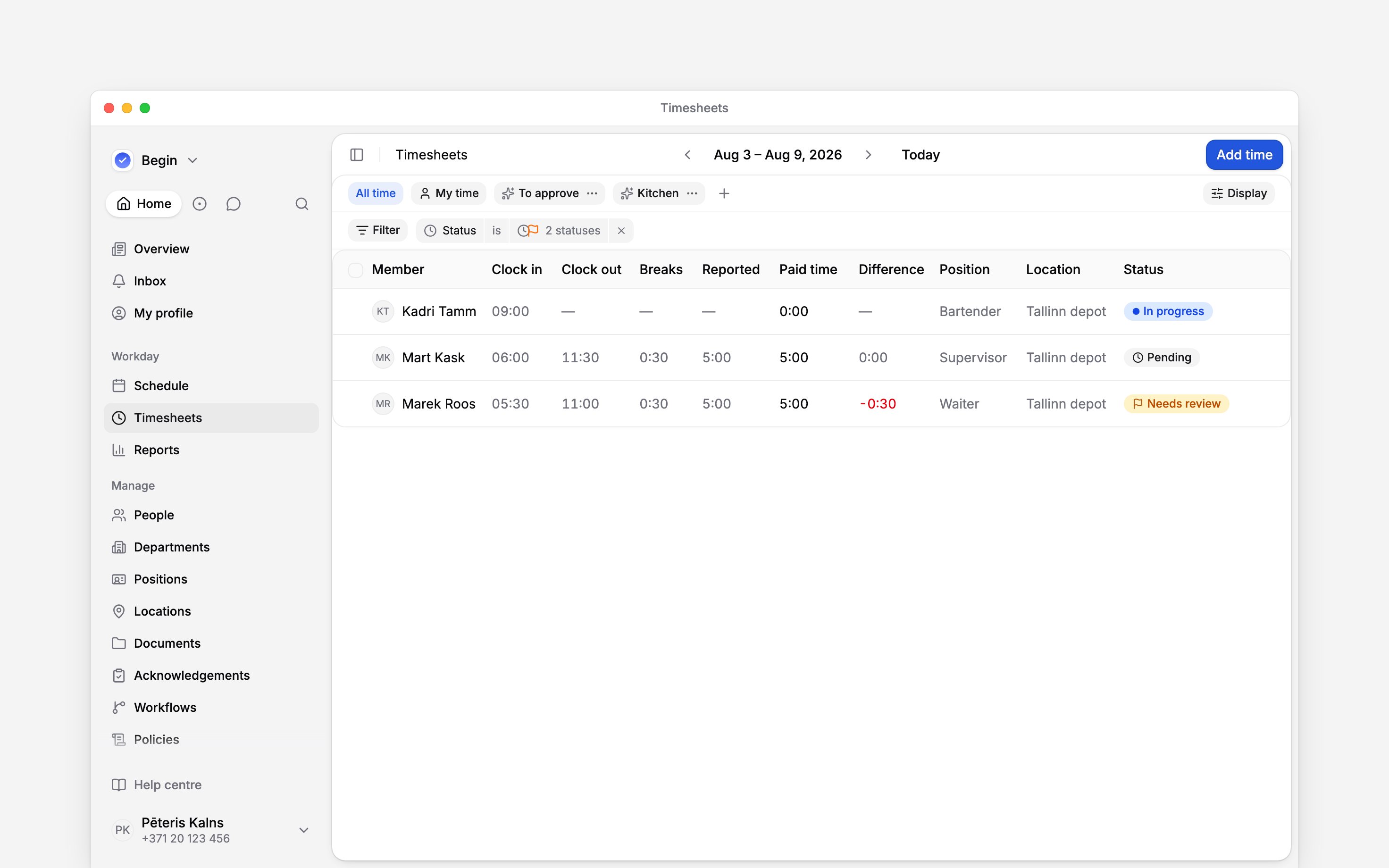
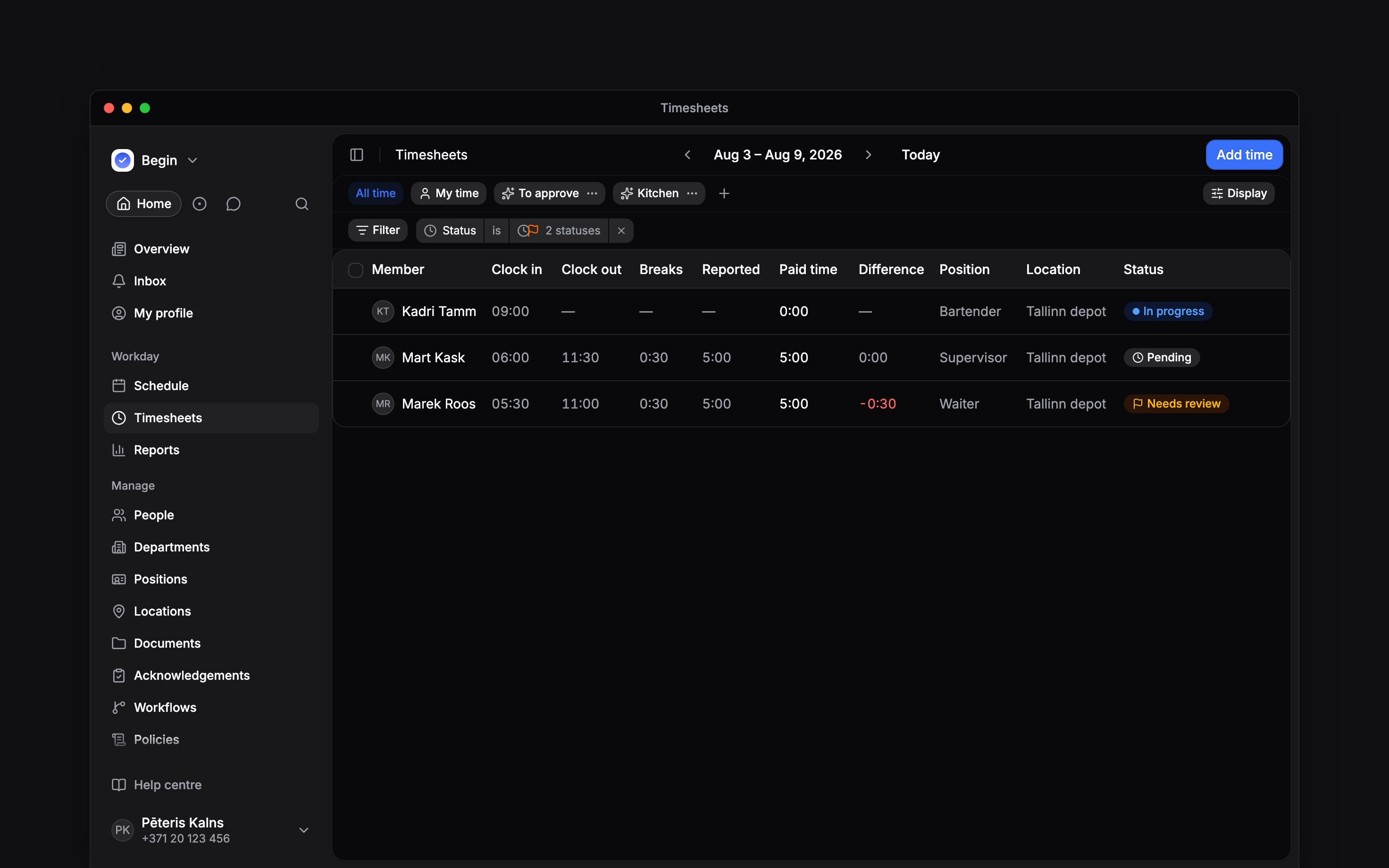
A status filter turns the week into the queue you work down
Approve last week's pending time entries.
Why an entry says Needs review
Needs review is Begin asking for a human, and it happens two ways. A clocking policy flagged the punch, because it came from outside the allowed area or carried no location where the policy wanted one. Or nobody clocked out, and the timer was closed automatically. Both mean the hours on the entry may not be the hours worked. Correct the times first, then approve: approving a flagged entry unchanged signs off whatever the clock happened to leave behind.Reject, and say why
Reject turns an entry down and offers a Rejection reason. The reason is optional and worth writing, because it is what the person reads. Rejections reach people at once, one notification per entry, carrying the date, the times and your reason. Approvals are gathered up instead: approving somebody’s whole month row by row sends them one message rather than thirty, and an approval you undo within a couple of minutes is never announced at all.Change your mind
Approval is not final. The Status submenu on any entry moves it to Pending, Needs review, Rejected or Cancelled, and undo (Cmd / Ctrl + Z) takes back the last entry added, edited, deleted or moved between statuses. An action on more than ten entries runs in the background: undo takes it back in the background too, and so does Revert in the right-click menu of its row in the sidebar once it has finished. An entry someone changed again since the action is skipped and keeps the newer change, and the row counts it as skipped. A background action can be taken back for seven days, and only once. Approve all and Delete all count as one action whatever their size: they show a row in the sidebar while they run, and undo or Revert takes back every entry they changed. Undo works on the workspace’s timeline rather than your own, so it takes back the last thing anyone did here, and it refuses when that was something your role cannot edit.Approving does not lock anything. There is no period close in Begin, so an approved entry stays
editable by anyone whose role reaches it. Treat approval as a statement about the hours, and read
the entry’s own activity trail when you need to know who changed what.
Who gets told an entry is waiting?
Who gets told an entry is waiting?
Nobody, by default. An entry that lands in Pending or Needs review waits on the page. To
be told, build a workflow that ends in Send
notification or Request approval, or set the clocking policy to ask for approval, which
files Approve ‘s timesheet entry into the inbox of people who can approve.
Does approving the entry change the shift too?
Does approving the entry change the shift too?
Only where Auto-sync linked statuses is on under Settings → Schedule → Timesheet
linking. With it on, Approved, Rejected and Cancelled move between linked shifts and entries.
A shift changes from its entries only when every live linked entry has the same status. Undo is
local and does not mirror. With the setting off, the records are independent.
Next
Workflows
Let Begin flag and chase entries instead of you.
The hour columns
Where approved hours turn up, and why a total can differ.
Still need help?
Contact support
Email the Begin team and we’ll get back to you.
Ask Begin AI
Open the AI assistant and get instant answers based on these docs.