


 Share a file in the conversation where the team needs it. Use that conversation’s Files tab to find it again without reading back through the messages.
Attach and send
1
Choose a file
In the message box, open Add attachment → Attach file. If recording is unavailable, the
attachment button opens the file picker directly.
2
Check the attachment
Wait for the upload to finish. Remove an unwanted attachment before sending and add a message if
the file needs context.
3
Send it
Click the send arrow. The attachment appears in the conversation for people who can read it.
Share it with another conversation
Open the attachment’s preview and choose Share from its actions, or right-click the attachment (press and hold it on a phone) and choose Share from the message menu. In Share file, choose a channel, conversation or person, add a message if needed, and send. The destination must be somewhere you can post. Check its audience: sharing a file creates a message there rather than inviting people into the original conversation. The same menu offers Download, and on a photo Copy image, which puts the picture on your clipboard to paste into another app. Copy image appears only where the browser or app supports copying pictures.Record instead of typing
Choose Record an audio clip, allow microphone access and record your message. Stop the recording to attach it, then send. Cancelling the recording discards it. Recordings stop automatically a few seconds short of five minutes. Recipients can play the clip and change its playback speed. In the installed mobile app, Take photo and Record video use your device’s camera. Allow camera access when asked. These capture actions are not shown in the desktop browser.If recording cannot access your microphone or camera, check the device’s permissions for Begin.
You can still attach an existing supported file.
Find what was shared
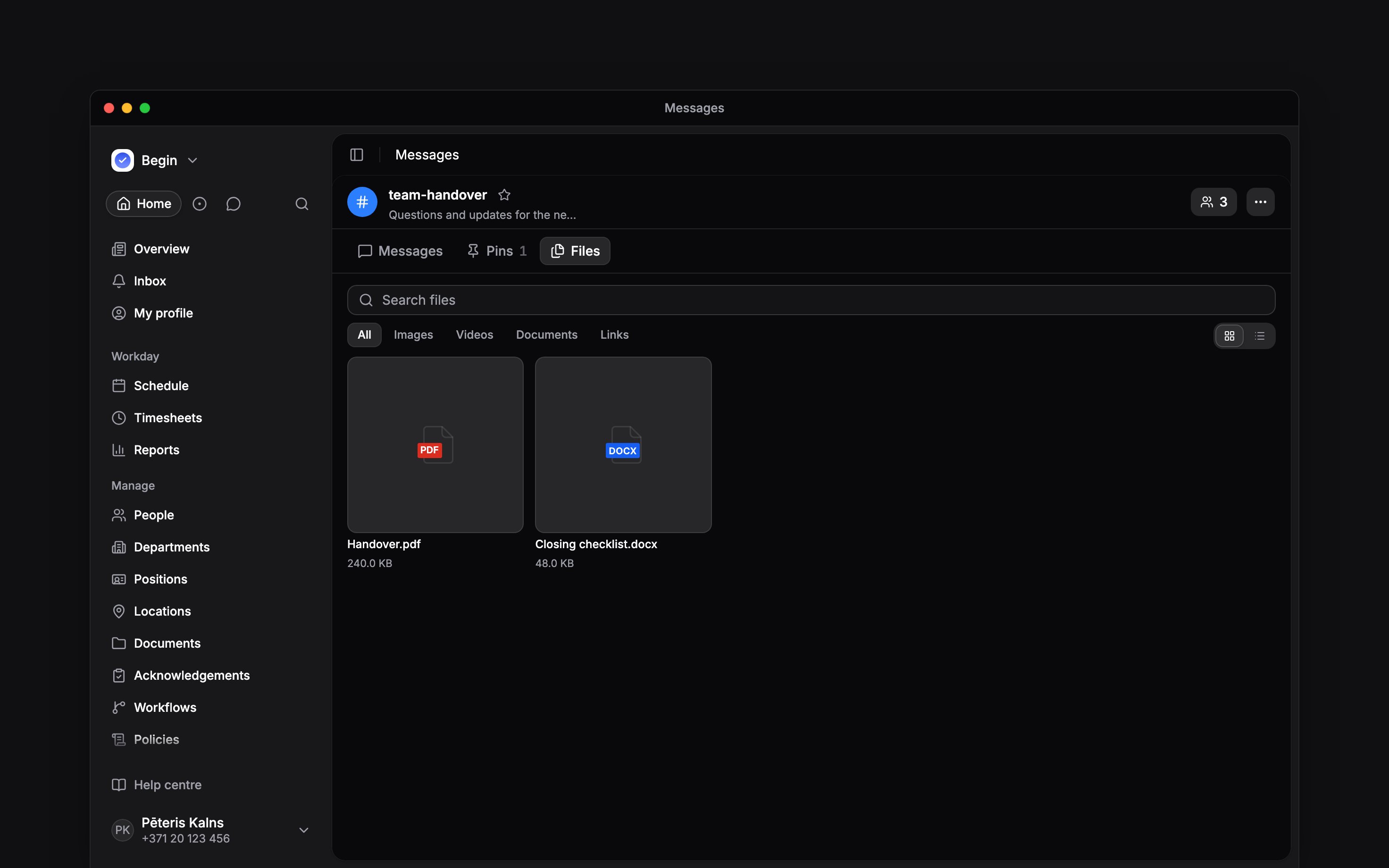
Open Files at the top of the channel or conversation. Choose Images, Videos, Documents or Links to narrow the list, and use Search files to find a name. Switch between the grid and list if one makes the material easier to scan.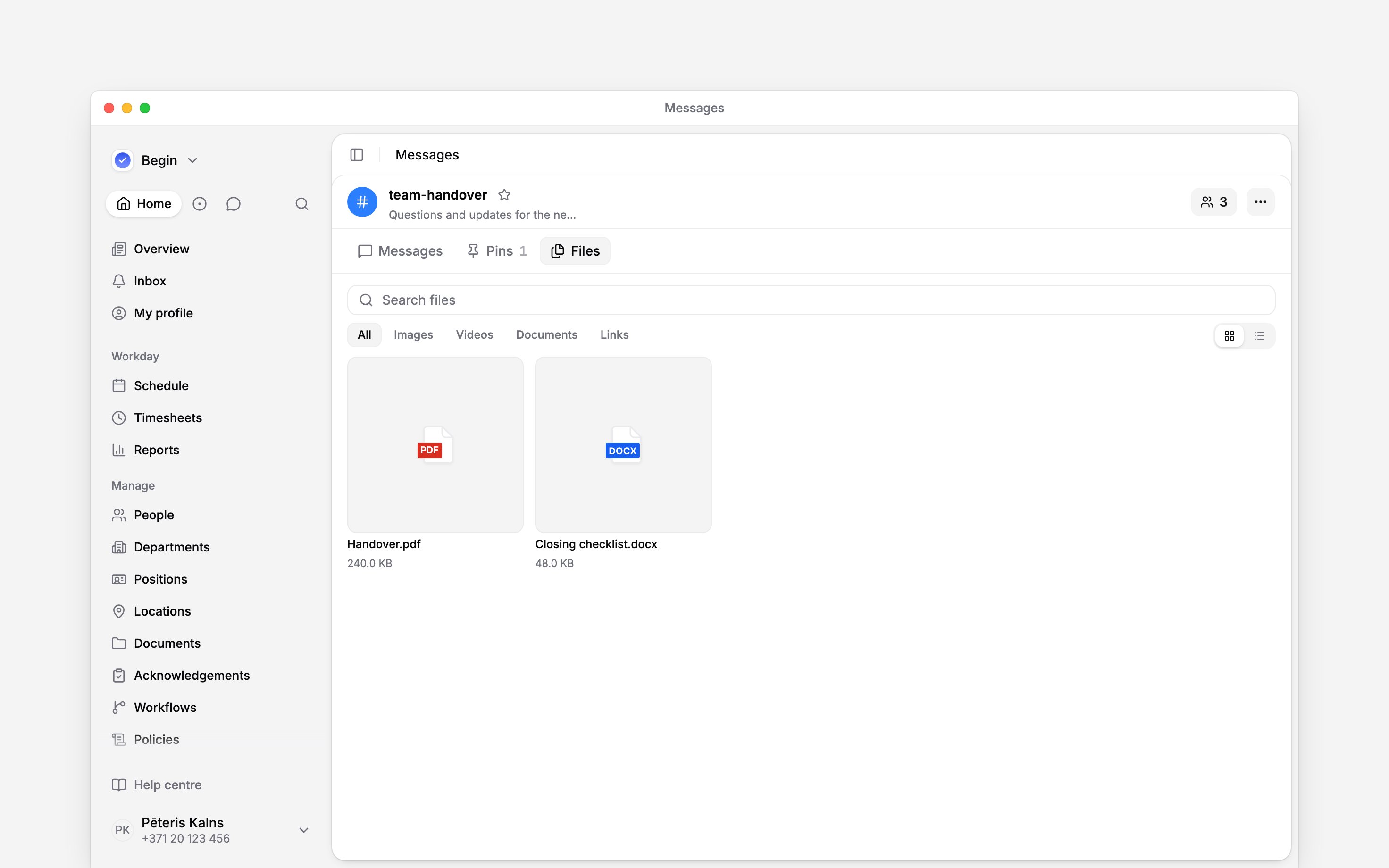
Next
Finding messages
Find an earlier message, keep important information in Pins, and return to unread work.
Replies and reactions
Send a message, keep a reply with its question, and correct what you wrote.
Still need help?
Contact support
Email the Begin team and we’ll get back to you.
Ask Begin AI
Open the AI assistant and get instant answers based on these docs.