


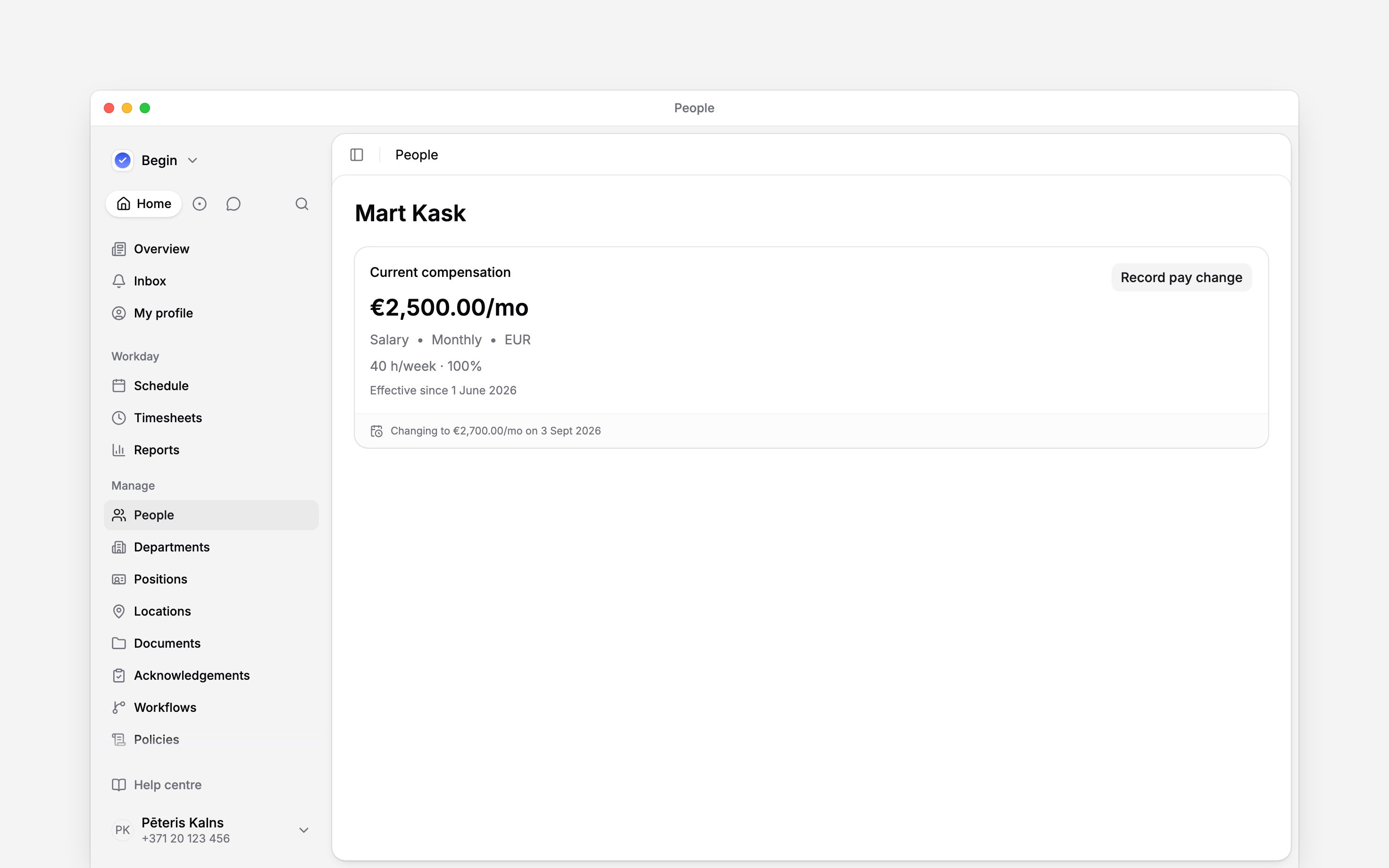
 Record employment terms from Job & pay on a person’s profile, even before you know the pay amount. Each change has an effective date, so you can keep previous terms and enter a future change without replacing today’s terms. An unknown amount does not mean the agreed rate is zero.
Pay has separate read and edit permissions. Administrator has them by default; the standard
Manager role does not. Permission to edit a job is not enough to edit its pay.
Record the new terms
1
Open the person's Job & pay tab
They need a job record first. If none exists, add the
job.
2
Choose Record pay change
If the job has no pay yet, use the add-pay action in its empty state.
3
Enter pay and contracted hours
Enter the pay settings you know, or contracted hours with their period. Leave Amount blank
when it is unknown. When you enter an amount, also choose its pay type, currency and frequency.
The workload percentage is those hours divided by the full-time week of the working time
policy that reaches the person on the effective date, or
the workspace’s full-time day, Monday to Friday, when no policy does. The form shows that week’s
hours beside the percentage; hover over them or tap them to see the policy and its days, and a
note when the contract is longer than the week.
4
Set the effective date
Choose when these terms start, add a reason and any useful notes, then choose Record change.
Notes can contain up to 500 characters. When the job has an end date, the effective date must
fall on or before that last day.
Correct a record
Use the record’s edit action in Compensation history when the saved information was wrong. Record a new change when the person’s terms actually change. Removing a history record is different from entering a later rate. Clear Amount and save to mark a recorded amount as unknown while keeping the other terms. If the amount becomes unknown from a later date, record a new change with that effective date and leave Amount blank. Earlier rates stay in history; they are not used for the new period. Check the displayed workload percentage before saving contracted hours.Check the contract too Beta
Beta
Saving a pay change does not rewrite a signed contract. If the person has a contract in force, Begin shows a notice with View documents so you can prepare the required new document.
Use Creating and signing contracts for that document workflow.
Contracts are rolling out gradually. If your workspace has no contract actions, ask us to check
whether the feature is enabled for you.
Next
Employment details
Maintain the job the pay belongs to.
Working time
Choose which days the contracted hours fall on.
Still need help?
Contact support
Email the Begin team and we’ll get back to you.
Ask Begin AI
Open the AI assistant and get instant answers based on these docs.