


 Update Settings → Personal profile when your name, photo or sign-in details change. These details follow your Begin account across all your workspaces.
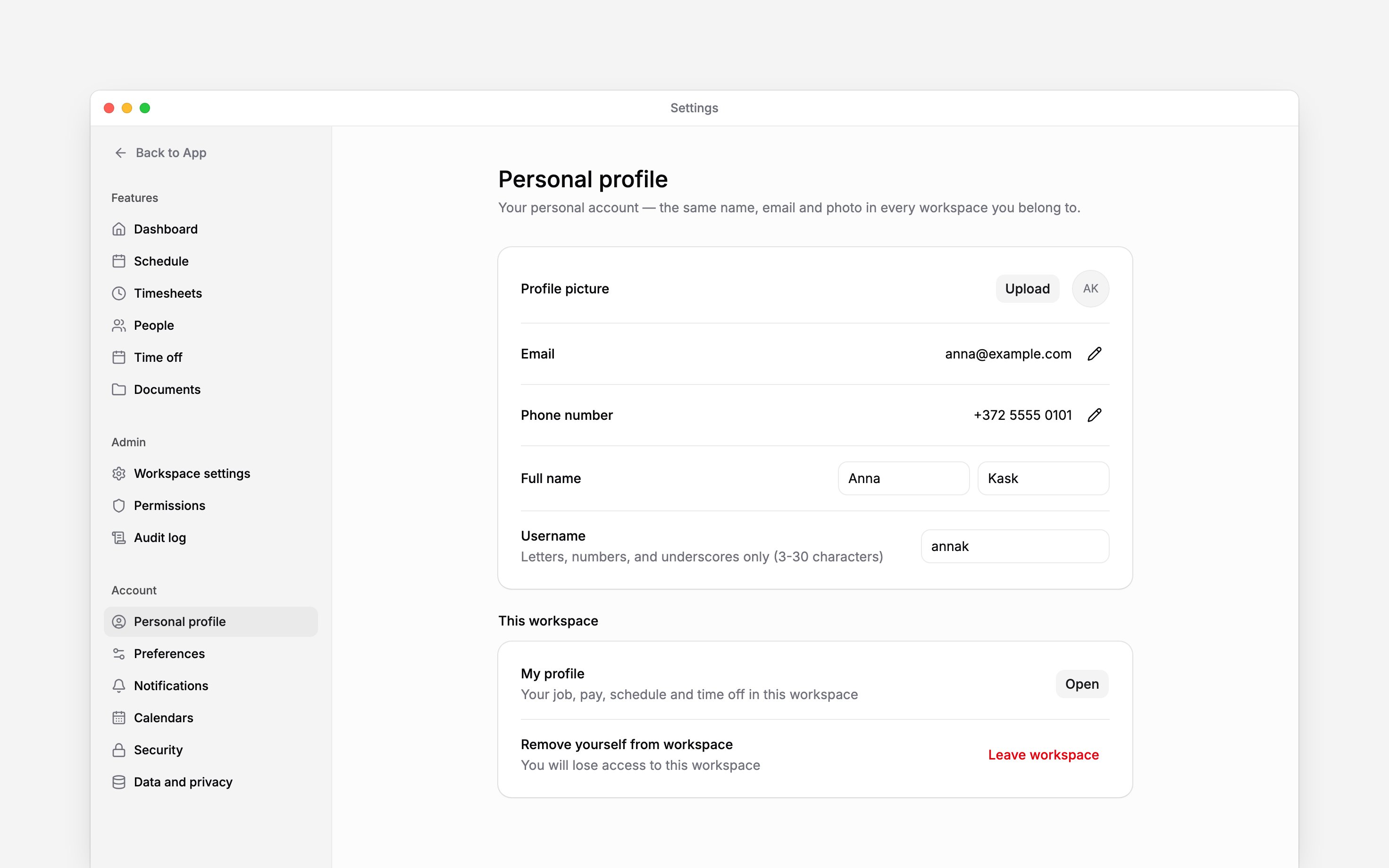
Change your name, photo or username
Edit your Full name or Username in its row. Changes save automatically; wait for Saved before leaving the page. There is no page-wide Save button. Choose Upload beside Profile picture for your first photo, or Change to replace it; use a PNG or JPEG under 5 MB, not an SVG. Choose Remove to return to initials. Your username must start with a letter and contain 3–30 lower-case letters, numbers or underscores. Begin removes spaces and converts capitals to lower case. If a name is taken or reserved, choose another.Verify a new email or phone
1
Edit the contact
Select the pencil beside Email or Phone number, enter your new address or number, then
choose Send code.
2
Verify your current contact
Enter the six-digit code sent to the existing contact shown in the dialog, then choose
Continue.
3
Verify the new contact
Enter the separate code sent to the new address or number and complete verification. The profile
row updates after the change succeeds.
Keep employment details separate
This page changes only your own account; your employment record for the current workspace is under This workspace → My profile (see Your account).Next
Personalise your preferences
Choose how Begin looks and opens.
Secure your account
Check your sign-in methods and sessions.
Still need help?
Contact support
Email the Begin team and we’ll get back to you.
Ask Begin AI
Open the AI assistant and get instant answers based on these docs.