


 Hours reach a timesheet five ways: somebody clocks in here or in the app, they start from a shift on their own schedule, a wall-mounted terminal records them by fingerprint, face, card or PIN, their phone clocks them in as it reaches a workplace under automatic clocking, or you type the entry in yourself. Whichever it was, the entry’s Clocking mode column says so, and the Source filter finds all of one kind.
Adding or changing time on somebody else’s row needs Edit others’ time entries. That
permission replaces your own-row one rather than adding to it, so a role without it can record its
own hours and nobody else’s. If Add time never lets you pick a person, that is why.
Clock in, pause, clock out
The tracking bar sits above the table. Write a note in the Add note field if the work needs one, pick a position and a location, then press Start. The timer runs in place, and the entry appears in the table straight away as In progress. Where your workspace uses clients, Select clients sits in the bar too, already holding the clients of the shift you are starting. A clocking policy can require at least one client. A refused start explains the requirement beside the picker so you can choose one and try again.Beta
Clock out asks you to confirm before it saves, because there is no undoing a clock-out into a running timer.
Breaks exist only where a break policy covers the person; until an administrator creates one, there is nothing to press. Pause starts a break and Resume ends it. A paid break counts as worked time; an unpaid one comes off the paid hours.
Clients are rolling out gradually, so your workspace may not have them yet. If the bar has no
Select clients, ask us to turn them on.
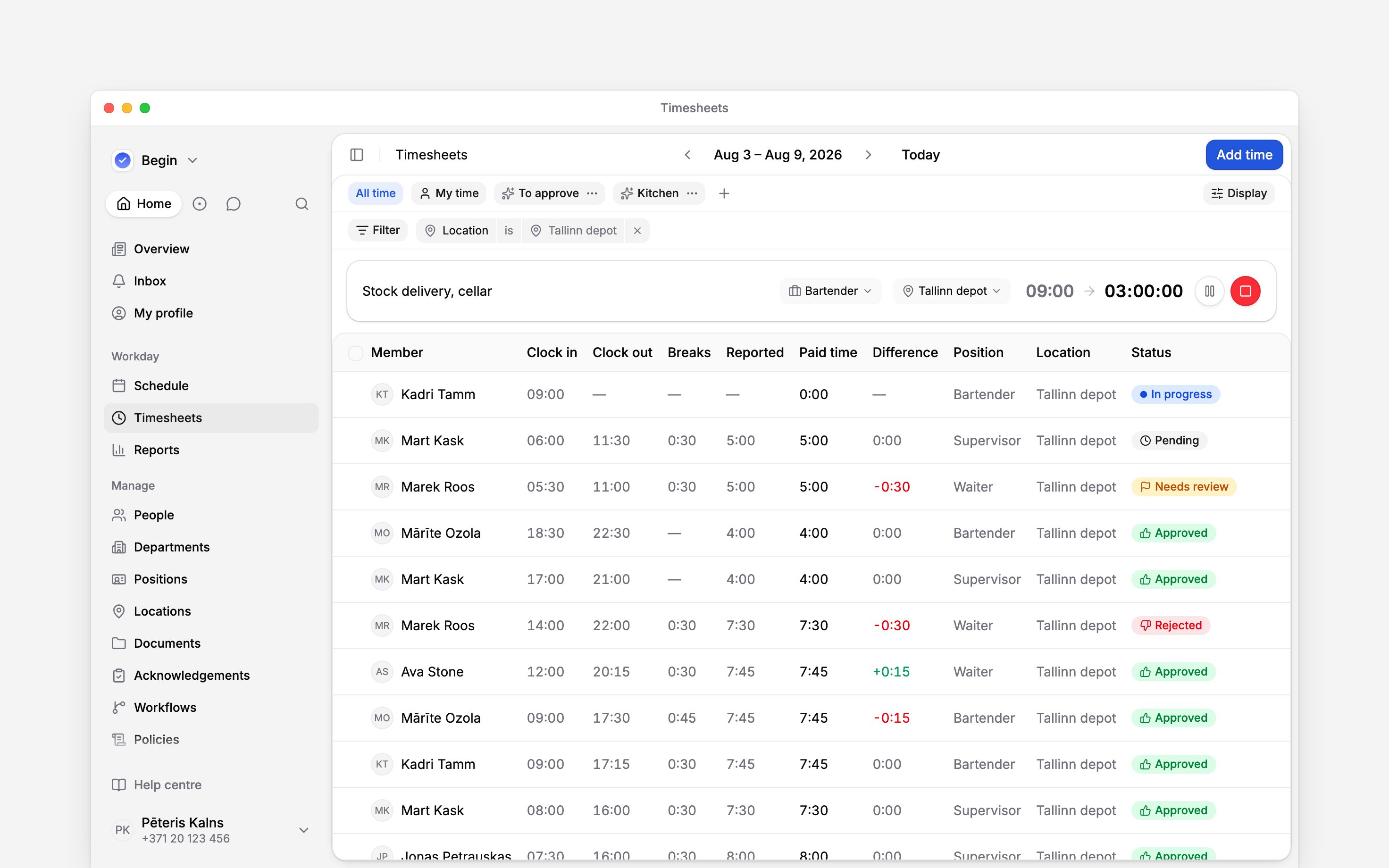
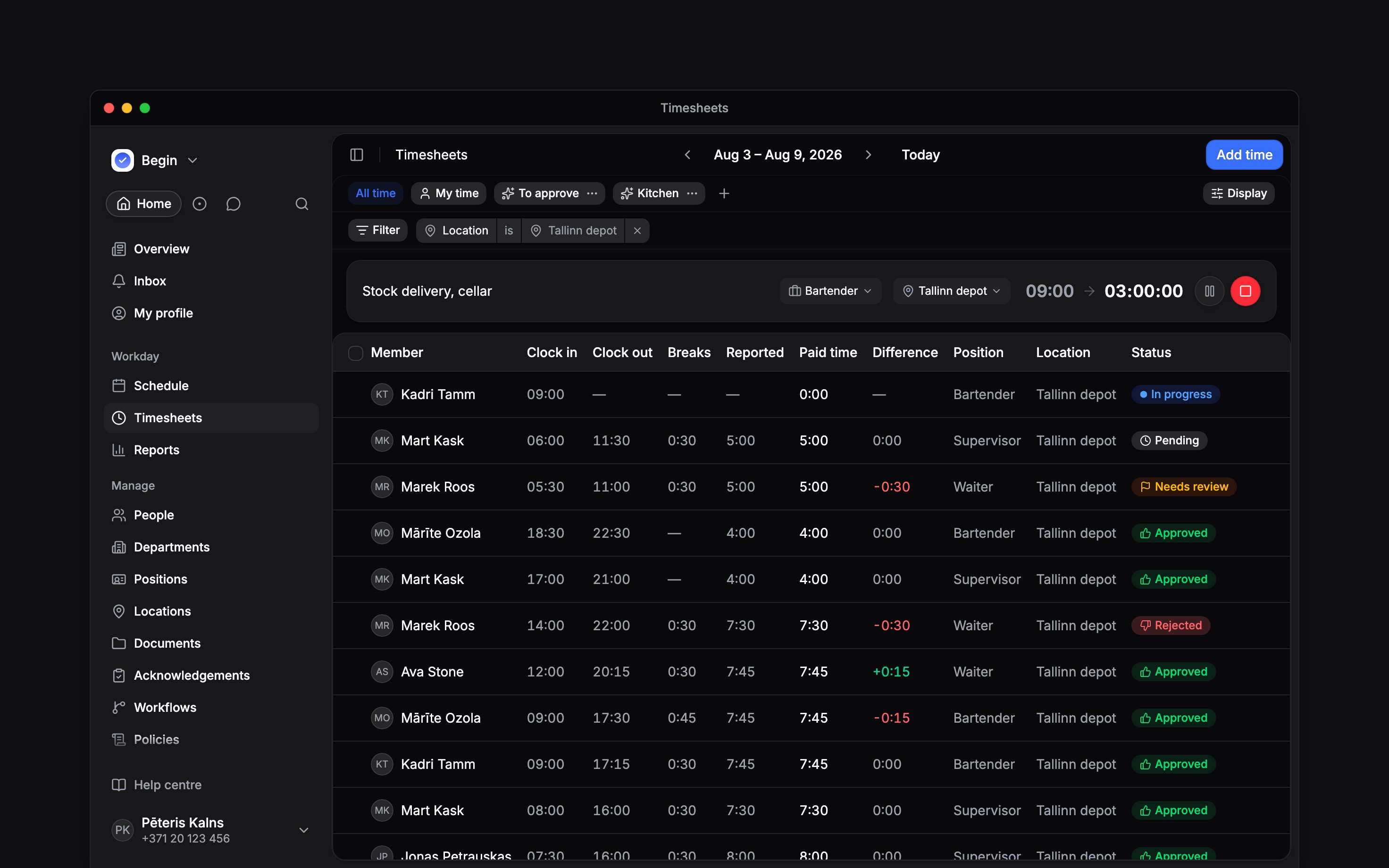
The bar runs above the table it is writing into
Add time for somebody who forgot
1
Open the period the work happened in
Move to the right day or week first. A new entry is created against what you are looking at.
2
Add time
The button sits at the top right of the page.
3
Pick the person
Select member is the first field. On your own row it is already filled in.
4
Set the start and the end
An end earlier than the start is refused. If the times overlap another entry for that person,
the dialog warns you and saves anyway. If a break policy applies, the dialog previews the breaks
it is about to add before you commit to them.
5
Save
The entry lands in the table as Pending, with Manual as its source, and attaches itself
to a nearby shift where your workspace is set up to do that.
What a clocking policy stops, and what it flags
The same client requirement applies in Add time. A linked shift supplies its clients; clearing that selection still needs another client before saving. On an older entry, you can correct other fields individually, but editing its client selection must leave at least one client where the rule applies. A decides what happens to a punch made outside the allowed area. Record location only is what a new policy starts on: the location is kept and the punch goes through untouched. On Pro, or in a workspace moved from Heybegin, you can pick Block clock-in, which stops the person where they stand, or Allow and flag for review, which records the entry and sets it to Needs review for you to look at. A policy can also limit which surfaces count, so somebody restricted to a terminal cannot clock in from a browser. One refusal catches people out and is not about where they are standing. Where a policy both requires a position or a location and restricts people to the ones assigned to them, somebody with neither assigned cannot clock in at all. Assign one to them under People and the clock works.A timer nobody stopped
Somebody who forgets to clock out does not run a timer for a week. Begin closes it, marks the entry as stopped automatically for passing the maximum duration, and puts it in Needs review. Nothing tells you: filter the period by status to find them, or build a workflow. What it writes into the hours is a workspace choice; out of the box it records nothing, because a guess would be paid. Settings and policies covers the four behaviours and how long a timer may run.Your edits never overwrite the clock. Original reported time on an entry is the punch as it
was recorded and cannot be changed, and an entry you have corrected carries Adjusted from
original beside it. Both numbers stay on the record.
Can I change the times on a running entry?
Can I change the times on a running entry?
Only the clock-in. Correct Clock in when somebody started late: the timer runs on from the
new time and Original reported time keeps the punch. It cannot be later than now or a break
already taken. Everything else opens after clock-out.
Somebody clocked in on the wrong job
Somebody clocked in on the wrong job
Position, location and labels are editable in the row itself, so correct them where they sit.
Moving the entry to a different person is a different matter: it needs Edit others’ time
entries even when the entry started on your own row.
Next
Reading the timesheet
Periods, grouping, and what the totals at the top count.
Settings and policies
Auto-stop, shift linking, and the policies that change an entry.
Still need help?
Contact support
Email the Begin team and we’ll get back to you.
Ask Begin AI
Open the AI assistant and get instant answers based on these docs.