


 Create a contract from a template in the person’s Documents tab, complete any missing details, then send it for signing. Creating the document and collecting signatures are separate steps.
Beta
Contracts are rolling out gradually. If your workspace has no contract templates or signing
actions, ask us to check whether the feature is enabled for you.
Prepare the document
You need permission to edit the person within your visibility scope for contract lifecycle and signing actions. The same permission is needed to rename, move, delete or change the category of a contract, to file another document as a contract, or to name the employee on a contract created without one. Sharing a contract with edit access lets someone edit its text, not do any of these. Generating a document for a person also needs permission to view them in People, and naming the employee on any document created without one needs permission to manage their documents. Access to their private documents and permission to manage templates are separate; ask your administrator to check each if a control is missing. Using a person’s private fields, such as bank details and national ID, needs View private details for that person. Saving those fields back to their profile needs Edit private details for the same person. Only the workspace owner can save details back to the owner’s own profile, and an email address another person already uses cannot be saved back. Turn off Save to profile for that field to use the value in this document only.1
Open People → person → Documents
Choose New → New document and pick the contract template.
2
Complete the missing details
The generated document opens in the editor. Fill the fields named in the side panel and check
the result. Fields saved back to the profile are available when you generate another document.
3
Review the whole contract
Check the person’s details, job, pay and dates. Resolve unfilled placeholders before sending it.
Collect the signatures
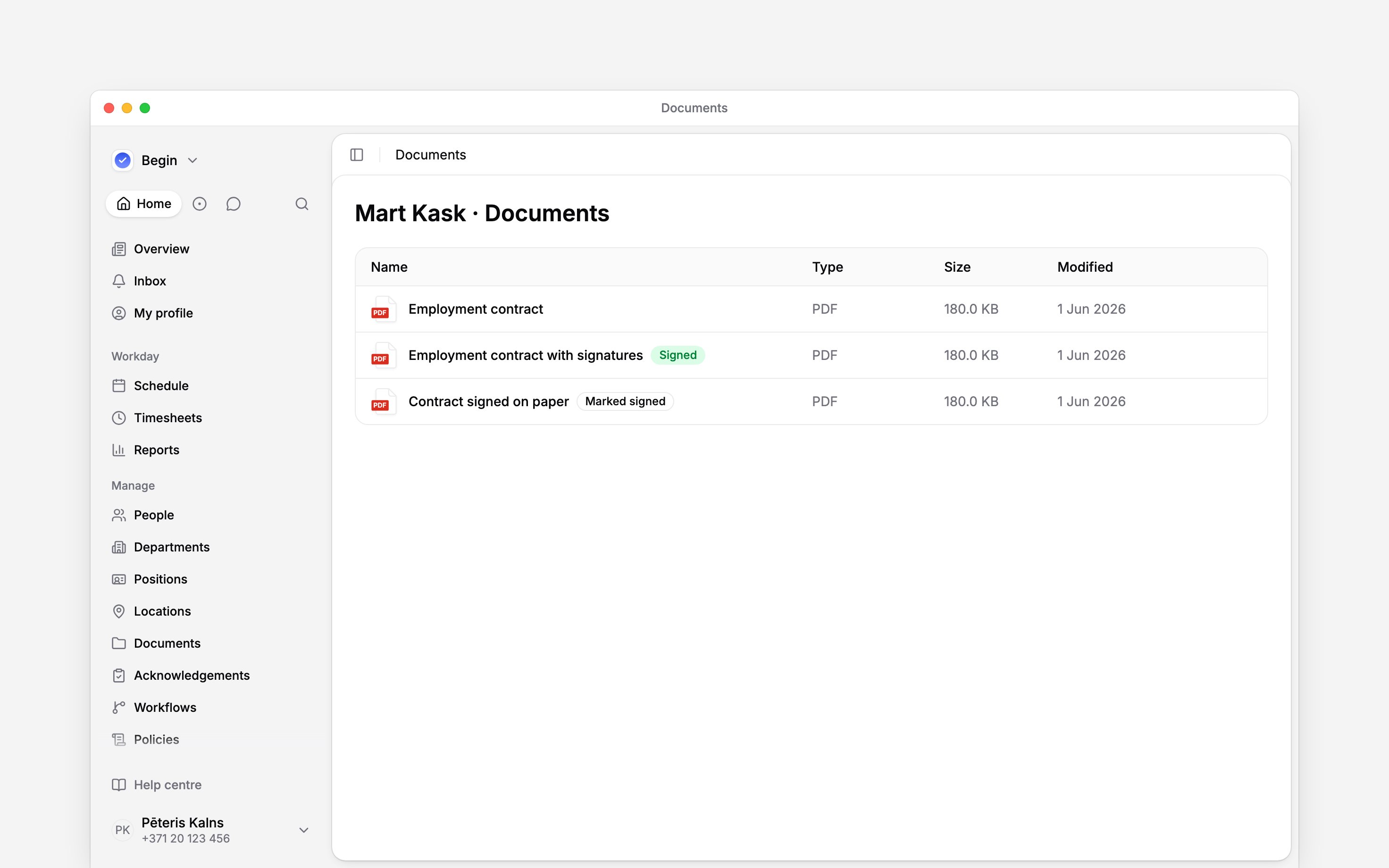
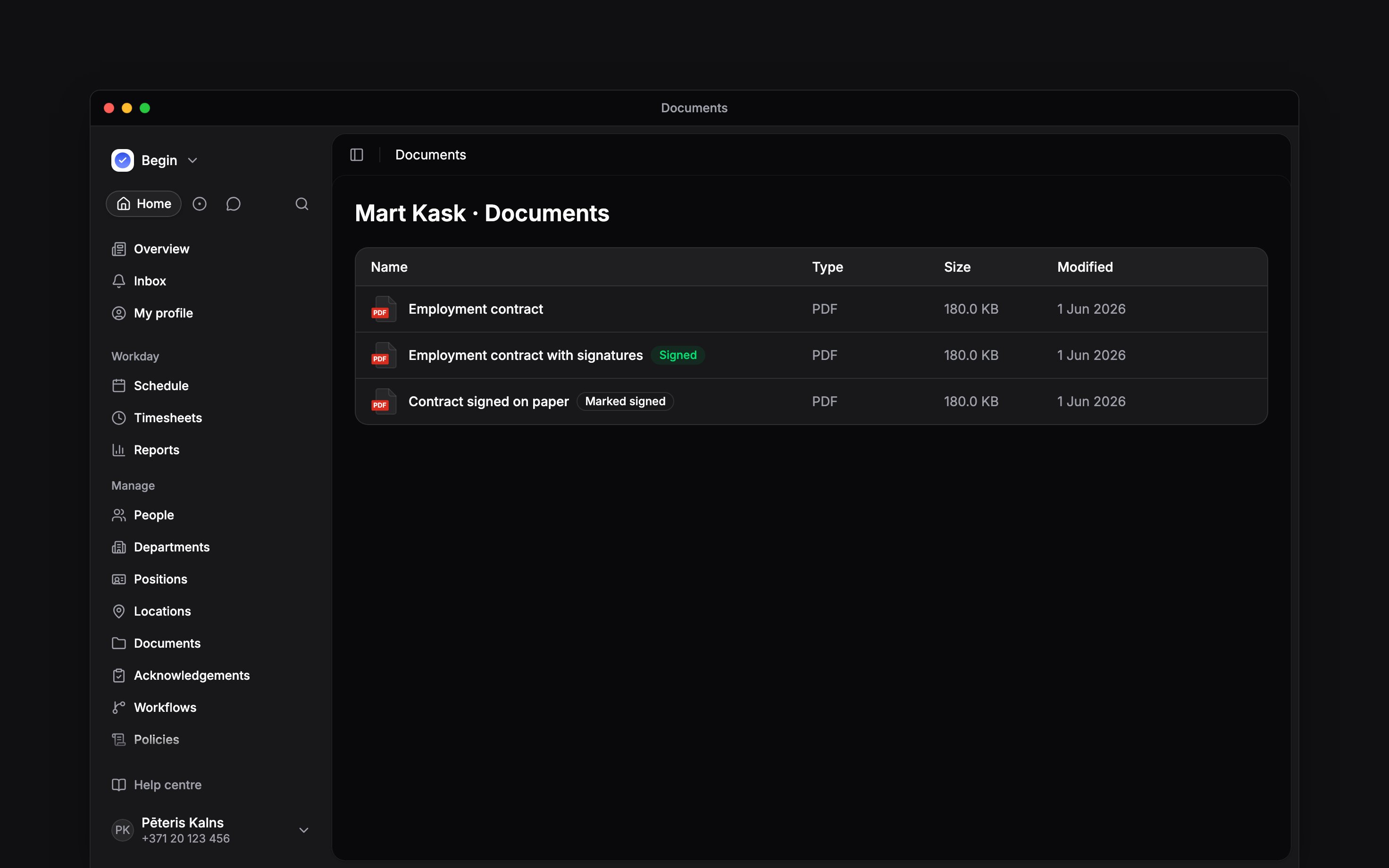
Choose Send for signing from the document’s actions. The dialog shows each signer’s email address: check it, then send. A signer without an account gets their signing link at that address, so if it changes before you send, Begin stops the send and shows the new address for you to check. Each signer can sign as soon as the request is sent; there is no required turn order. A signer with a Begin account is asked in the app: the request reaches their Inbox and the mobile app at once, and their email only in the hourly summary. A signer without an account gets an email with their signing link straight away, unless they are a sample person: Begin never emails sample people, even when a real address was typed onto them. When you show someone a signing request, have them open their Inbox rather than wait for the email. Each send uses one of your plan’s monthly e-signatures. When they are used up, Send for signing is refused until you buy credits or upgrade in Settings → Billing and plans (Buying e-signature credits). A round you cancel before anyone signs is not counted. The employee can follow their signing link without signing in to Begin. They must read the document to the end before continuing. Signers choose Estonia, Latvia or Lithuania and sign with Smart-ID, Mobile-ID, ID-card or eParaksts.Signing by drawing
When an administrator turns on Settings → Workspace settings → Drawn signatures, the send dialog asks how signers sign: Electronic ID or Drawn on screen. With Drawn on screen, every signer, employer included, draws their signature with a finger or mouse. A drawn signature is a simple electronic signature under eIDAS, not a qualified one, so use it only where the law does not require a qualified signature. A template that requires a qualified e-signature never offers the choice. When everyone has drawn, the signed file is a PDF: the document’s pages, then a signature page with each drawing, name, email, signing time and the document’s fingerprint. A drawn round uses one e-signature like any other. Open Signing status to see each party’s progress. Once signing completes, the document shows Signed and offers Download signed file. Each signer who signed through an email link receives a completion email. When the signed file is available and within the email attachment limit, the email includes it; otherwise, the email explains whom to ask for a copy. Cancel signing closes the current signing round and prevents its recipients from signing through it. In a sales demo, signing emails and completion emails are simulated. Follow the signing request in the app to try the workflow. Sending locks the document until the round ends, and a signed contract cannot be edited. Generate a new contract for changed terms. You can also ask Begin AI to send a contract for signing, by electronic ID or by drawing, or cancel a round. Its card names the document version, each signer, their email address and whether they are asked in the app or by an email link. Nothing is sent until you confirm. Signers still sign or decline themselves.Deactivating or offboarding the person does not end the contract or stop a signing round. Use
Mark ended first if the contract should end; a manager limited to their own team cannot act on
a departed person’s contract afterwards.
Record a contract signed elsewhere
Use Mark as signed for a contract signed on paper or outside Begin. Enter its signing date and optionally attach a PDF or supported signature container. When you ask Begin AI to mark one contract signed, you can pick the signed copy on its approval card instead. The date cannot be in the future. Signed copies can be PDF,.asice, .bdoc or .sce files.
Begin records who marked the contract and when; it does not verify an externally recorded
signature. Cancel an active signing round before using this action.
Next
Employment details
Check the employment dates and reporting manager.
Recording pay changes
Update the pay record alongside agreed terms.
Still need help?
Contact support
Email the Begin team and we’ll get back to you.
Ask Begin AI
Open the AI assistant and get instant answers based on these docs.