


 A trigger is the event that starts a workflow. Filters and conditions then decide whether the event should reach an action, such as sending a notification or requesting approval.
Match the trigger to its domain
Choose the domain when you create the workflow, then add a trigger from the same part of Begin.
A loop still belongs on its own Loops page. A workflow in the Begin AI domain reacts after that loop finishes; it does not choose what the loop asks, when it runs or who can see it.
Some events appear only when their feature is enabled: document acknowledgements and Biometric identifier enrolled for terminals. If an expected event is absent, ask an administrator to check that feature’s availability. Record date approaching is always listed, but it fires only for record dates your workspace has set up.
A person can hide their birthday or work anniversary under Settings → Preferences → Privacy. A workflow still starts for that date, but its notifications reach only the person and people who can View private details for them, and its other actions are skipped. No loop hears a hidden date.
Narrow the event
Configure the trigger first. Where the trigger offers filters, open Advanced in its settings: Include runs it only for matching people or work, while Exclude runs it for everything else. The available filters can include positions, locations, departments, roles and named members. A department filter reads a shift or time entry by its position’s departments, and anything without a position by the person’s own departments. Add a condition when the event itself is not enough. Conditions can check schedule facts such as shift duration or member position, and timesheet facts such as entry status, duration, clocking location or the difference between scheduled and actual time. Field comparison can also check a shift’s or time entry’s Clients: Equals or Contains passes when it carries the client you pick, and Not equals when it does not. Actions can then add, remove or set the clients on the shift or time entry the workflow started from.Beta
To act on one kind of change, trigger on the update and add Field changed. Shift updated with Field changed on Start time runs only when the start moved, not when somebody edited a note. To catch a move of either end, put Start time and End time in a Logic gate with Pass when set to Any.
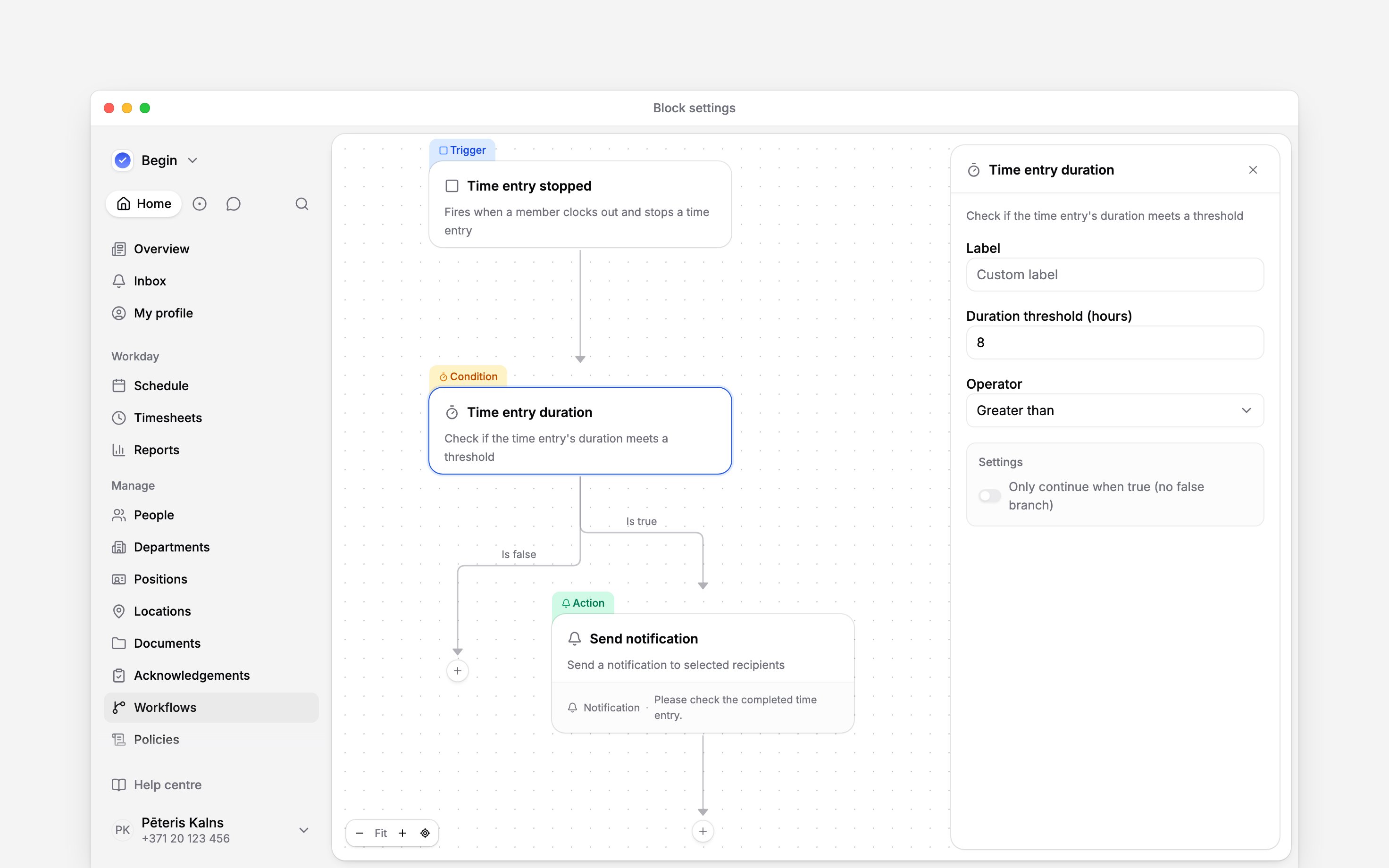
Every condition creates a true and false path. Under Advanced, turn on Only continue when true when the false path should stop there. Use a Logic gate when all of several checks must match, or when any one of them is enough.
Clients are rolling out gradually, so your workspace may not have them yet. If Field
comparison offers no Clients, ask us to turn them on.
Next
Timesheet workflows
Build a missing clock-in alert or act on a time entry.
Execution history
Check which trigger fired and where a run failed.
Still need help?
Contact support
Email the Begin team and we’ll get back to you.
Ask Begin AI
Open the AI assistant and get instant answers based on these docs.