


 Connect Merit Palk to send hours and approved absences, update existing people, and exchange supported contract data. Choose the data you want before the first run.
Connect and choose the data
1
Create the setup
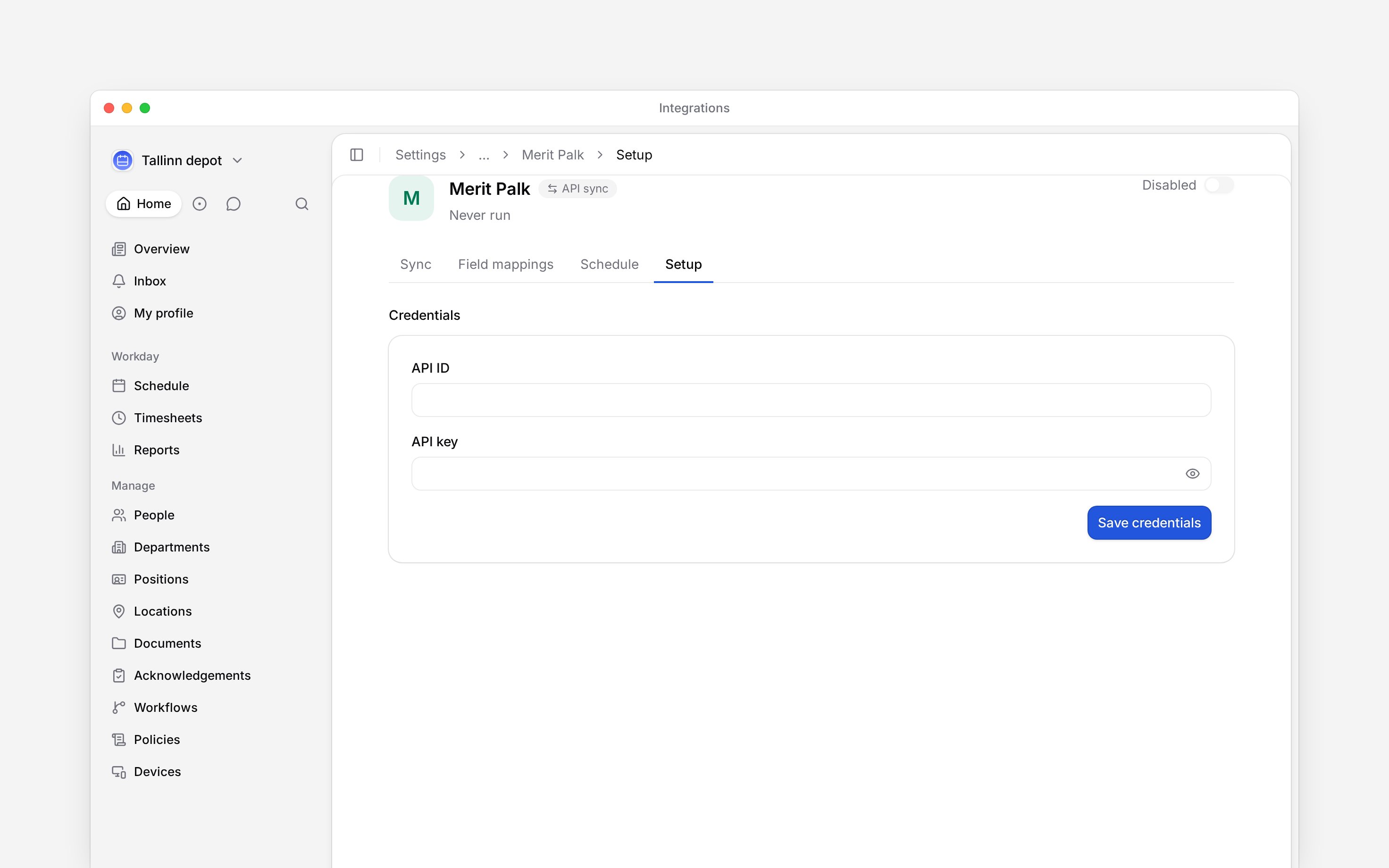
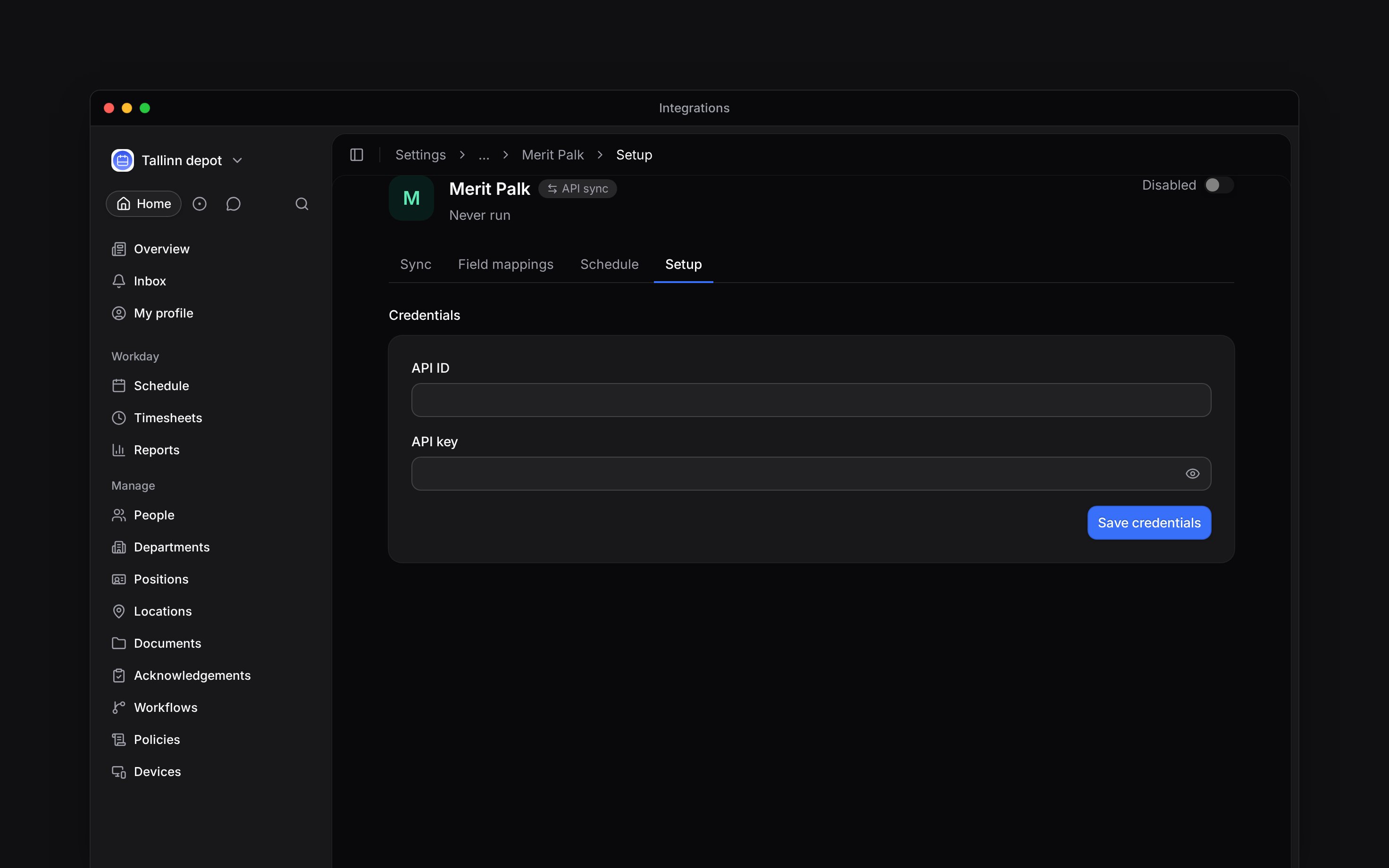
Open Settings → Integrations → Merit Palk and turn on the header switch. This creates the
setup and opens Setup; the switch stays off until credentials are saved.
2
Save the credentials
Enter the API ID and API key for your Merit Palk company, choose Save credentials,
then turn the header switch on.
3
Choose what moves
Enable Hours and pay, Absences, or Employee details as needed. For employee details,
select the fields Merit Palk should update in Begin.
4
Match payroll codes
In Field mappings, give each value the Export code Merit Palk expects and enable
Include in export. Map each absence policy you export to its Merit Palk type code.
Add people or update them
Employee details updates people already in Begin. It never creates a person. To add missing people, choose Review people beside Add people in Setup. Review the list, tick the people to add, select their Role, and confirm Add … people. The list groups people by contract type: Employees, Board members, Contractors and Other contracts. Nobody is ticked when it opens; a group’s box ticks everyone it shows, and the search finds a person by name or personal code. A person who shares an email address with somebody already in Begin is not added. Each added person takes a seat on your plan. This does not invite them or send an email. With Contracts on, each added person arrives with their Merit Palk contract; with it off, they arrive without one. A person whose contract Merit Palk does not hold for this month gets it on a later sync run.Exchange contract terms
Contracts imports selected contract fields onto the person’s job. It preserves job and pay rows created or edited by hand. Employment and pay terms sends supported employment and pay changes to Merit Palk. Set the Base salary type Import ID for hourly and monthly pay in Setup before exporting terms. A run sends only contracts that start in the chosen month and pay changes dated in it. It skips whatever Merit Palk already holds, so running a month again sends nothing and reports nothing new. The run names each change it could not place, such as a contract number that differs from Merit Palk’s, a pay change for a person with no contract there yet, or a personal code two people share. Keep each job’s Contract number the same as the contract’s document number in Merit Palk. If a person has several contracts there, also give the intended contract an Import ID in Merit Palk and enter it as Payroll contract ID on the job. Both must match, or the run reports the person instead of choosing a contract. A person Merit Palk already holds under a different contract is reported too. Add that new contract in Merit Palk by hand.Next
Run the integration
Choose a month, run it and check the result.
Choose an integration
Compare providers and connection methods.
Still need help?
Contact support
Email the Begin team and we’ll get back to you.
Ask Begin AI
Open the AI assistant and get instant answers based on these docs.