


 Send day, night and overtime hours directly to Jumis. This is an API sync, so Begin does not produce a file for you to download and import.
Your role needs permission to manage integrations to open Settings → Integrations.
Send day, night and overtime hours directly to Jumis. This is an API sync, so Begin does not produce a file for you to download and import.
Your role needs permission to manage integrations to open Settings → Integrations.
Connect Jumis
1
Create the setup
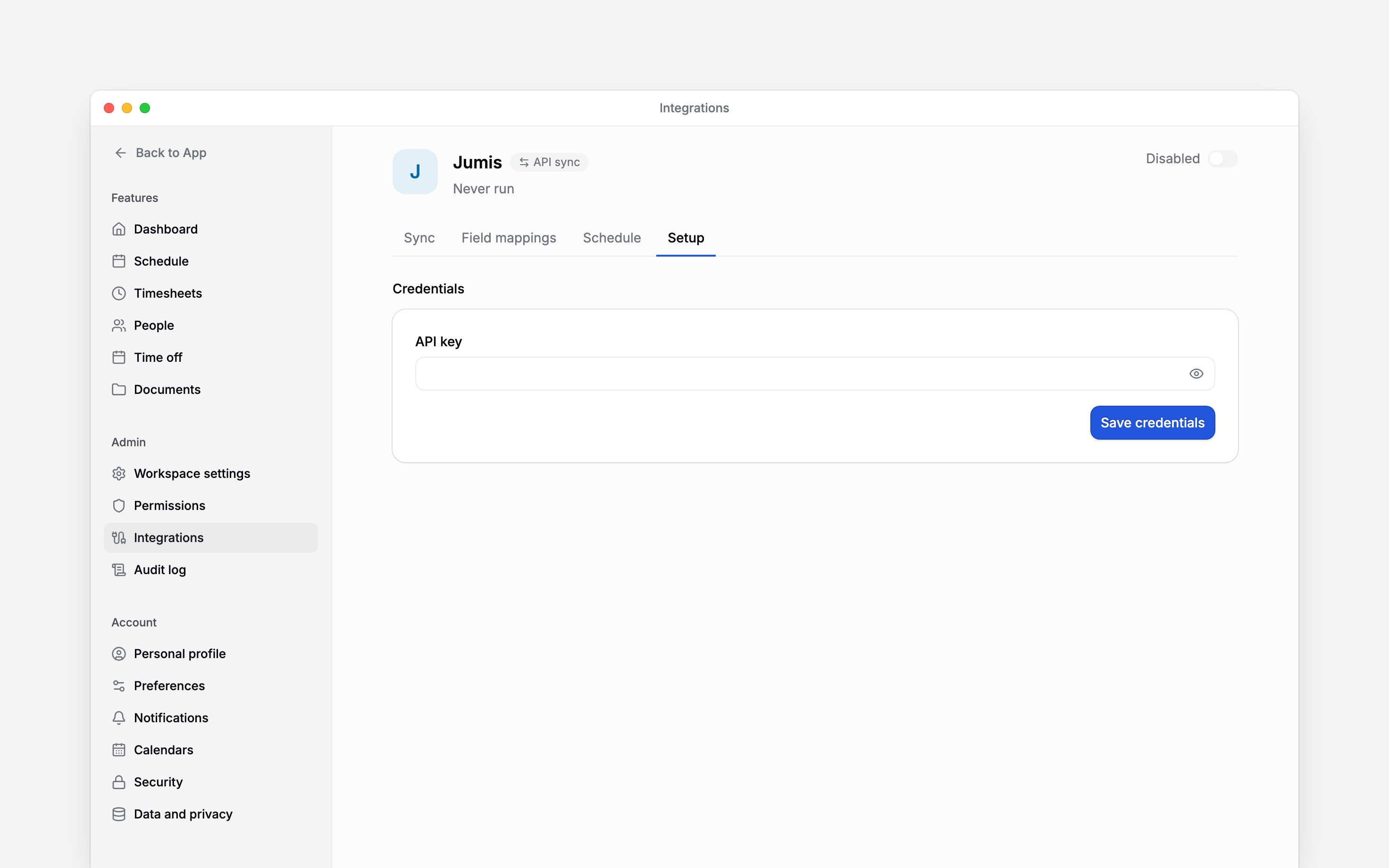
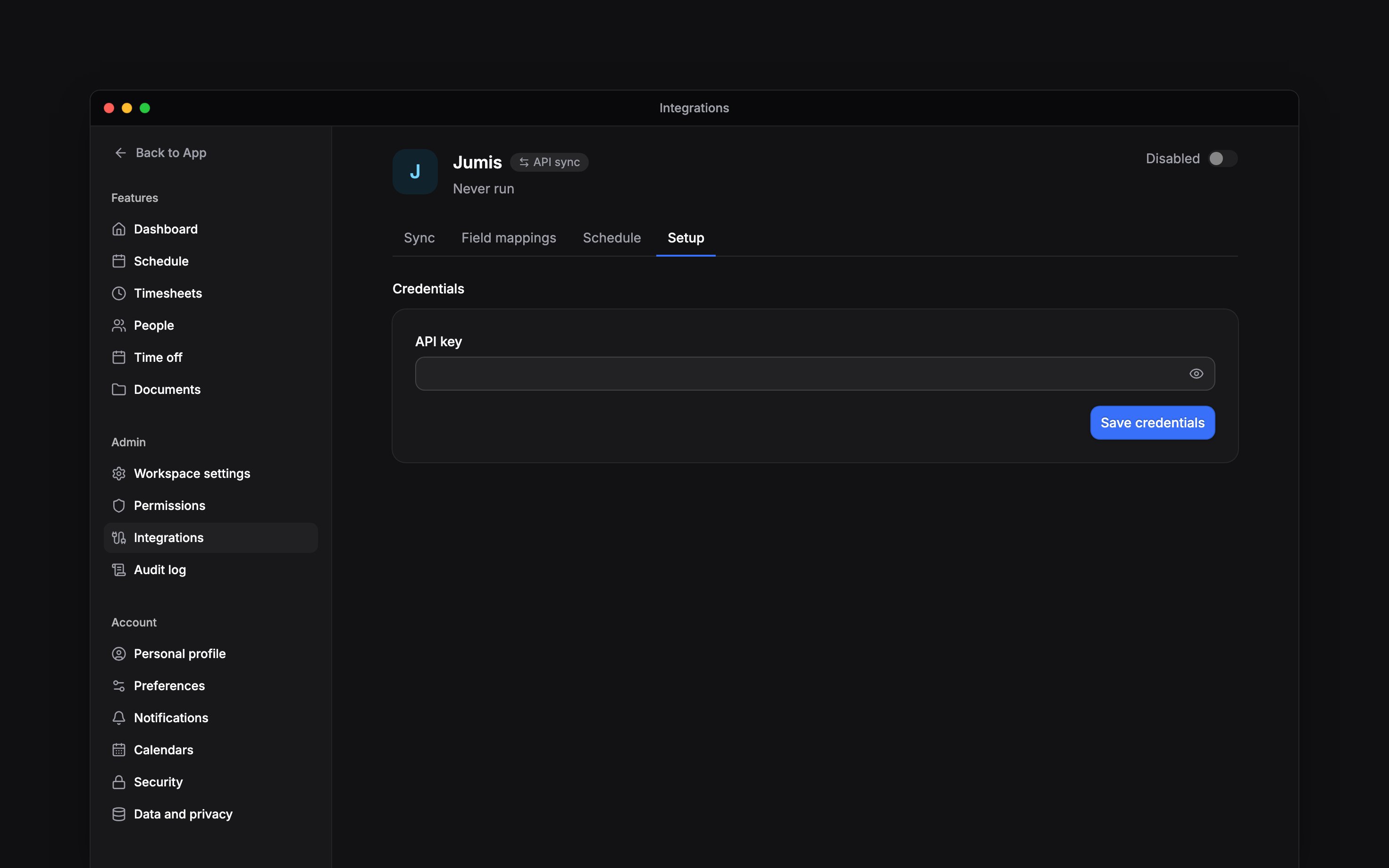
Open Settings → Integrations → Jumis and turn on the header switch. This creates the setup
and opens Setup; the switch stays off until credentials are saved.
2
Save your key
Enter the Jumis API key, choose Save credentials, then turn the header switch on.
3
Check the people
Make sure each person you send has the personal code Jumis uses under Identification number
on their profile.
Keep the fixed mapping
Field mappings shows the fixed fields sent to Jumis: personal code, day hours, night hours and overtime. The rows are informational. You cannot change their codes or add custom fields to this payload. Leave Include unconfirmed hours off in Setup unless your payroll process deliberately includes hours a manager has not approved. Rejected and cancelled hours are always excluded, even when this setting is on.Send a month
Open Sync, choose the month, narrow it to the required people or part of the company, and run the sync. Check the completed result and any errors before repeating a run or turning on Sync on a schedule. If a person’s hours are missing, check their personal code and approval state before sending the month again. When two people in Begin have the same personal code, the run sends hours for neither and names both in its errors; correct the Identification number on the wrong profile, then send the month again. The shared run guide explains filters, status and automatic runs. For a person on a summarized overtime period, overtime is sent as zero until the period ends. In the month it ends, the whole period’s overtime is sent once, on the last day they worked that month, or on the period’s last day if they did not work that month. Sync that closing month to pay it.Next
Run the integration
Choose a month, run it and check the result.
Choose an integration
Compare providers and connection methods.
Still need help?
Contact support
Email the Begin team and we’ll get back to you.
Ask Begin AI
Open the AI assistant and get instant answers based on these docs.