


 Create the fixed-format Excel workbook used by Rivilė. Choose whether it carries actual or scheduled hours, then download it for import into Rivilė.
Your role needs permission to manage integrations to open Settings → Integrations.
Create the fixed-format Excel workbook used by Rivilė. Choose whether it carries actual or scheduled hours, then download it for import into Rivilė.
Your role needs permission to manage integrations to open Settings → Integrations.
Set up Rivilė
1
Enable the export
Open Settings → Integrations → Rivilė and turn on the header switch. No API credentials are
needed.
2
Check export codes
Check each person’s Payroll export code on their
profile against the code used in Rivilė. A person
without one still appears in the workbook with a blank code, so check the file rather than the
count.
3
Review the format
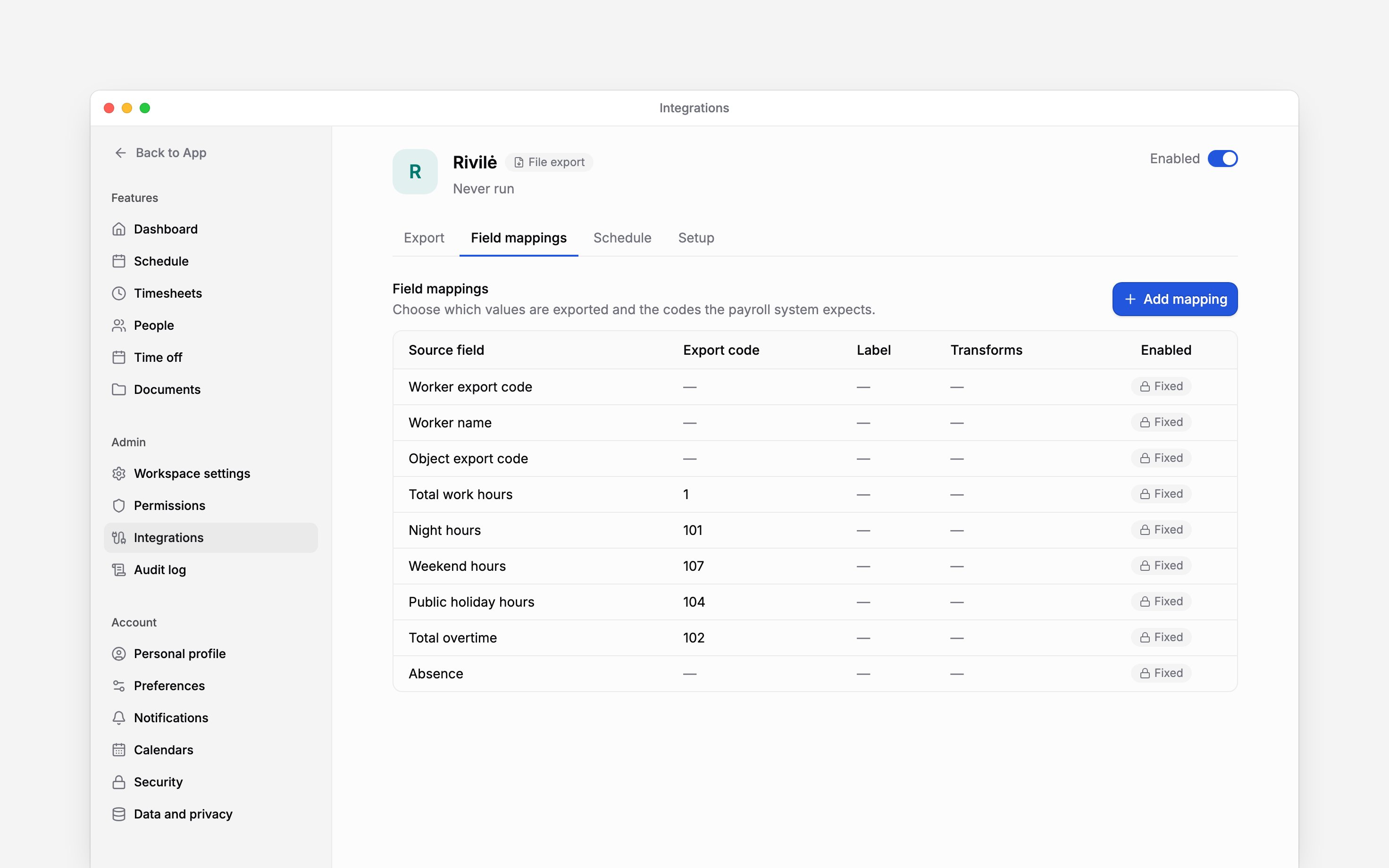
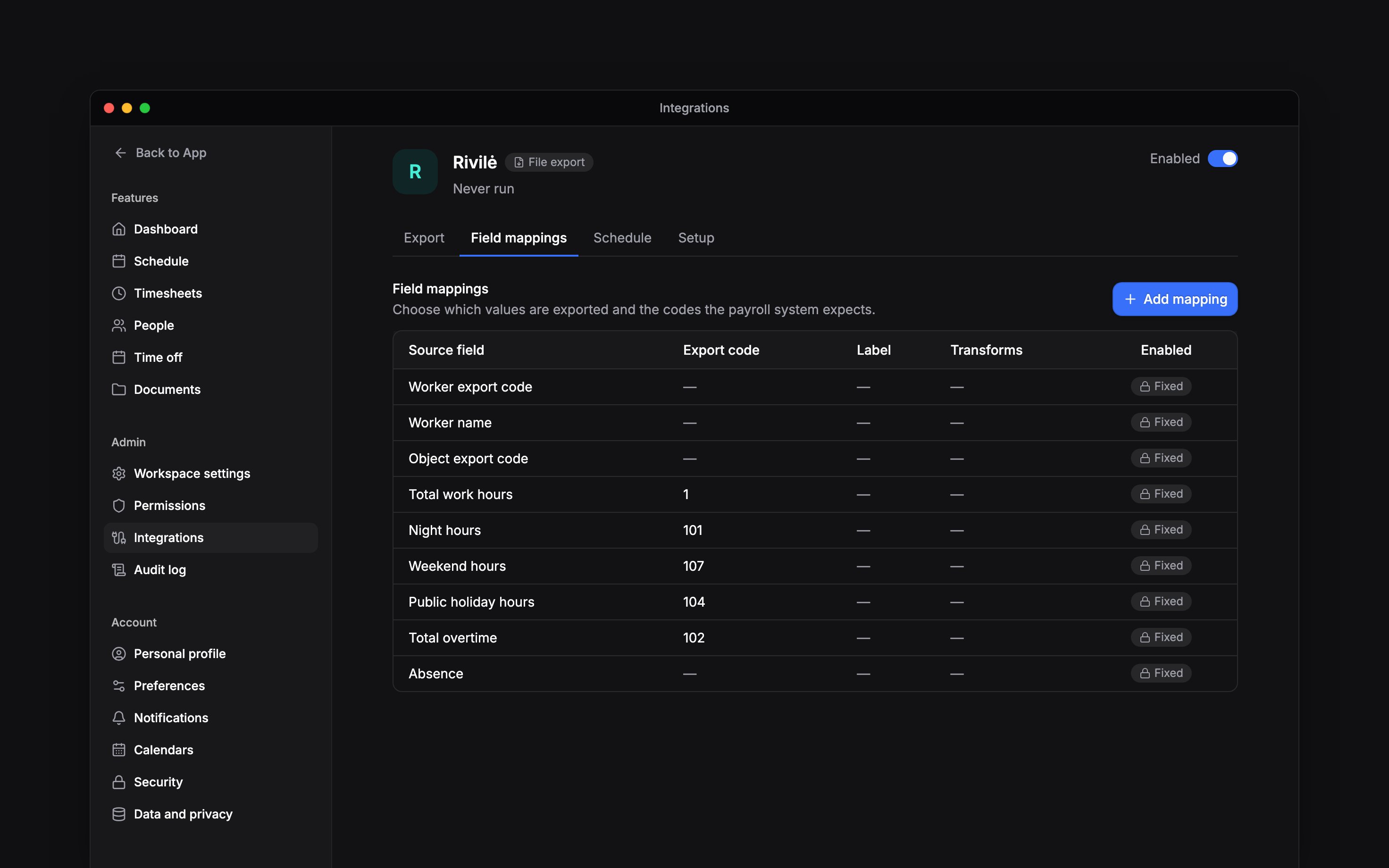
Open Field mappings to see the fixed workbook columns. Their codes and layout are prescribed
by the format.
Choose the hours
In Export, select the month. Under Data source, keep Actual worked time for payroll or choose Published schedule for the roster. The schedule source counts published shifts only; draft shifts are left out until you publish them. Subtract unpaid breaks is on by default; set it for each run deliberately. Leave Include unconfirmed hours off in Setup when exporting actual hours unless payroll should include work that has not been approved. Rejected and cancelled hours are always excluded, even when this setting is on.Actual hours and scheduled hours answer different questions. Check the source before comparing a
workbook with a timesheet total or a planned schedule.
Download the workbook
Filter the run to the people, locations or departments you need, then start the export. Download the finished workbook from the history and import it into Rivilė. The workbook includes employee identifiers and departments, work-hour categories and absences. Read skipped-record and error details before treating the download as complete. A downloadable file alone does not prove every requested person was included. For a person on a summarized overtime period, the overtime row stays at zero until the period ends. In the month it ends, the whole period’s overtime appears once, on the last day they worked that month, or on the period’s last day if they did not work that month. Export that closing month to pay it.Next
Run the integration
Choose a month, run it and check the result.
Choose an integration
Compare providers and connection methods.
Still need help?
Contact support
Email the Begin team and we’ll get back to you.
Ask Begin AI
Open the AI assistant and get instant answers based on these docs.